How Many Devices Can Your Router Actually Handle?
Published 2026-10-23 · By NetAudioHub Editorial
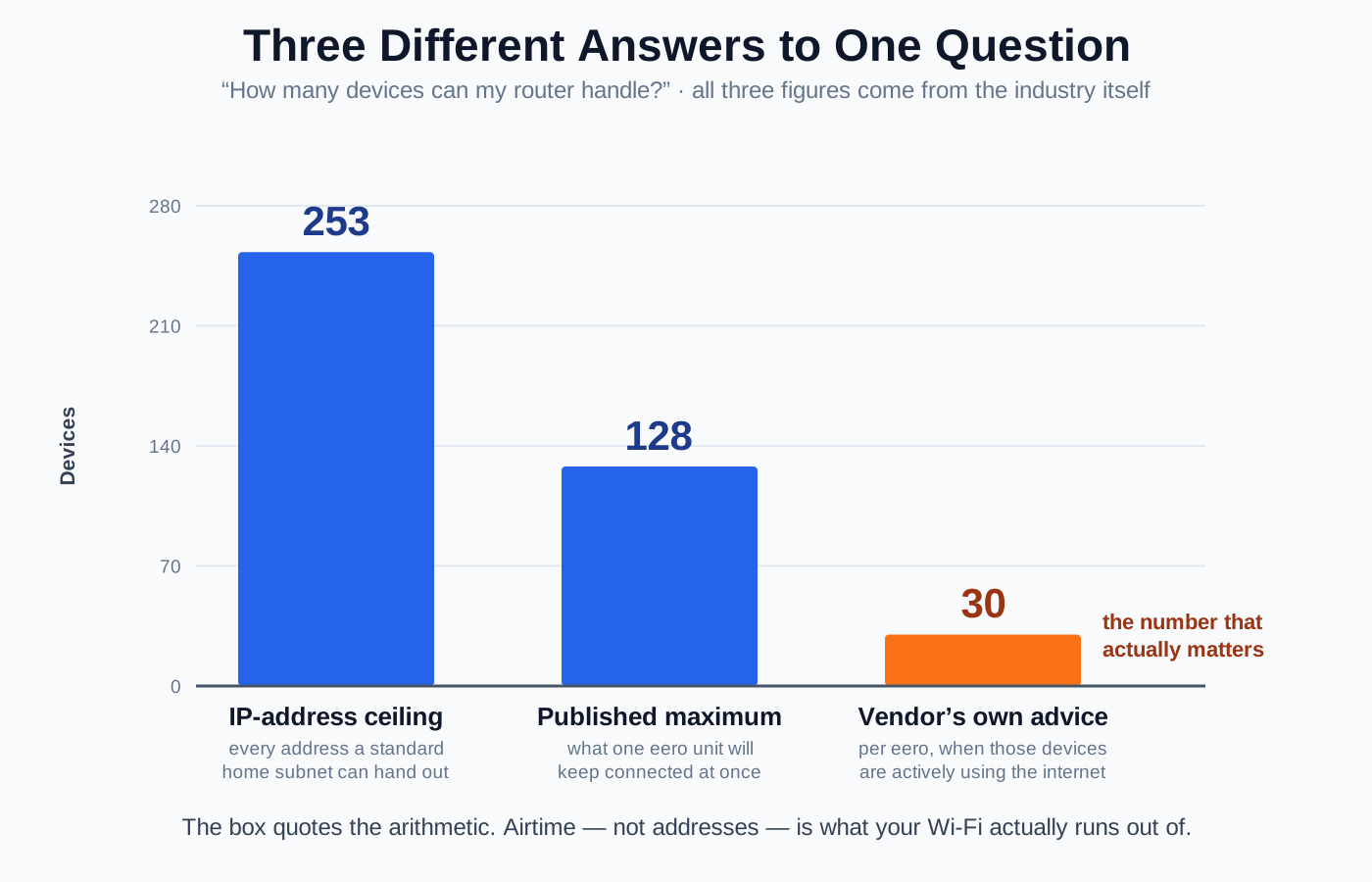
The box says your router supports 250 devices. The manufacturer's own support documentation says 20 to 50. Both numbers are true, because they measure completely different things — one is the size of your DHCP pool, one is a firmware limit on the association table, and the third, the only one you ever actually feel, is how much airtime the radios have to divide up. eero publishes both ends of the gap itself: 128 devices per unit on the spec sheet, 30 when those devices are busy. This is what each ceiling really measures, how to tell which one is breaking your Wi-Fi, and the fixes in order of cost — starting with two free settings changes.
The verdict up front: the "supports 200+ devices" number on the box is an arithmetic limit, not a performance promise. There are three separate ceilings — how many IP addresses your router will hand out, how many clients its firmware will keep associated, and how much airtime its radios can divide — and it is almost always the third one that ruins your Wi-Fi. The honest planning number for a modern consumer router or mesh node is roughly 20–50 actively used devices, and manufacturers quietly say so themselves: eero publishes a 128-device maximum per unit and then recommends no more than 30 per unit when those devices are actually busy. Idle smart plugs barely count. One old 2.4 GHz camera can cost more airtime than twenty phones.
The Three Numbers Hiding Behind One Question
"How many devices can my router handle?" is really three questions with three different answers, and vendors are free to quote whichever one flatters the product.
- How many devices can get an address? This is pure arithmetic — the size of your DHCP pool. It is the biggest number, and it is the one printed on boxes.
- How many devices can stay connected at once? This is a firmware limit: the router's association table, the amount of RAM it has to track per-client state, and how many NAT sessions it can hold. Rarely published.
- *How many devices can be doing something at once without the network falling over?* This is airtime, and it is the only one you will ever actually feel.
Work through them in order, because the fix for each is completely different.
Limit 1: IP Addresses — Real, but Almost Never Your Problem
Your home network almost certainly runs on a `/24` subnet: `192.168.1.0` through `192.168.1.255`, or the `192.168.0.x` equivalent. That block contains 254 usable host addresses, minus one for the router itself, which leaves 253 devices that can hold an address at the same time.
That 253 is where "a router supports 250+ devices" comes from. Linksys states it plainly in its own support documentation — "a typical home router can support up to 253 devices connected via wired or wireless connections at the same time" — and then, in the same article, concedes that consumer routers handle "about 20 to 50 devices comfortably."
The gotcha nobody mentions: your DHCP pool is probably smaller than your subnet
Here is the part worth checking tonight. The subnet holds 253 addresses, but the DHCP pool — the slice of it your router actually hands out automatically — is a separate setting, and the defaults vary wildly by brand.
| Router brand (default) | Default DHCP pool | Automatic leases available |
|---|---|---|
| NETGEAR (Nighthawk, Orbi) | 192.168.1.2 – 192.168.1.254 | 253 |
| TP-Link Archer (typical) | 192.168.1.100 – 192.168.1.199 | 100 |
TP-Link's own user guides spell it out: the IP address pool "is from 192.168.1.100 to 192.168.1.199 by default." That is a hundred leases on a subnet with room for 253. A house with a lot of smart-home gear plus guests cycling on and off — every phone that visits burns a lease until it expires — can genuinely bump into a 100-address pool, and the symptom is bizarre: a device connects to Wi-Fi, authenticates fine, and then sits there with no internet and a self-assigned `169.254.x.x` address.
The fix is free. In your router's LAN or DHCP settings, widen the pool (for example, start at `.20` and end at `.250`), and shorten the lease time from the common 24-hour default to a few hours so departed guest devices release their addresses faster. While you are in there, set DHCP reservations for the handful of devices you actually want at fixed addresses — printers, NAS, a Pi-hole — rather than giving them static addresses inside the pool, which causes conflicts.
If you genuinely need more than 253 devices at home, you do not need a bigger router; you need a second subnet, which is what VLANs are for.
Limit 2: The Association Table — Real, Rarely Published
Every device connected to your Wi-Fi occupies a slot in the access point's association table, and each slot costs memory: encryption keys, negotiated data rates, power-save state, buffered frames waiting for a sleeping device to wake up. A router is a small Linux computer, and this table lives in its RAM alongside the NAT connection table tracking every open session your devices have to the internet.
This is where the per-unit maximums come from. They are firmware and memory limits, not physics, and they are the reason a $60 router and a $500 router can quote wildly different numbers with identical radios:
| Product | Published capacity | Source |
|---|---|---|
| eero (single unit) | 128 devices | eero support documentation |
| NETGEAR Orbi 970 / Nighthawk RS700S | 200 devices | NETGEAR product pages |
| Ubiquiti UniFi Cloud Gateway Ultra | 300+ clients | Ubiquiti specifications |
| Ubiquiti UniFi U7 Pro Max | 500+ devices | Ubiquiti specifications |
Those numbers are real in the narrow sense that the hardware will hold that many associations. They are useless as a shopping guide, because association capacity is almost never what breaks first. Cheap routers do run out of RAM — an old dual-core router with 128 MB juggling 60 clients and a big NAT table will drop connections or reboot itself — but a current mid-range router has enough memory that you will hit the airtime wall long before the table fills.
Limit 3: Airtime — The One That Actually Bites
Wi-Fi is a half-duplex shared medium. On a given channel, exactly one transmission can be in the air at a time. Every device on that channel takes turns, and the turn-taking is the whole ballgame.
MU-MIMO and OFDMA soften this — the first lets a router beam to several devices simultaneously, the second lets it pack several small transmissions into one — and they are the main reason Wi-Fi 6 and 7 handle crowds better than Wi-Fi 5 did. But they do not repeal the rule. They just make each turn more efficient.
What matters is not how many devices exist. It is how much airtime each one consumes, and that varies by a factor of well over a hundred depending on how fast the device can talk.
| Device and link | PHY rate | Airtime to move 10 MB |
|---|---|---|
| Old 2.4 GHz camera, weak signal (802.11n, MCS0, 20 MHz, 1 stream) | 6.5 Mbps | 12.3 seconds |
| Same device, strong signal (802.11n, MCS7, 20 MHz, 1 stream) | 72.2 Mbps | 1.1 seconds |
| Laptop on 5 GHz (802.11ac, MCS9, 80 MHz, 2 streams) | 867 Mbps | 0.09 seconds |
| Phone on 5 GHz (802.11ax, MCS11, 80 MHz, 2 streams) | 1,201 Mbps | 0.07 seconds |
Read the first and last rows together. Moving the same 10 MB, the struggling 2.4 GHz camera occupies the channel roughly 185 times longer than the Wi-Fi 6 phone. While it transmits, nothing else on that channel can. (These are PHY-rate figures; real throughput lands around 60–70% of them after protocol overhead, but the ratio between devices holds.)
This is why device counts are so misleading:
- Twenty idle smart plugs are nearly free. A plug that reports its state every 30 seconds uses a rounding error's worth of airtime. Wi-Fi 6's Target Wake Time makes battery-powered sensors even cheaper by scheduling when they wake up instead of letting them chatter.
- One badly-placed 2.4 GHz camera can be ruinous. A 1080p stream from a device sitting at −80 dBm behind two walls, falling back to the slowest rates, can eat a double-digit percentage of the channel all by itself. If you have never checked, signal strength in dBm is the number to look at.
- Your neighbors count too. Airtime is shared across everyone on the same channel, not just your household. In an apartment building, their devices are competing for the same turns yours are.
That is the real reason "how many devices" has no fixed answer. Fifty devices in a house where forty-five of them are idle sensors on 2.4 GHz and five active clients sit on 6 GHz is a comfortable network. Fifteen devices where six are streaming from marginal signal on a congested 2.4 GHz channel is a miserable one.
What the Manufacturers Actually Recommend
The most honest number in this entire industry comes from eero, because they publish both figures in the same place. Their support documentation states that one eero can support up to 128 devices — and then immediately adds that if those devices are heavily using the internet, you will see the best results with up to 30 devices per eero.
That is a 4x haircut, from the vendor, on their own spec. It is also why eero sells packs rather than one bigger box: the Eero Max 7, their Wi-Fi 7 flagship, adds capacity by adding nodes — each with its own radios and its own pair of 10G ports — rather than by raising the per-unit number.
It matches everyone else's real-world guidance once you go looking. Linksys puts consumer routers at 20–50 devices comfortably and business-grade gear at 100+. Business access points advertise 200 to 1,000+ simultaneous clients, and the capacity-planning guidance for deploying those same access points typically lands at 25–50 active clients each — which is why a busy office puts an AP in every couple of rooms rather than one big one in the middle.
So here is the planning table worth actually using:
| Hardware | Marketing number | Sane planning number (actively used devices) |
|---|---|---|
| Budget dual-band router (Wi-Fi 5 / entry Wi-Fi 6) | "up to 250" | 10–20 |
| Mid-range Wi-Fi 6/6E router or mesh node | 75–128 | 20–35 |
| Flagship Wi-Fi 7 router or mesh node | 200+ | 35–50 |
| Business access point (EAP773, U7 Pro Max) | 380–500+ | 40–60 |
Count "actively used" as devices that move meaningful traffic — phones, laptops, TVs, streaming boxes, cameras, game consoles, work machines. Count idle sensors and plugs at roughly a tenth of that weight.
A Realistic 2026 Device Inventory
Most people badly underestimate their own count. A fairly ordinary household:
| Category | Typical count | Airtime weight |
|---|---|---|
| Phones, tablets, laptops | 6–10 | High when in use |
| TVs, streaming sticks, consoles | 3–6 | High when streaming |
| Smart speakers / displays | 2–6 | Low, bursty |
| Cameras and doorbells | 2–6 | High and constant |
| Plugs, bulbs, sensors, thermostats | 10–30 | Very low each |
| Printers, NAS, robot vacuum, scale | 3–5 | Low |
That is easily 30–60 devices, and a router's connected-device list is usually the shock — open your router app and count. But look at the right column: the two rows that decide whether your network is healthy are the TVs and the cameras, not the thirty light bulbs.
The Symptoms, and What Each One Means
Different ceilings fail in different ways. Match yours:
- A device connects to Wi-Fi but gets no internet, showing a `169.254.x.x` address. DHCP pool exhaustion. Widen the pool, shorten the lease.
- New devices fail to join while existing ones work fine. Also usually DHCP, occasionally an association-table limit on cheap hardware.
- Everything slows down at the same time, especially in the evening. Airtime contention. This is the common one.
- The router itself gets sluggish or reboots on its own. Memory/CPU exhaustion — too many NAT sessions, or a torrent client opening thousands of connections. A firmware update or a hardware upgrade is the answer.
- Video calls stutter while speed tests look fine. Usually not a device-count problem at all. That is bufferbloat, and it has its own fix.
- One room is bad regardless of device count. Coverage, not capacity. Adding devices did not cause it and removing them will not fix it.
How to Fix It, Cheapest First
- Widen the DHCP pool and shorten the lease. Free, two minutes, solves the "connected but no internet" class of failure outright.
- Reboot and count. Open your router's client list and look for devices you no longer own. Old phones, a replaced thermostat, a guest's tablet from last year. Remove them from any reservation lists.
- Move what you can to wires. Every device you put on Ethernet is a device that stops competing for airtime and stops being a neighbor's interference. The TV, the console, and the desktop are the obvious three, and they are usually the heaviest users. This is the single most effective thing on this list.
- Get the heavy clients onto 5 GHz or 6 GHz. More channels, wider channels, far less congestion. Make sure band steering is on so devices actually move, and understand when 6 GHz is genuinely faster and when it is not.
- Fix the worst client, not the count. Find the device with the weakest signal that still moves real data — usually an outdoor camera — and either move it, move the router closer, or put it on a wire or a dedicated 2.4 GHz SSID. One fix here often outperforms removing ten devices.
- Split the load across more radios. This is the real answer to a genuinely crowded network. Two access points each serving 25 devices beat one access point serving 50, because each gets its own channel and its own airtime budget. Adding a wired access point is cheaper and better than replacing your router.
- Then, and only then, buy a bigger router.
What to Buy If You Actually Need More Capacity
Capacity comes from three things, in this order: more radios in more places, newer standards, and more spatial streams. Device-count claims on the box are not on the list.
- More places beats more power. If you have the Ethernet, a wired access point is the highest-value capacity upgrade there is. A ceiling AP like the TP-Link Omada EAP773 (check current price) puts a clean, dedicated radio in the half of the house your router is fighting to reach.
- No Ethernet? Use a tri-band mesh with a dedicated backhaul. On a dual-band mesh, the link between nodes steals airtime from the same radio serving your devices, which is self-defeating when capacity is the problem. Our dual-band vs. tri-band mesh explainer covers the tradeoff. On the hardware side, a tri-band Wi-Fi 7 system like the TP-Link Deco BE63 gives each node a third radio plus dual 2.5 GbE ports, so you can move to wired backhaul later if you ever get cable into the far room.
- Newer standards genuinely help crowds. This is the one case where the generation number matters for device count rather than headline speed, because OFDMA and MU-MIMO are specifically about serving many clients efficiently. Our Wi-Fi 7 vs. Wi-Fi 6E guide lays out when the jump is worth paying for. A flagship like the NETGEAR Nighthawk RS700S (check current price) is rated for 200 devices and, more to the point, has the radios and the processor to actually schedule a crowded house.
- Ignore the device number on the box entirely. It has told you nothing useful in this entire article, and it will not start now.
The Bottom Line
Your router has a 253-address ceiling, a firmware association limit somewhere north of a hundred, and an airtime budget that runs out at around 20–50 genuinely active devices — and only the last one is the number that determines whether your Wi-Fi feels good. eero publishes both ends of that gap themselves: 128 devices on the spec sheet, 30 when those devices are busy. Before you buy anything, widen your DHCP pool, put the TV and the console on Ethernet, and hunt down the one weak-signal camera that is quietly eating a tenth of your channel. If you are still short after that, the fix is another radio in another room, not a bigger box in the same one.