Band Steering and Wi-Fi Roaming Explained: Why Your Phone Won't Switch Bands
Published 2026-09-14 · By NetAudioHub Editorial
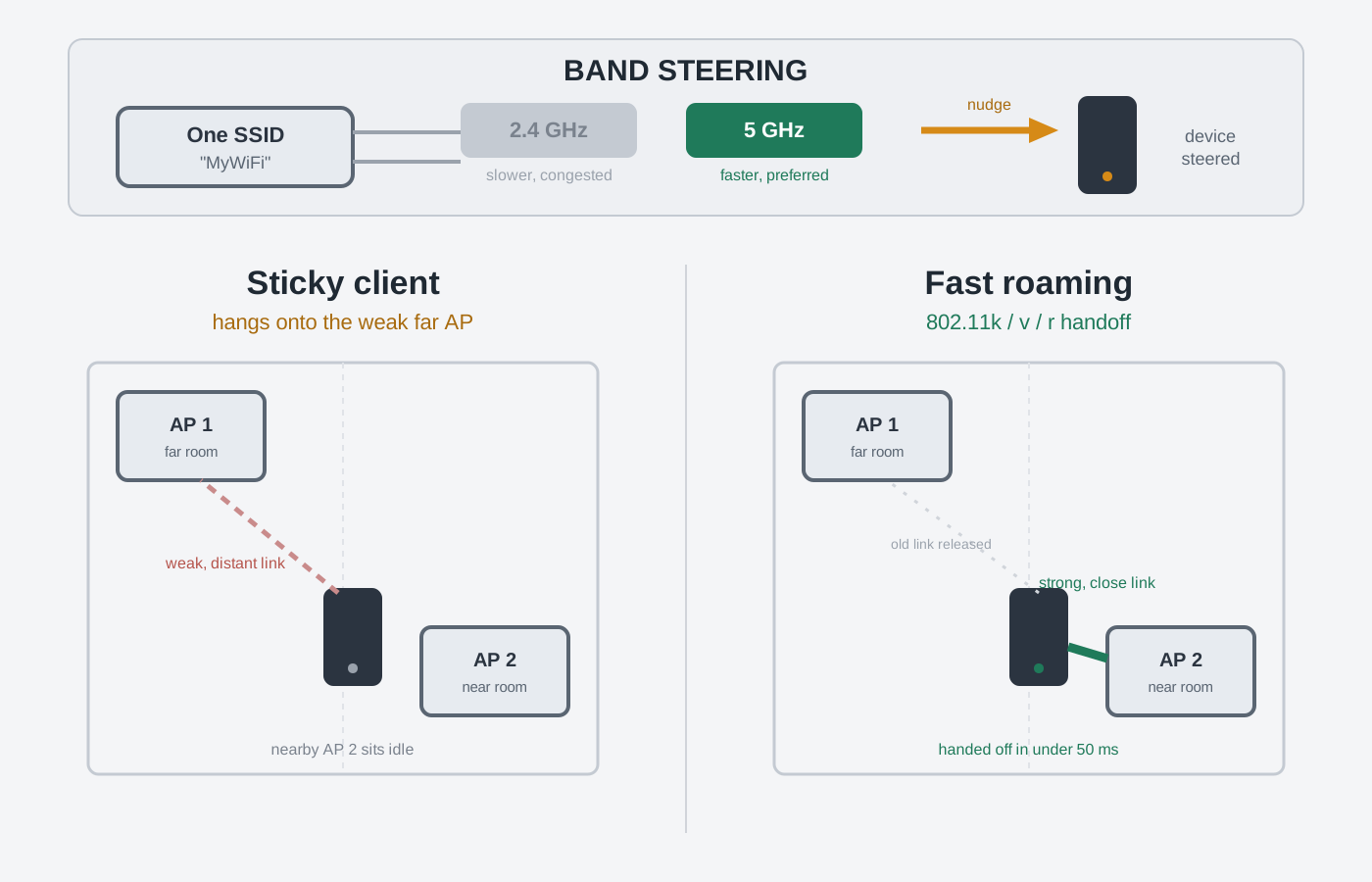
Wi-Fi devices are stubborn: your phone will hang onto the 2.4 GHz band or the router two rooms away long after a faster connection is available, because the client — not the router — decides when to switch. Band steering nudges a device onto the best band, and the 802.11k/v/r trio makes hopping between access points fast and seamless. But all of it is a suggestion the device can ignore, cheap IoT gadgets don't support any of it, and aggressive steering can backfire. Here's how each piece works and what actually fixes a sticky connection.
The verdict up front: Wi-Fi devices decide for themselves which band and which access point to connect to, and they are famously bad at it. Your phone will cling to a weak 2.4 GHz signal, or stay latched onto the router in the far bedroom, long after a faster, closer connection becomes available — the "sticky client" problem. Two sets of features fight this. Band steering nudges a dual-band device onto the faster, less congested band (usually 5 GHz over 2.4 GHz) under one shared network name. The 802.11k/v/r trio makes moving between access points fast and seamless: k helps a device find the best next AP, v lets the network suggest a better one, and r makes the actual handoff nearly instant so a video call doesn't drop. The catch that trips everyone up: all of this is a hint the client can ignore, plenty of cheap devices support none of it, and overly aggressive steering can make things worse. Here's what each piece does and how to actually fix a sticky connection.
The Root Problem: The Client Decides, Not the Router
Here's the single fact that explains almost every roaming and band-steering frustration: in ordinary Wi-Fi, the connected device — not your router — decides when to switch bands or access points.
Your router can broadcast a beautiful 5 GHz signal in the same room, but if your phone is already connected to the 2.4 GHz radio from across the house, the phone will keep using it until the phone itself decides the connection is bad enough to go looking for something better. Most devices only start hunting for a new connection when the signal drops past an internal threshold — often around -70 to -75 dBm, which is already a weak, slow connection. (If those numbers are unfamiliar, our Wi-Fi signal strength explainer breaks down what dBm and RSSI actually mean.)
This is the sticky client problem, and it has two flavors:
- Band stickiness: your phone connected to 2.4 GHz when you walked in the door far from the router, then stayed on the slow band even after you sat down three feet away, where 5 GHz would be dramatically faster.
- AP stickiness: in a mesh or multi-AP home, your laptop associated with the living-room node, then you moved to the office with its own node right overhead — but the laptop keeps dragging data across the whole house from the distant living-room node.
Neither of these is your router malfunctioning. It's the device being conservative — it holds a "good enough" connection because re-scanning and reconnecting costs time and battery. Every feature in this article exists to work around that stubbornness.
Band Steering vs. Roaming: Two Different Problems
People lump these together, but they solve different things:
- Band steering is about which radio a device uses on a single access point — pushing a dual-band client from 2.4 GHz onto 5 GHz (or 6 GHz) so it gets more speed and less congestion.
- Roaming is about which access point a device uses when there are several — handing a moving device off from one node to a closer one, ideally without a hiccup.
A single-router home mostly cares about band steering. A mesh or wired-AP home cares about both, and roaming is where the real pain lives.
How Band Steering Works
Band steering starts with a design choice: put every band under one network name (SSID). Instead of seeing "MyWiFi" and "MyWiFi-5G" as two separate networks, your device sees a single "MyWiFi" and the router quietly manages which radio you land on.
To push you toward the better band, routers use a few tricks:
- Withholding 2.4 GHz probe responses. When a dual-band device asks "is MyWiFi here?" on both bands, the router deliberately ignores or delays the 2.4 GHz answer, so the device connects on 5 GHz. If the device only hears 2.4 GHz (because it's far away and can't see 5 GHz), the router answers normally — it's not going to leave you with nothing.
- RSSI thresholds. A well-built router only steers a device to 5 GHz if that device's signal is strong enough to actually use 5 GHz. Steer too aggressively and you shove a far-away phone onto a band it can barely hear.
- 802.11v hints (more on this below) to actively suggest a band change to devices that understand them.
The key limitation: band steering is a nudge, not a command. The device can refuse. Some older or cheaper clients get confused by a single SSID spanning bands and connect erratically — which is exactly why the "split the SSID" debate exists.
The Fast-Roaming Trio: 802.11k, 802.11v, and 802.11r
When you have more than one access point — any mesh system, or a house wired with multiple APs — three amendments to the Wi-Fi standard make moving between them smooth. They're almost always marketed together as "seamless roaming" or "fast roaming," but each does a distinct job:
| Amendment | Nickname | What it does |
|---|---|---|
| 802.11k | Neighbor Reports / Radio Resource Management | The AP hands the client a list of neighboring APs and their channels, so the device doesn't have to blindly scan every channel to find where to go next. Faster, better-informed roaming decisions. |
| 802.11v | BSS Transition Management | The network can suggest to a client, "there's a better AP over here — consider moving." It's the polite tap on the shoulder that lets the infrastructure guide a sticky device. |
| 802.11r | Fast BSS Transition (FT) | Makes the actual handoff nearly instant by pre-sharing security keys, so the device doesn't have to run the full authentication handshake again when it switches APs. |
Here's how they work together in practice. Without these, when your phone finally decides to roam, it stops, scans every channel to find candidate APs (802.11k skips this by handing it a shortlist), picks one, then runs the entire security handshake from scratch. On a WPA2/WPA3 network that re-authentication can take a few hundred milliseconds — long enough to drop a VoIP or video call for a noticeable beat. 802.11r collapses that handshake to a fast key exchange, dropping the handoff to well under 50 ms — fast enough that a Zoom call or a phone call over Wi-Fi survives the move without a stutter.
The two big caveats:
- The client has to support them too. Modern iPhones and iPads support k/v/r well; Android support is decent but varies by manufacturer; laptops depend on the Wi-Fi adapter and driver. Cheap IoT gadgets — smart plugs, older cameras — typically support none of it and roam the dumb old way (or not at all).
- 802.11r has historically caused compatibility hiccups with a handful of older devices, which is why some mesh systems let you toggle it. If a specific old device starts having connection trouble after you enable fast roaming, that's the first setting to check.
Single SSID vs. Splitting the Bands
This is the most common real-world decision, and there's a genuine tradeoff:
One SSID for all bands (recommended for most people):
- Band steering and 802.11v can do their job — the network manages which band you're on.
- Seamless to use; you connect once and forget it.
- Downside: you give up manual control, and a few stubborn devices may still land on the wrong band.
Split SSIDs (e.g. "MyWiFi" and "MyWiFi-5G"):
- Total manual control — you pick the band per device.
- Useful for pinning a finicky smart-home device to 2.4 GHz so it stops trying (and failing) to use 5 GHz during setup — a genuinely common fix for gadgets that "won't connect."
- Downside: your phone won't automatically move to the faster band as you walk closer; it stays wherever you manually put it, which reintroduces band stickiness.
A good middle path many people use: keep your main devices on a single steered SSID, and if you have one or two problem IoT gadgets, create a separate 2.4 GHz-only SSID just for them. This is also good security hygiene — isolating smart-home junk on its own network is a smart move regardless (see our VLANs for the home explainer).
When Steering and Roaming Backfire
These features are not free wins. The ways they go wrong:
- Over-aggressive band steering shoves a device onto 5 GHz when it's too far away to hold that band well, so it ends up slower than if it had stayed on 2.4 GHz — which reaches farther. Good routers avoid this with RSSI thresholds; cheap ones don't always.
- A too-eager 802.11v can cause "ping-ponging," where a device sitting on the boundary between two APs bounces back and forth, roaming every few seconds and hurting performance more than a stable-but-imperfect connection would.
- Enabling 802.11r on a network with an old, incompatible device can cause that one device to fail to connect entirely. This is the classic "I turned on fast roaming and my old thermostat dropped off" scenario.
- A stubborn client that ignores every hint. Some devices simply refuse to roam until their signal is nearly dead, no matter what the network suggests. There is no router setting that forces them; the fix is either replacing the device or, on laptops, tuning the adapter's "roaming aggressiveness" driver setting.
How to Actually Fix a Sticky Connection
Working from easiest to most involved:
- Use one SSID and turn on band steering if you haven't. On most modern routers and mesh systems this is the default; if you manually split your bands years ago, consider recombining them.
- Enable 802.11k, v, and r in your router or mesh app (often grouped as "Fast Roaming," "Seamless Roaming," or "Smart Connect"). If an older device then misbehaves, disable r first and retest.
- Toggle the connection on the device. The fastest one-off fix for a phone stuck on the slow band: turn Wi-Fi off and on. It forces a fresh association and it'll usually pick the better band this time.
- Fix coverage, not just steering. If devices go sticky because there's a big gap between your router and the far room, no amount of steering helps — you need another node. A mesh system or a wired access point closes the gap so devices always have a strong, close AP to roam to.
- Pin problem IoT devices to their own 2.4 GHz SSID so they stop fighting the steering logic.
What to Look For When Buying
If seamless roaming matters to you — a big home, lots of walking around on Wi-Fi calls — buy hardware built for it:
- A true mesh system, not extenders. Mesh systems are designed around single-SSID roaming with 802.11k/v/r baked in and tuned to work together across nodes. A basic range extender that creates its own separate network is the opposite of seamless — you have to manually reconnect as you move. Our Wi-Fi extender vs. mesh vs. access point breakdown covers why. For a dependable, affordable modern option, the ASUS ZenWiFi BD4 mesh runs a single steered SSID with fast roaming across nodes out of the box. (Check current price on Amazon.)
- Confirm k/v/r support in the spec sheet or app if seamless handoff is a priority — most current mesh kits have it, but it's worth verifying.
- Don't over-buy band count for steering's sake. Whether you need dual-band or a tri-band system with a dedicated backhaul is a separate question — our dual-band vs. tri-band mesh explainer covers that decision.
The Bottom Line
Your Wi-Fi devices are the ones deciding which band and which access point to use, and left alone they're stubborn — they cling to slow bands and distant nodes. Band steering nudges dual-band devices onto the faster radio under a single network name; the 802.11k/v/r trio makes hopping between access points fast enough that calls don't drop. But every bit of it is a suggestion the device can decline, cheap IoT gadgets support little of it, and cranking it too aggressively causes its own problems. For most homes the winning setup is simple: one SSID with band steering and fast roaming enabled, a real mesh system to close coverage gaps, and a separate 2.4 GHz network for the handful of smart-home gadgets that refuse to play nicely.