How to Add a Wired Access Point to Extend Your Wi-Fi
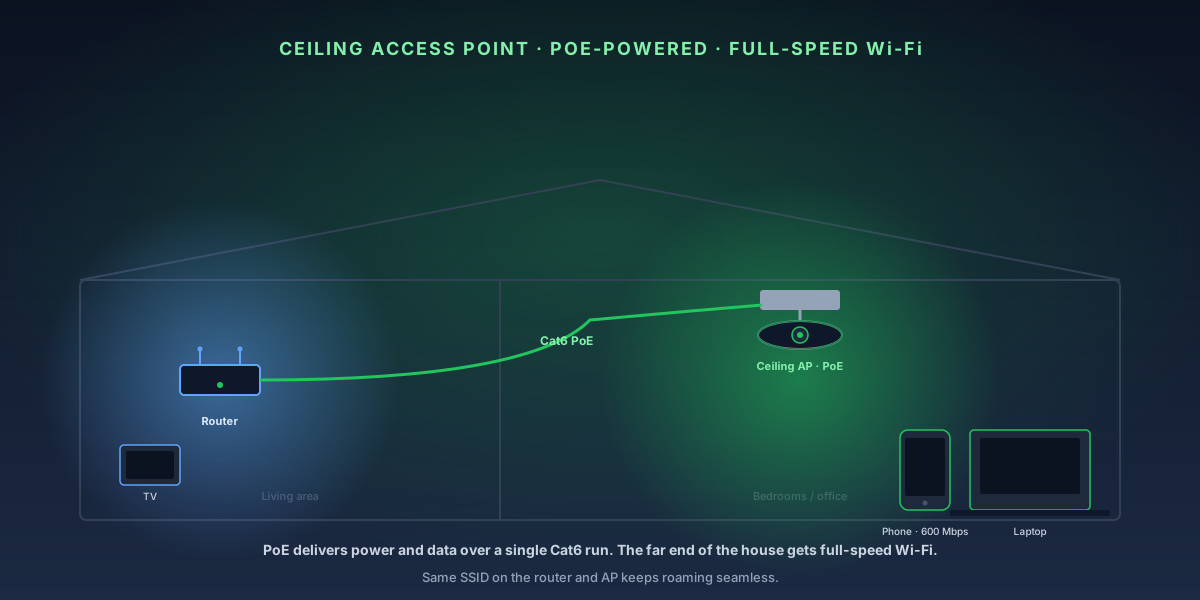
A wired access point is the right solution when you need reliable Wi-Fi in a specific area — a detached garage, home office, or the far end of a long house — without the speed loss that comes from wireless mesh nodes. Unlike a range extender (which halves throughput by retransmitting wirelessly), a wired AP connects directly to your router via Ethernet and delivers full-speed Wi-Fi at the new location. Setup is more work than plugging in a mesh node, but the performance is significantly better.
8-Step Overview
- 1
Decide between a standalone AP and a mesh node
Both extend Wi-Fi coverage, but they work differently. A standalone access point (like a TP-Link EAP or Ubiquiti UniFi AP) connects to your existing router via Ethernet and acts as a simple Wi-Fi broadcast point — your router still handles DHCP and routing. A mesh node creates its own sub-network with a wireless or wired backhaul to a primary mesh router. Use a standalone AP if you already have a good router and just need more coverage; use a mesh node if you're building a whole-home system from scratch.
Search on Amazon →Recommended Product
TP-Link EAP670 Wi-Fi 6 Ceiling Mount Access Point
The EAP670 delivers 4804 Mbps on 5 GHz Wi-Fi 6, supports 802.3af/at PoE so no separate power outlet is needed at the mounting location, and is managed through TP-Link's free Omada controller app.
- 2
Choose the right location for your AP
Mount the AP in a central location within the coverage zone you're extending — not in a corner, and not directly adjacent to your main router (that wastes the coverage). For a two-story home, a ceiling-mount AP on the first floor covers most of the second floor. For a long ranch-style house, one AP mid-house typically eliminates dead zones at either end. Keep the AP away from microwaves, cordless phones, and dense concrete walls, which attenuate 5 GHz signal significantly.

Place the AP centrally within the target coverage zone — overlapping slightly with your router's coverage prevents dead spots during roaming. - 3
Run an Ethernet cable from your router to the AP location
Use Cat6 cable for all runs — it supports gigabit speeds up to 328 feet and future-proofs multi-gig APs. Route the cable through the wall cavity using a fish tape, along baseboards in a cable raceway, or overhead through an attic or drop ceiling. If your router doesn't have a free LAN port, add a small unmanaged switch (an 8-port switch costs $20–30). Label both ends of the cable run before terminating — this saves time if you add more APs later.
- 4
Connect the AP and power it on
If your AP supports Power over Ethernet (PoE), plug the Ethernet cable directly into the AP's LAN port — no separate power cable needed. Make sure your switch has PoE ports (802.3af or 802.3at), or use a PoE injector between the switch and the AP. If the AP requires a power adapter, run power to the mounting location separately. The AP should boot within 60–90 seconds and be accessible from the network.
Check Price on Amazon →Recommended Product
TP-Link TL-SG1008P 8-Port PoE Switch
The TL-SG1008P provides 4 PoE+ ports (802.3af/at) and 4 standard ports in an unmanaged package — enough to power 4 access points from a single switch without a separate power adapter for each AP.
- 5
Access the AP's admin interface
Most standalone APs default to a fallback IP (TP-Link EAPs: 192.168.0.254; Ubiquiti UniFi: managed through the UniFi controller app, not direct IP). Connect a laptop to the same network and open a browser to the AP's IP. Alternatively, use the manufacturer's controller app: TP-Link Omada, Ubiquiti UniFi Network, or Netgear Insight. Controller-based management is strongly recommended if you plan to add more than one AP — it lets you manage all APs from one screen.
- 6
Configure the SSID to match your existing network
Set the AP's SSID (network name) and password to exactly match your main router's Wi-Fi. Use the same security type (WPA2 or WPA3). When the SSID and credentials match, devices roam seamlessly between your router and the AP without re-authenticating — the transition is transparent to the user. If you give the AP a different SSID, devices will stay connected to the weaker signal instead of switching to the closer AP.
- 7
Assign a static IP to the AP and disable its DHCP server
In the AP's network settings, assign a static IP address in your router's subnet (e.g., 192.168.1.50) and disable the DHCP server on the AP. The AP should not be handing out IP addresses — that's your router's job. If both devices run DHCP, clients will get addresses from whichever responds first, causing network conflicts and intermittent connectivity failures. Most APs default to DHCP server enabled — this step is easy to miss.
- 8
Test roaming and signal coverage
Walk from your router's coverage area toward the new AP while using a Wi-Fi analyzer app (Wi-Fi Analyzer on Android, or Wireless Diagnostics on macOS). You should see your device's RSSI stay above −70 dBm as you move — if it drops below −75 dBm, your AP may need to be repositioned closer to the boundary. Most devices roam (switch from the router to the AP) when the RSSI difference exceeds 10–15 dBm, or when using 802.11r fast-roaming. Run a speed test near each AP to confirm full throughput.
Getting the cable there
Everything in this guide depends on one Ethernet run reaching the AP location. Three ways to get it:
- How to run Ethernet through walls — the proper pull, plus how to terminate Cat6 keystone jacks for clean ends.
- How to set up a MoCA 2.5 network — reuse the coax already in the wall instead of pulling new cable.
- How to extend Wi-Fi with a wired backhaul — the mesh-node version of the same idea, if you'd rather not manage a standalone AP.
Related
- Wi-Fi extender vs. mesh vs. access point — the decision this guide assumes you've already made.
- PoE vs. PoE+ vs. PoE++ — which switch you need to power the AP over the same cable.
- How to find the best Wi-Fi channel — put the AP and the router on different channels so they don't fight for air.
- How to set static IPs and DHCP reservations — the AP's management address needs to stay put.