How to Set Up a Guest Wi-Fi Network
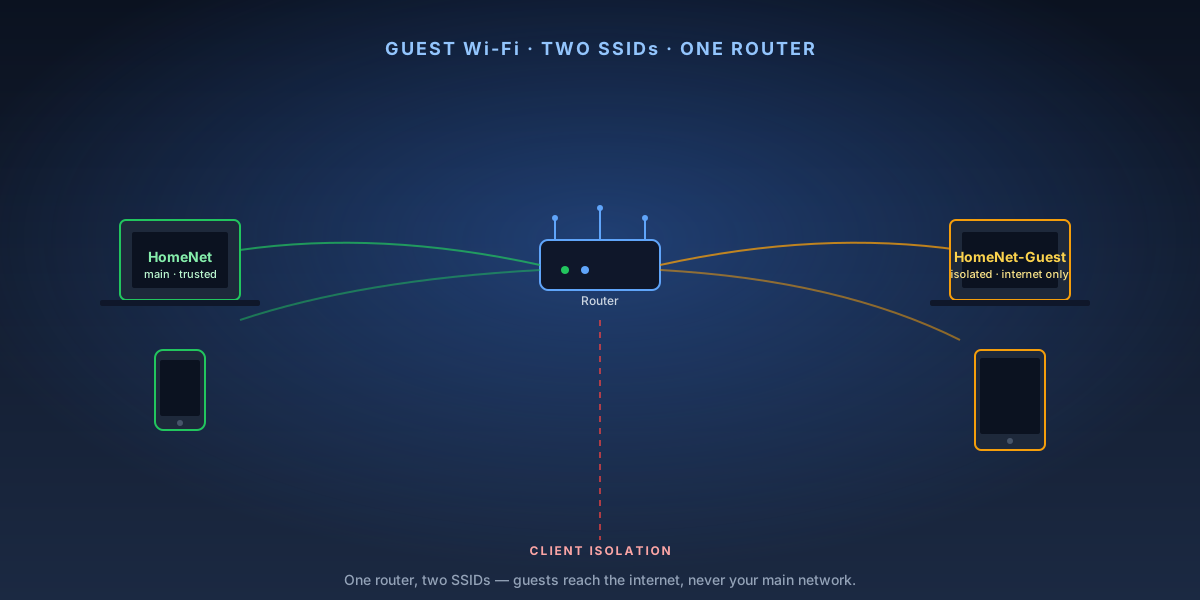
A guest Wi-Fi network gives visitors internet access without exposing your main network — and the devices on it. It's also the right place for smart home gadgets you don't fully trust. Most modern routers support guest networks, and setup takes under 15 minutes once you're logged into the admin panel.
8-Step Overview
- 1
Log into your router's admin panel
Open a browser and navigate to your router's admin IP — typically 192.168.1.1 or 192.168.0.1. If neither works, check the label on the back of your router. Log in with the admin username and password (not your Wi-Fi password). If you've never changed it, check the router label or your manufacturer's documentation for the default credentials.
- 2
Find the guest network settings
Look for a 'Guest Network,' 'Guest Wi-Fi,' or 'Guest Zone' section — typically under Wireless or Advanced settings. The location varies by router brand: TP-Link puts it under Wireless → Guest Network; Asus uses the left-sidebar under Guest Network; Netgear lists it under Advanced → Setup.
Search on Amazon →Recommended Product
TP-Link Archer AX73 Wi-Fi 6 Router
The Archer AX73 has one of the cleanest guest network implementations of any mid-range router — separate SSID, per-network bandwidth limits, and client isolation are all in one screen.
- 3
Enable the guest network
Toggle the guest network on. Most routers let you create separate guest networks on both 2.4 GHz and 5 GHz bands. For general guest use, enable the 2.4 GHz guest SSID — it has better range and is more compatible with older devices. If you need faster speeds for guests (streaming, video calls), also enable the 5 GHz guest SSID.
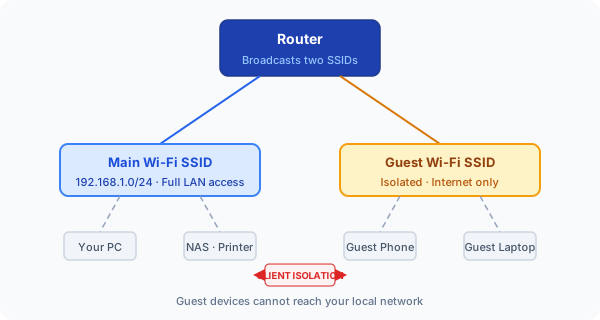
Guest network topology: two SSIDs on the same router, with client isolation preventing guests from reaching your main LAN. - 4
Name your guest SSID
Give the guest network a distinct name — something like '[YourName] Guest' or 'Visitor WiFi.' This prevents confusion between your main network and the guest network. Avoid naming it something that reveals your home address or last name, since SSIDs are visible to anyone nearby.
- 5
Set a strong guest password
Use a passphrase of at least 12 characters — something easy to share verbally, like three random words with numbers. Write it on a sticky note near where guests sit if you host frequently. Use WPA2 or WPA3 security — never leave the guest network open (unsecured), even temporarily.
- 6
Enable client isolation
This is the most important security setting: client isolation (also called AP isolation or network isolation) prevents guest devices from communicating with each other or with your main network. Look for this option on the same guest network settings page. Enable it. Without it, a device on the guest network can attempt to reach your NAS, printers, and other local devices.
Search on Amazon →Recommended Product
Asus RT-AX88U Pro Wi-Fi 6 Router
The RT-AX88U Pro's guest network supports client isolation plus per-SSID QoS — you can cap guest bandwidth without affecting your main network's performance.
- 7
Set a bandwidth limit (optional but recommended)
If your router supports per-SSID bandwidth limits (Asus, TP-Link, and Netgear do), cap the guest network at 20–30 Mbps down. This prevents a guest device streaming 4K video from saturating your connection. Find this setting under guest network options, sometimes labeled 'Speed Limit' or 'Bandwidth Control.'
- 8
Test the guest network
Connect a phone or laptop to the new guest SSID and verify: (1) internet access works, (2) you cannot ping or access devices on your main network (try navigating to 192.168.1.1 or a local NAS address — it should time out), (3) speeds are reasonable at your router's location. If client isolation is working correctly, pings to local devices will fail.
Where this fits
A guest SSID with client isolation is the ten-minute version of network segmentation. It's the right answer for visitors and for smart-home gear you don't fully trust, and for most homes it's enough.
When it isn't enough:
- How to set up IoT VLANs — real segmentation with its own subnet and firewall rules, for when \"guests can't see my NAS\" needs to become \"a compromised bulb can't reach anything.\"
- How to set up router parental controls — per-device rules on the main network rather than a separate SSID.
- WPA2 vs. WPA3 — which security mode to pick for the guest SSID, and why never to leave it open.
- VLANs explained for a home network — the background, if the VLAN guide reads as a step too far.