DFS Channels Explained: Why Your 5 GHz Wi-Fi Keeps Dropping (and How to Fix It)
Published 2026-06-08 · By NetAudioHub Editorial
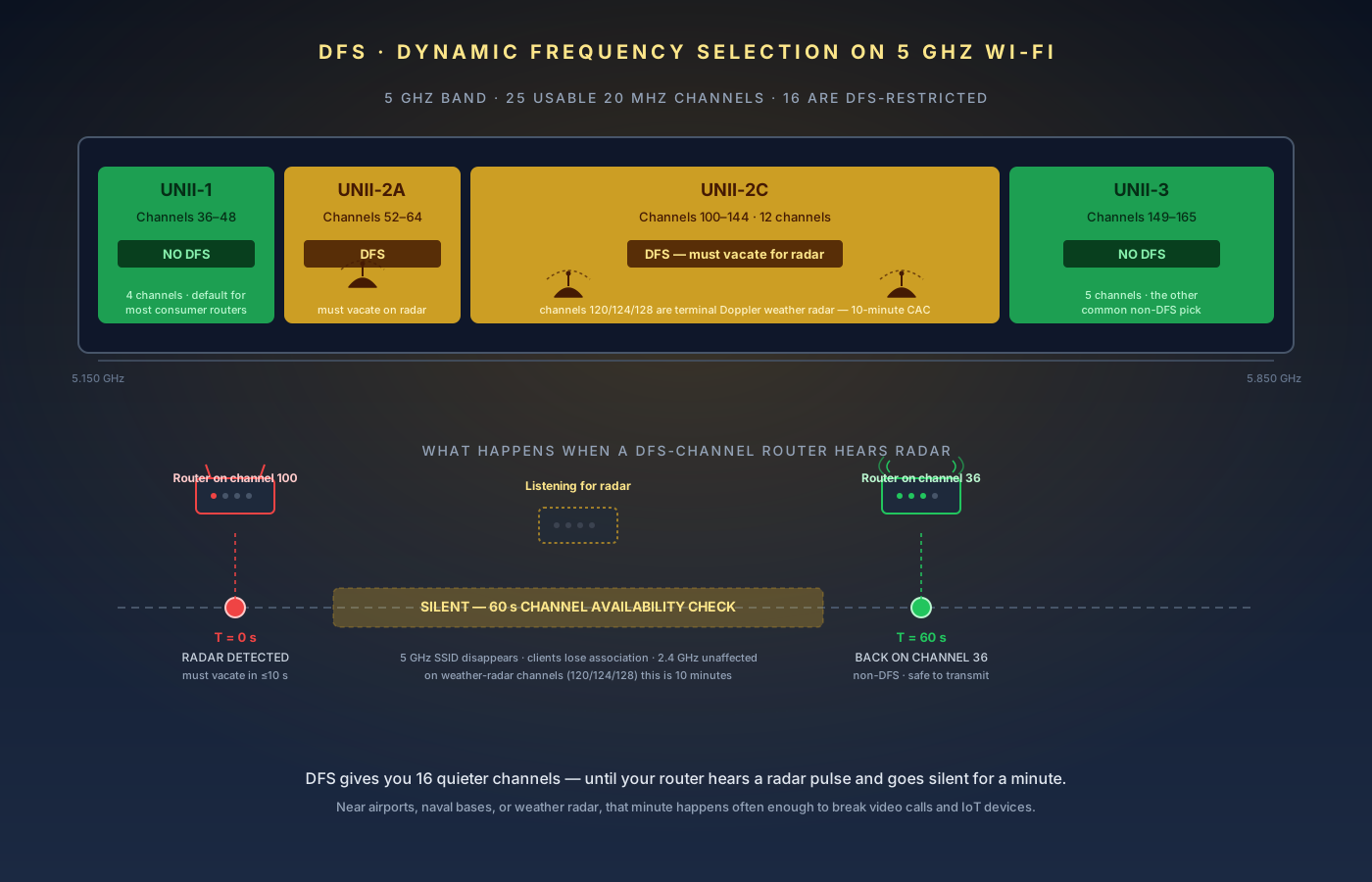
DFS channels doubled your 5 GHz airspace in exchange for one rule: your router has to go silent the moment it hears radar. Here's what that actually looks like, the symptoms it causes, and when to turn it off.
The verdict up front: DFS (Dynamic Frequency Selection) channels are the 16 mid-band 5 GHz channels that doubled your Wi-Fi airspace in exchange for one rule — your router has to go silent the moment it hears anything that looks like radar. In a typical suburban home far from an airport or weather station, DFS works fine and gives you fast, uncongested 80 MHz channels. Within a few miles of an airport, military base, coastal weather radar, or marine traffic, DFS will silently destroy your connection for 30–60 seconds at a time, sometimes multiple times an hour. If your 5 GHz Wi-Fi randomly drops, your video calls freeze, or smart-home devices keep falling off the network while everything seems fine on 2.4 GHz, DFS is the first thing to check. Below: what DFS actually does, the channels involved, the five symptoms it causes, how to tell if your router is on a DFS channel right now, and exactly when to disable DFS (and when leaving it on is still the right call).
What DFS Actually Is
DFS — Dynamic Frequency Selection — is a regulatory requirement, not a feature. The FCC and equivalent regulators in most other countries opened a large block of 5 GHz spectrum to unlicensed Wi-Fi use on the condition that Wi-Fi devices share it gracefully with the original primary users: radar systems. That includes airport surveillance radar, military radar, terminal Doppler weather radar (TDWR), and shipboard/marine radar.
The deal is straightforward: your router can transmit on those channels, but only if it listens first, and only as long as it hears no radar. The moment a DFS-capable router detects a radar pulse pattern, it must vacate the channel within 10 seconds, stay off the channel for at least 30 minutes (the Non-Occupancy Period), and pick a new channel to use.
Two behaviors fall out of this:
Channel Availability Check (CAC). Before your router can first transmit on a DFS channel after a reboot or after switching to that channel, it must listen for at least 60 seconds to verify no radar is present. During that minute, the router cannot broadcast on that channel. Your 5 GHz SSID appears down. CAC for the weather-radar sub-band (channels 120, 124, 128) is 10 minutes — longer because of how disruptive a false negative would be to aviation safety.
In-Service Monitoring. Once on a DFS channel, the router continues to listen for radar in parallel with normal Wi-Fi traffic. If it detects radar, it must switch channels within 10 seconds. The transition typically appears to clients as a 30–60 second outage as devices lose association and re-handshake on the new channel.
This is why DFS channels are simultaneously the best and worst part of 5 GHz Wi-Fi. They are usually empty — most consumer routers default to the non-DFS UNII-1 channels (36–48), so the DFS region is uncongested even in dense apartment buildings. But when DFS triggers, it triggers hard.
The Channels Involved
The 5 GHz band is split into four sub-bands defined by the FCC's UNII (Unlicensed National Information Infrastructure) framework. Whether a channel is DFS depends on which sub-band it's in.
| Sub-band | Channel numbers | DFS? | Notes |
|---|---|---|---|
| UNII-1 | 36, 40, 44, 48 | No | Default for most consumer routers. Often crowded. |
| UNII-2A | 52, 56, 60, 64 | Yes | DFS required. Generally low radar incidence in inland areas. |
| UNII-2C | 100, 104, 108, 112, 116, 120, 124, 128, 132, 136, 140, 144 | Yes | DFS required. Channels 120, 124, 128 reserved for terminal Doppler weather radar — longest CAC, highest hit rate near major airports. |
| UNII-3 | 149, 153, 157, 161, 165 | No | Other common non-DFS pick. Higher allowed transmit power on many devices. |
So out of 25 usable 20 MHz channels in the 5 GHz band, 16 are DFS-restricted. That's why the band feels crowded — most routers fight over just nine non-DFS channels (36–48 and 149–165), even though there's tons of space in the middle.
The catch is that DFS isn't optional from a regulatory standpoint, but it is optional from a usage standpoint. Many routers let you exclude DFS channels from automatic channel selection, or even disable DFS entirely. Whether that's the right call depends entirely on where you live and what's around you.
Why Routers Use DFS Channels
The pitch for DFS is real. The 36–48 range is 4 channels wide; with an 80 MHz channel width (the default for Wi-Fi 5 and most Wi-Fi 6 setups), you can fit exactly one 80 MHz channel there. If your neighbor is also using UNII-1, you're sharing it. With a 160 MHz channel width (Wi-Fi 6E/7 high-throughput mode), UNII-1 alone literally cannot accommodate a single 160 MHz channel — you need to combine UNII-1 + UNII-2A (channels 36–64).
UNII-2C is twelve channels wide. That's three non-overlapping 80 MHz channels or one 160 MHz channel with room to spare, and it's where most routers will land if you let them auto-select among DFS-eligible options. In a dense apartment building or suburban neighborhood where every router is camped on channel 36 or 149, a router that drifts up to channel 100 has the entire sub-band to itself.
When DFS works — i.e. when there's no radar around to trigger evictions — the result is real: lower congestion, faster throughput, lower latency, especially at 80 MHz and wider channel widths. Wi-Fi 6 and Wi-Fi 7 specifically benefit, because their headline speeds depend on wide channels and wide channels need DFS spectrum to fit cleanly.
This is also why higher-end routers and mesh systems aggressively try DFS channels by default — vendors know the marketing numbers ("up to 4.8 Gbps on 5 GHz!") require 160 MHz wide channels that require DFS spectrum to even exist.
The Five Common Symptoms
DFS evictions are stealthy. The router doesn't necessarily log "I just got hit by radar" in a user-visible way, and the eviction takes seconds to a minute, which is short enough to be confused with normal Wi-Fi flakiness. Here are the patterns that point at DFS specifically.
1. The 5 GHz network disappears entirely for 30–90 seconds, then comes back. Classic DFS eviction. Your phone shows the SSID gone or it can't connect for about a minute, then everything works fine. 2.4 GHz stayed up the entire time. This happens because the router detected radar, vacated the DFS channel, picked a new channel, and went through CAC again. If your router supports Zero Wait DFS (some Wi-Fi 6E and Wi-Fi 7 models do), the outage is shorter — sub-second — because the router pre-scanned an alternate channel before the eviction.
2. Video calls freeze at roughly the same time on multiple days. Some radar sources are predictable — for example, a coastal weather radar might do a long-range sweep on a fixed schedule, or an airport's terminal Doppler radar runs on a regular pattern. If your Zoom calls drop at 2:17 PM three Tuesdays in a row, that's not a coincidence. It's a radar sweep crossing your router's listening threshold.
3. Smart-home devices keep falling off the network and rejoining. Many IoT devices are sticky on whichever channel they associated to and don't handle a fast channel switch gracefully. After a DFS eviction, the router lands on a new channel, but the lightbulb is still trying to talk to the old channel. Eventually it times out and re-associates. If you have a fleet of Wi-Fi-only smart-home gear and they "randomly" disconnect and reconnect, DFS is a likely culprit. Devices with 2.4 GHz-only radios are immune.
4. Your router's 5 GHz channel keeps changing in the admin UI. If you log into your router and the current channel is 100 one day, 36 the next, 116 the day after, your router is auto-selecting DFS channels and getting evicted off them. This is technically working as designed, but it's a strong signal that you're in a high-radar-incidence area.
5. Wired clients are perfect, 5 GHz wireless is not. When network problems exist only on 5 GHz Wi-Fi and never on Ethernet or 2.4 GHz, the issue is local to the 5 GHz radio. DFS evictions are one of the top three causes of this pattern (the others are channel-width mismatch and physical interference from microwaves or USB 3 hubs).
If any two of these match your situation, log into your router and check what channel the 5 GHz radio is on right now. If it's in the 52–144 range, you've found your suspect.
How to Check If You're on a DFS Channel
Every router with a real admin UI exposes the current 5 GHz channel somewhere. The specific path varies, but the data is always there.
- ASUS (RT-AX86U, RT-BE96U, GT-BE98 family): Wireless → General → look at "Control Channel" for the 5 GHz radio.
- TP-Link (Archer BE800, Deco app): Advanced → Wireless → Wireless Settings, or in the Deco app under More → Wi-Fi → Advanced.
- Netgear (Orbi, Nighthawk): Wireless Settings → Channel. Orbi 970/770 also shows it in the Orbi app under Network Map.
- Eero (Eero 7, Eero Pro 6E): tap any node in the Eero app → Connection Type → look for "5 GHz channel."
- Ubiquiti UniFi (UDR-7, U7 Pro Max, E7): UniFi Network Application → Devices → select the AP → Radios tab → current channel.
- Google Nest Wifi Pro: open the Google Home app → Wi-Fi tile → it does not expose the channel directly; you'll need a third-party scanner.
If your router's UI hides the channel (looking at you, Eero and Google), use a Wi-Fi scanner app on your phone. WiFiman (free, by Ubiquiti) on iOS and Android shows the channel and width of every nearby network. Find your SSID, read the channel number. If it's anywhere from 52 to 144, you're on DFS.
On a Mac, hold Option and click the Wi-Fi menu icon — the dropdown shows your current channel and width. Newer macOS hides it; the WiFi Explorer Lite app from the Mac App Store is the easy fallback.
When to Disable DFS (and When Not To)
The math is geographic.
Disable DFS — or set your router to a fixed non-DFS channel — if any of these are true:
- You live within 5 miles of an airport with active aviation radar.
- You live within 10 miles of a major coastal port or naval base (marine and military radar).
- You live within 20 miles of a National Weather Service NEXRAD or terminal Doppler weather radar. (NWS maintains a public map of NEXRAD locations.)
- You have a meaningful number of smart-home devices that hate reconnects.
- You've confirmed via your router logs or the symptoms above that DFS evictions are actually happening.
In any of these cases, the throughput advantage of DFS channels is more than canceled out by the disruption of repeated evictions. You'll be happier on a fixed channel in UNII-1 (36–48) or UNII-3 (149–165) even if it's nominally more crowded.
Leave DFS enabled — or actively prefer DFS — if any of these are true:
- You live in a dense apartment building or condo complex where UNII-1 and UNII-3 are saturated with neighbors.
- You're not near any of the radar sources above, and your router log shows no DFS evictions over a week.
- You're running Wi-Fi 6E or Wi-Fi 7 and using 160 MHz channels in the 5 GHz band (you literally need DFS spectrum for that to fit).
- You don't actually use 5 GHz heavily — your laptop is on Ethernet, your phone roams to the gateway over 6 GHz, and the 5 GHz disruptions don't affect anything that matters.
The middle case — suburban, moderate IoT, no known nearby radar — is the gray area. The answer is to run it for a week and watch. If your router log shows zero DFS-related channel changes after seven days, you're fine. If you see two or more in a week, switch to a fixed non-DFS channel.
How to Disable DFS or Lock to a Non-DFS Channel
Every major router gives you at least one of two controls: a master "Enable DFS" toggle, or a manual channel selector with the DFS channels grayed out. The exact path:
ASUS: Wireless → Professional → "Enable DFS channels" → set to Disable. Or set the Control Channel to a fixed value (36, 40, 44, 48, 149, 153, 157, 161, or 165) under Wireless → General. ASUS also offers "Smart Connect" band steering — leave it on.
TP-Link Archer: Advanced → Wireless → Wireless Settings → 5 GHz → Channel: pick a fixed non-DFS channel. There's typically no explicit DFS toggle on Archer routers, but locking the channel achieves the same result. On Deco mesh, open the Deco app → More → Wi-Fi → Advanced → 5 GHz → Channel.
Netgear Orbi: Wireless → Wireless Settings → 5 GHz → Channel. Some Orbi firmware versions have a separate "DFS" checkbox under Advanced; uncheck it to exclude DFS from auto-selection.
Eero: Eero treats channel selection as automatic and doesn't expose a direct DFS toggle in the consumer UI. In the Eero app, tap the menu icon → Discover → Eero Labs → look for "Enable DFS." Disable it if present. If not present, you may need to contact Eero support; the toggle availability has varied across firmware versions.
Ubiquiti UniFi: UniFi Network Application → Settings → Wi-Fi → select the SSID → Advanced → Channel: pick a non-DFS channel for the 5 GHz radio. Or per-AP: Devices → AP → Radios → 5 GHz → Channel.
Google Nest Wifi Pro: No DFS toggle exposed. Google's stance is that DFS is automatic; users have reported success disabling DFS via firmware-level requests to Google support, but it's not a normal user-facing control.
After making the change, reboot the router to force a clean channel re-association across all clients. Then verify in your router log or a scanner app over the next 24 hours that the channel is stable.
Wi-Fi 7 and the 6 GHz Workaround
Here's the modern angle: if you have Wi-Fi 7 (or even Wi-Fi 6E) clients and router, you don't actually need to fight with DFS most of the time. The 6 GHz band — UNII-5, UNII-6, UNII-7, UNII-8 — is entirely free of DFS in the United States. No radar shares 6 GHz, so no eviction rules apply.
The 6 GHz band has 7 non-overlapping 80 MHz channels or 3 non-overlapping 160 MHz channels. That's more clean spectrum than UNII-1 + UNII-3 combined, with no DFS overhead. If your router and your most-important clients are 6 GHz-capable, push them to 6 GHz and let 5 GHz be the legacy band for older devices.
This is exactly the trade routers like the TP-Link Deco BE63, Netgear Orbi 970, and Eero 7 are quietly making for you when their auto-channel-select bumps important devices to 6 GHz and leaves 5 GHz to the smart plugs. See our WiFi 7 vs WiFi 6E upgrade guide for the broader case.
The catch: 6 GHz range is shorter than 5 GHz at the same transmit power. If your router is more than two walls away from your client, you'll fall back to 5 GHz anyway — and you'll be back in DFS land.
The other catch is that "Wi-Fi 7" does not guarantee you a 6 GHz radio at all. The ASUS RT-BE88U is a Wi-Fi 7 router with no 6 GHz band — it puts the generation's features on 2.4 and 5 GHz and spends the rest of the budget on wired I/O (dual 10G, quad 2.5G). It is a strong router, but this particular escape hatch is closed on it, so in a radar-heavy area its answer is Ethernet, not another band. Check the band list before you buy a Wi-Fi 7 router to solve a DFS problem.
Best Routers for DFS-Heavy and DFS-Light Environments
If you live in a radar-heavy area and want a router that handles DFS evictions gracefully:
- ASUS RT-BE96U — supports Zero Wait DFS in firmware, meaning evictions become sub-second outages instead of 30–60 second blackouts. Tri-band Wi-Fi 7 with full per-radio channel control.
- Ubiquiti UniFi U7 Pro Max — exposes per-AP channel locking, supports background DFS scanning on a separate radio chain, and shows actual radar detection events in the controller log. The right pick if you want to see what's happening, not just guess. See our full review.
If you live in a DFS-light area and want the maximum 5 GHz throughput:
- TP-Link Archer BE800 — uses 160 MHz channels aggressively across the full 5 GHz band including DFS sub-bands. Pairs well with a fast DFS environment to deliver the marketing-sheet speeds.
- ASUS RT-AX86U Pro — the budget Wi-Fi 6 pick that still handles DFS well, exposes the full channel selector, and runs Merlin firmware if you want maximum control.
If you have a mesh system and want minimal DFS pain:
- TP-Link Deco BE63 — auto-selects 6 GHz for compatible clients, leaving 5 GHz DFS to handle legacy devices and reducing the impact of evictions. See our full review.
- Eero 7 — limited user control, but the automatic channel management has been reasonable in practice, especially with 6 GHz pickup. See our full review.
FAQ
Is DFS the same on Wi-Fi 6 and Wi-Fi 7? Yes — DFS is a band-level regulatory requirement, not a Wi-Fi version feature. Wi-Fi 7 routers must still vacate DFS channels on radar detection. What changes is that Wi-Fi 7 hardware is more likely to support Zero Wait DFS (using a dedicated radio chain to pre-scan alternate channels) so the switch is faster.
Does DFS exist on 2.4 GHz or 6 GHz? No. 2.4 GHz has no DFS requirement — but it has heavy non-Wi-Fi interference from microwaves, Bluetooth, baby monitors, and Zigbee. 6 GHz has no DFS in the US (and most other regulators have followed). DFS is specifically a 5 GHz problem.
How can I see if my router is being evicted? Most enthusiast firmware (Merlin, OpenWrt, Ubiquiti UniFi, pfSense with a Wi-Fi card) logs radar detection events explicitly. On consumer firmware, the symptom is usually invisible in logs but visible in the channel-change history. ASUS routers often have a "Wireless Log" under System Log → Wireless that shows channel changes with reasons.
What's "Zero Wait DFS"? A feature on some Wi-Fi 6E and Wi-Fi 7 routers (ASUS, some Ubiquiti, some TP-Link) where the router uses an extra radio or a portion of one radio's resources to continuously scan an alternate DFS channel for radar. When the primary channel is evicted, the router can switch to the pre-cleared alternate channel almost instantly instead of going through the 60-second CAC. It doesn't eliminate the eviction — it just makes the outage much shorter.
If I disable DFS, am I breaking FCC rules? No. DFS rules apply to the router's behavior when it's on a DFS channel. If your router is on a non-DFS channel (36–48 or 149–165), DFS doesn't apply to it. Disabling DFS in your router's UI typically just means "don't use DFS channels," not "use DFS channels and ignore radar," which would be illegal and is not what router UIs let you do.
My router log shows "radar detected" but my neighbor's doesn't — why? DFS detection is sensitive and somewhat random. Different chipsets have different detection thresholds, false-positive rates, and antenna orientations. It's normal for one router to evict where another doesn't. It does not mean your router is broken.
Related
Affiliate disclosure: NetAudioHub links to retailers including Amazon. We earn a small commission on qualifying purchases at no extra cost to you.