Powerline vs MoCA vs Ethernet Backhaul: Which One Should You Actually Use in 2026?
Published 2026-05-20 · By NetAudioHub Editorial
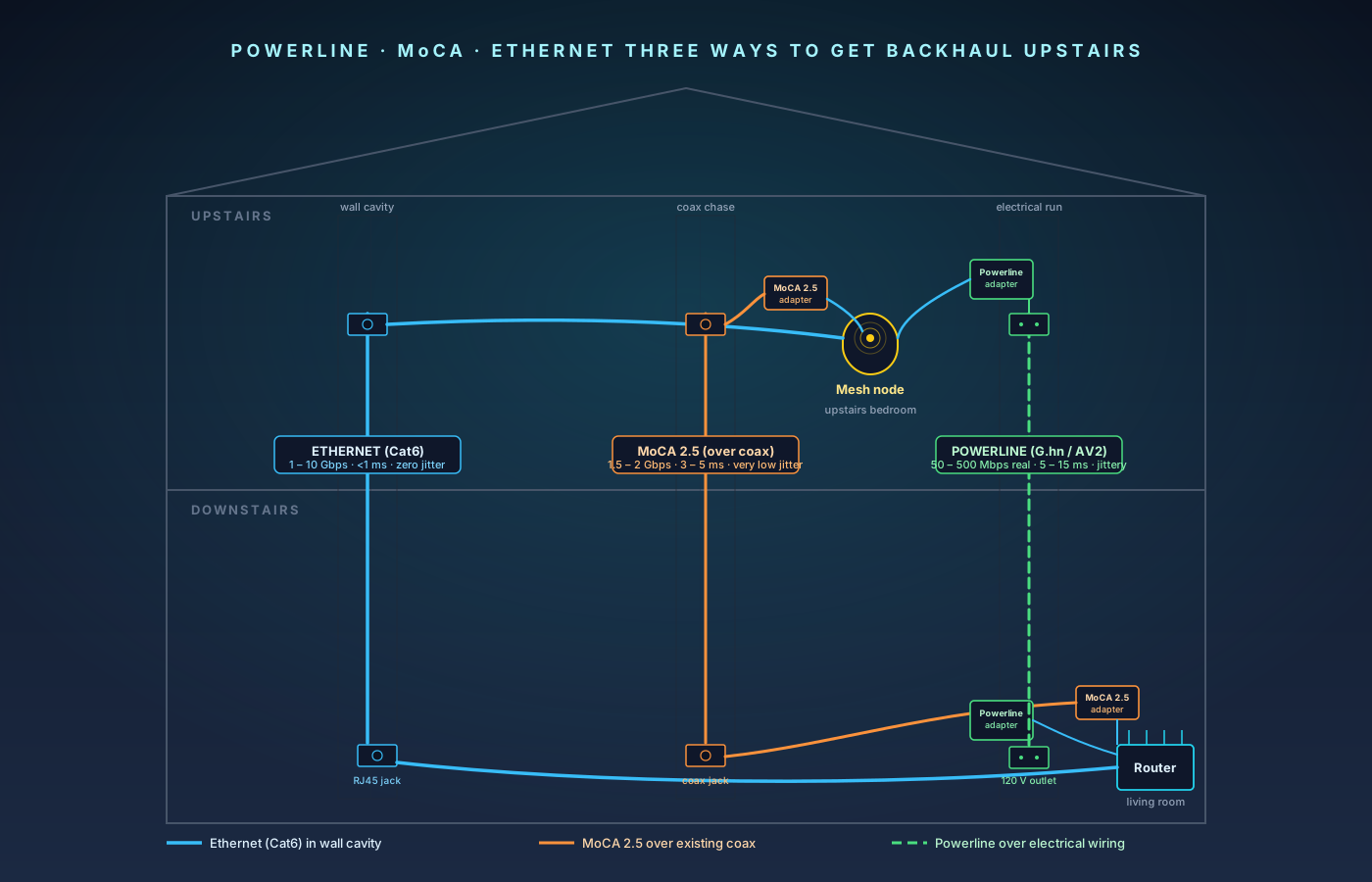
Mesh nodes, game consoles, and 4K streamers all want a wired uplink. Ethernet, MoCA 2.5, and Powerline each promise to deliver — but only one is right for your house. Real throughput, real latency, and the box-rating gap that wrecks Powerline installs.
The verdict up front: if you can run Ethernet, run Ethernet — it is faster, lower-latency, and more reliable than the alternatives by a wide margin, and a single run pays for itself for the next 20 years. If you cannot run Ethernet and you have coax in the rooms that matter, MoCA 2.5 is the right answer: 1.5–2 Gbps of real throughput, sub-5 ms latency, and total installed cost under $200 for a pair of adapters. Powerline is the answer of last resort. HomePlug AV2 and the newer G.hn Wave-2 adapters look great on the box — "AV2000," "2000 Mbps" — and they will hit a fraction of that in any real house. Powerline is acceptable for streaming a single 4K source, a smart-home hub, or a printer. It is not acceptable backhaul for a mesh network, a game console, or anything that cares about jitter. This guide walks through what each technology actually delivers, where each one breaks, and exactly what to buy for each scenario.
Why "Backhaul" Is the Word That Matters
A lot of people search for "powerline adapter" or "MoCA adapter" when what they actually want is wired backhaul — a fast, low-latency uplink between two points in their house that Wi-Fi cannot reach reliably. The classic case is a mesh node in a back bedroom or a finished basement that's gone wireless because there is no Ethernet in the wall. Other common cases:
- A gaming console that ping-spikes whenever the microwave runs.
- A 4K Apple TV or Plex client buffering on a wireless link.
- A home office two floors above the router where video calls go pixellated at 9 a.m. when the rest of the house wakes up.
- An Atmos AVR pulling lossless audio over the network and dropping frames.
All four of these are solved the same way: get a wire to the device. The question is what kind of wire.
The three real options for retrofitting a house — not new construction — are Ethernet, MoCA, and Powerline. Wi-Fi mesh repeaters are an option, but they are not backhaul. They roughly halve the available bandwidth at each hop, and they share airtime with everything else on your Wi-Fi. The whole point of this article is what to do instead of wireless backhaul.
Ethernet: The Gold Standard
If "Cat6 cable in the wall" is on the table for your house, stop reading and do that. Nothing else compares.
The numbers:
- Throughput: 1 Gbps full-duplex on Cat5e or Cat6, 10 Gbps full-duplex on Cat6a, all the way up to 40 Gbps on Cat8 if you ever need it. A correctly-terminated 50-foot Cat6 run will iperf3 at line-rate every single time.
- Latency: under 1 ms between two devices on the same switch. There is no encoding overhead, no spectrum sharing, no retransmission unless something is physically wrong with the cable.
- Jitter: essentially zero. This is the property a competitive gamer, a video-call user, or an Atmos AVR cares about — not raw throughput.
- Reliability: the only things that break a properly-installed Ethernet run are physical damage to the cable, a bad termination at one of the ends, or interference from a high-voltage line running parallel within a foot for many feet. None of these happen by accident.
The catch is installation. Pulling Cat6 through finished walls is the part most people balk at. Realistically you are looking at:
- A drill, a fish tape, and 2–4 hours per run for a DIYer who is already comfortable in the attic and crawlspace.
- $150–$300 per run for a low-voltage electrician.
- One-time cost for keystone jacks, wall plates, and a pull of Cat6 cable. A 1,000-foot box of Cat6 is around $90–$120, and you will use 30–80 feet per run.
If you would rather not pull a wire through finished drywall and you can get to your mesh node's room from an attic or crawlspace, our how-to on extending Wi-Fi with a wired backhaul walks through the routing, drilling, and termination decisions step by step.
If you cannot or will not pull a wire, the rest of this article matters. If you can, do that instead and skip everything below.
What you actually need to buy for Ethernet
- Cable. Cat6 unshielded riser-rated for in-wall runs under 100 feet. Cable Matters 1,000-foot Cat6 box on Amazon is the one most installers reach for; Monoprice's bulk box is similar. Skip Cat7 — it is a marketing label, not a real TIA spec, and the connectors are non-standard. Cat6a is worth it only if you are wiring for 10 Gbps from day one.
- Keystone jacks and wall plates. Tool-less keystones make termination 5 minutes per end instead of 30. Cable Matters tool-less keystone 6-pack handles Cat6 cleanly.
- A cable tester. Klein Tools VDV526-100 LAN tester is $20 and tells you immediately whether all 8 conductors landed in the right pins on both ends.
That's it. There is no "good vs cheap" subtlety on Ethernet. Once the cable is in the wall and terminated correctly, the speed is whatever the equipment at each end supports.
MoCA 2.5: Wired-Quality Without the Wire-Pulling
MoCA — Multimedia over Coax Alliance — sends Ethernet over the coaxial cable already in your house. The current consumer-grade version is MoCA 2.5, which advertises 2.5 Gbps and delivers a real 1.5–2 Gbps on most installations. If your home was built or remodeled any time after 1995, there is a coax outlet in every room that ever had a cable TV jack. Each of those outlets can become a 2.5 Gbps Ethernet drop with a $75 adapter.
We have a full primer on the technology in MoCA 2.5 explained. The very short version:
- Throughput: advertised 2.5 Gbps PHY, real-world 1.5–2.0 Gbps end-to-end. Worst case on degraded coax is still around 1 Gbps.
- Latency: 3–5 ms between adapters. Higher than Ethernet's sub-1 ms, low enough that competitive gaming and HD video calls do not notice.
- Jitter: very low. MoCA uses TDMA scheduling on the coax bus, so traffic does not collide.
- Reliability: rock-solid once installed. The two things that can sabotage you are an old 1 GHz splitter (MoCA needs 1,675 MHz pass-through) and missing PoE filter at the demarc. Both are easy to fix.
The catch is also coax-dependent: you need a coax outlet in the rooms you want to bridge, and those outlets need to be on the same continuous coax run with passive splitters between them. If your house has coax in the living room and master bedroom but not in your home office, MoCA will not help your home office unless you can extend the coax there.
A second catch worth knowing about: if you still have cable internet service, your cable modem is on the same coax that MoCA wants to use. This is not a problem — MoCA 2.5 operates in the 1,125–1,675 MHz band, above DOCSIS — but you must install a PoE filter (Point-of-Entry filter) at the demarc where the cable comes into the house. That filter blocks MoCA signal from leaking out onto the street and onto your neighbor's coax. Without it, your MoCA network is functionally an open node visible to anyone else on the same cable trunk, and you may interfere with your own DOCSIS upstream channels. The filter is $10. Always install one.
What you actually need to buy for MoCA
- A pair of MoCA 2.5 adapters. goCoax MA2500D pair is the price-performance winner — about $150 for two, full 2.5 Gbps, built-in PoE filter mode. Our MA2500D review covers what actually determines the speed you get: coax and splitter quality, and the fact that one adapter alone is useless — MoCA is always bought in pairs. Hitron HT-EM2 is the other widely-recommended 2.5 Gbps option and uses the same chipset. Avoid older MoCA 2.0 adapters — half the throughput, same install effort.
- A PoE filter at the demarc. Every kit we currently recommend ships a PoE filter in the box — the goCoax MA2500D pair includes one, and Hitron's HT-EM2 pair does as well. Install it on the trunk before any in-house splitters. Only buy a standalone filter if your adapter pair shipped without one.
- A continuity tester if you are unsure which outlets are on the same coax run. Klein Tools coax tester (VDV512-101) is $20 and will identify your runs in five minutes.
Total installed cost for two adapters and a filter: about $160–$180. Setup time: 10 minutes from box to working link.
Powerline: The Adapter You Want to Avoid
Powerline adapters — branded "HomePlug AV2" on older units and "G.hn" on newer ones — push Ethernet frames over the electrical wiring in your walls. You plug one into a wall outlet near your router, run an Ethernet cable from your router into it, and then plug a second adapter into an outlet somewhere else in the house with an Ethernet cable into your device. The walls do the heavy lifting.
This is, on paper, a brilliant idea. Every room in your house has a power outlet. No wire-pulling, no coax dependency.
In practice, Powerline is the least reliable of the three options by a wide margin, and the gap between "rated speed" and "delivered speed" is enormous.
The numbers (real-world, not box-rated):
- Throughput: 50–400 Mbps in a typical residence. An "AV2000-rated" adapter pair, which advertises 2,000 Mbps, will deliver 200–500 Mbps if you are lucky. The newer G.hn Wave-2 adapters rated at "2,400 Mbps" may deliver 500–800 Mbps in a very clean install.
- Latency: highly variable. 5–15 ms typical, with spikes to 50–100+ ms when something on the same circuit cycles (refrigerator compressor, microwave, dimmer-switch noise).
- Jitter: the worst of the three. Powerline is sensitive to anything else drawing current on the same line — and the same line means anything sharing your circuit breaker panel.
- Reliability: the most house-dependent. Old aluminum wiring, GFCI outlets, AFCI breakers, surge protectors, dimmer switches, and even some LED bulbs all degrade Powerline performance, sometimes severely.
Why the gap between rating and reality is so big
A "2,000 Mbps" Powerline adapter is reporting the sum of three internal PHY channels (line-to-neutral, line-to-ground, neutral-to-ground), each rated at peak modulation, in lab conditions, on a single circuit, with no noise. None of those conditions exist in a real house. The number on the box is not a lie in a strict-technical sense; it is just a number that has no relationship to what you will see iperf3 produce on your living room floor.
In our experience the rough rule of thumb is: divide the box rating by 4–5 for the real number, and then halve that if the two adapters end up on different circuit phases at your panel. A 60-amp panel split between two 120 V hot legs is normal in U.S. residential wiring. If your router is on Phase A and your bedroom adapter is on Phase B, Powerline has to couple the signal across the bus bar in your breaker panel, and you can lose half or more of the throughput right there.
When Powerline is acceptable
There are real cases where Powerline is the right answer:
- A smart-home hub in a closet with no Ethernet and no coax.
- A printer in a guest bedroom that is used twice a month.
- A single 4K streaming box on a TV that has no Ethernet jack and a weak Wi-Fi signal.
- An IoT device that needs a wired link but only sees a few megabits a day.
For any of these, even a 100 Mbps Powerline link is fine. The device does not care about jitter, and the throughput is comfortably above what the workload needs.
When Powerline is the wrong tool
- Mesh backhaul. A mesh node's job is to serve every device behind it. Even a single 4K stream will fight with a 1080p call and a smart TV, and Powerline jitter is exactly the wrong thing for video calls.
- Game consoles. Ping spikes on Powerline are the most common complaint we see in r/HomeNetworking. PlayStation Network and Xbox Live both expose the jitter immediately.
- Anything that hits sustained 500+ Mbps. Large Steam downloads, NAS backups, 4K Plex remuxes — Powerline cannot keep up, and worse, the throughput will collapse the longer the link is saturated as the adapter heats up.
If you must buy Powerline
Despite the warnings, sometimes Powerline is the only option — renter, no coax, no wire-pulling allowed. In that case:
- TP-Link TL-PA7017P KIT AV1000 2-pack is the kit to buy. AV1000 is the cheapest tier where the adapter's own Gigabit port stops being the bottleneck — anything AV600 or below hard-caps at 100 Mbps — and TP-Link's own support documentation notes that the pricier AV2 MIMO tiers convert their bigger headline numbers less efficiently. Pass-through outlet, about $59.99 for the pair. Full breakdown in our TL-PA7017P KIT review.
- TP-Link TL-PA9020P AV2000 2-pack is worth a look only if you need two Gigabit ports at the far end. TP-Link still lists the model as current, but Amazon stock has collapsed: the only featured offer in late September 2026 was an open-box unit from Amazon Resale at $49.99, and by 28 September 2026 the listing carried no featured offer at all. Check that a new-condition seller is present before you buy.
- Netgear PLP2000 AV2000 2-pack is the other widely-stocked option at a similar price.
Plug both adapters directly into the wall, not into a surge protector or power strip. Surge protectors filter out exactly the frequencies Powerline uses. Same for UPS units in many cases. If the adapter has a pass-through outlet, plug your surge protector into that — the adapter passes filtered power to the strip while keeping the Powerline signal on the wall side.
Head-to-Head: The Numbers Side by Side
| Metric | Ethernet (Cat6) | MoCA 2.5 | Powerline (AV2000 / G.hn) |
|---|---|---|---|
| Real-world throughput | 940 Mbps – 9.4 Gbps | 1.5–2.0 Gbps | 50–500 Mbps |
| Latency (point-to-point) | <1 ms | 3–5 ms | 5–15 ms (50+ ms spikes) |
| Jitter | Negligible | Very low | High and condition-dependent |
| Reliability over a year | Effectively perfect | Excellent | Variable; degrades with house noise |
| Affected by house wiring? | No | Splitter quality only | Yes — circuit phase, GFCI, dimmers, LEDs |
| Affected by appliances? | No | No | Yes — fridge, microwave, vacuum, hair dryer |
| Hardware cost (2 endpoints) | $20–$50 + labor | $150–$200 | $80–$120 |
| Install time (DIY) | 2–4 hours per run | 10 minutes | 5 minutes |
| Install effort | High (drilling, fishing) | Low (plug in) | Lowest (plug in) |
| Future-proofing | 10–25+ years | 5–10 years | 2–5 years |
| Encryption on the wire | None needed (private wire) | 128-bit AES | 128-bit AES |
| Leak risk to neighbors | None | Without PoE filter: yes | Across a shared meter: yes |
| Best for | Everything | Backhaul, retrofits | Low-bandwidth fallback |
Picking by Use Case
Mesh backhaul
Pick Ethernet if you can pull one cable. A single run from your main router to a switch in a central location, with mesh nodes daisy-chained from the switch, gives every node a true Gigabit (or faster) uplink. This is the deployment all the mesh vendors actually optimize for, even though they market themselves as "no wires."
Pick MoCA if you have coax in the room where the mesh node lives. MoCA 2.5's 1.5–2 Gbps real throughput is more than enough to feed a Wi-Fi 6 or Wi-Fi 7 mesh node, and the latency is low enough that nothing downstream of the node notices the backhaul exists.
Skip Powerline for mesh backhaul. The jitter and the head-of-line blocking under load make it worse than a well-placed wireless backhaul in most cases.
A single gaming PC or console
Ethernet. Anything else trades ping consistency for install convenience, and the ping consistency is the whole point. If wire-pulling is genuinely impossible, MoCA is acceptable — the 3–5 ms point-to-point latency is below most servers' inherent jitter budget.
A 4K streaming box (Apple TV, Roku Ultra, Nvidia Shield)
Any of the three works for a single-box use case. 4K HDR streaming peaks at around 40 Mbps for Netflix, 60 Mbps for Disney+ Atmos titles, and 80 Mbps for the heaviest 4K Blu-ray remuxes on Plex. Powerline can deliver that. MoCA can deliver 20x that. Ethernet can deliver 100x that. Pick whichever is cheapest to install in that specific location.
A home office two floors from the router
MoCA if there is coax in the office. Ethernet if you can pull it. Powerline is borderline for video conferencing — the 50–100 ms latency spikes when something on the same circuit cycles will show up as a freezing video frame in Zoom or Teams, and your meeting host will notice.
Atmos AVR pulling lossless audio over the network
Ethernet or MoCA. Atmos TrueHD bitstreams over the network demand consistent throughput and very low jitter. Powerline does not deliver either reliably. The symptom is intermittent audio dropouts during loud scenes — exactly when you do not want them.
A printer in a closet
Powerline is fine. A 100 Mbps Powerline link to a $200 inkjet is overkill on every axis that matters. Buy the cheap adapter pair, plug it in, move on.
The Three Mistakes That Wreck a Backhaul Install
These come up over and over in our reader emails, regardless of which technology people end up choosing.
1. Plugging adapters into surge protectors. This kills Powerline immediately and degrades MoCA significantly when the surge protector is a "whole-line conditioner" with capacitive filtering. Always plug the adapter directly into the wall outlet.
2. Leaving an old 1 GHz coax splitter in the basement. Pre-2010 coax splitters max out at 1 GHz of pass-through bandwidth. MoCA 2.5 needs at least 1,675 MHz. If your MoCA link refuses to come up at full speed, the cheap two-port splitter the cable installer threw on the line in 2008 is almost certainly the culprit. Replace it with a MoCA-rated 2.3 GHz splitter — about $8 — and the link will come back up at line rate. Bonus: if there is a splitter on the trunk before your MoCA outlets diverge, MoCA signal has to cross it, and an out-of-spec splitter on that trunk will limit every adapter downstream.
3. Skipping the PoE filter on cable internet. Without it, your MoCA signal leaks out onto the street. This is not a noticeable problem on day one, but it does mean a neighbor's MoCA network can interfere with yours, and your DOCSIS upstream channel quality can degrade. Install the filter. They are $10. Almost every modern adapter pair includes one.
"What About G.hn Powerline? Isn't That Better Now?"
G.hn is the newer ITU-T standard meant to replace HomePlug AV2 for Powerline applications. The current consumer G.hn Wave-2 adapters advertise 2,400 Mbps and use a different modulation scheme (1024-QAM OFDM) than HomePlug AV2's 4096-QAM OFDM. In a clean install — short wiring path, single circuit, no GFCI or AFCI breakers between the two adapters — G.hn does outperform HomePlug AV2 by 30–60%.
It is still Powerline. The latency, jitter, and noise-sensitivity stories do not fundamentally change. G.hn is "Powerline, but a bit better." It is not "Powerline that became reliable." If your decision tree says "MoCA or Powerline," the answer is still MoCA. If your decision tree says "the only available option is electrical wiring," then yes, prefer a G.hn Wave-2 adapter over an older HomePlug AV2 pair.
Confusingly, the same vendors who sell HomePlug AV2 adapters now sell G.hn adapters in nearly-identical boxes with similar-looking model numbers. Check the spec sheet for the phrase "G.hn Wave-2" or "ITU-T G.9960" before buying — if it says "HomePlug AV2," it is the older standard.
"Can I Just Buy a Wi-Fi Mesh Repeater Instead?"
Sometimes. Not for backhaul.
A modern tri-band Wi-Fi 6E or Wi-Fi 7 mesh system — Eero Max 7, Netgear Orbi 970, TP-Link Deco BE85 — dedicates one of its radios to backhaul, so the user-facing radios do not have to share airtime with the inter-node link. In a small house with good line-of-sight between the router and the satellite, that dedicated backhaul radio can deliver 1+ Gbps wireless. That is real performance.
But it is still subject to the things Wi-Fi is always subject to: walls attenuate signal at 5 GHz and 6 GHz badly, microwaves saturate the 2.4 GHz band, neighbors' Wi-Fi networks share spectrum, and atmospheric conditions matter more than people realize for the 6 GHz band.
If you are picking between a wireless mesh and a true wired backhaul, the wired backhaul is better. It is not even close. Wireless is what you fall back to when you cannot get a wire there at all. For more on the wireless side specifically, our Wi-Fi 7 vs Wi-Fi 6E upgrade guide covers what those radios can and cannot do.
The Decision Tree
For most people, the decision tree is actually short:
- Can you run a single Ethernet cable to the room that needs backhaul? Run it. Done.
- Is there a coax outlet in that room that is on the same continuous run as your router's room? Buy a MoCA 2.5 adapter pair. Done.
- Neither? Buy a G.hn Wave-2 Powerline pair, plug both into wall outlets on the same circuit phase if at all possible, and accept that the link will be the weakest point in your house.
If you fall off the bottom of that tree and Powerline still does not deliver the speed you need, the next step is wireless mesh with a tri-band system that has a dedicated backhaul radio. That is the only case where wireless mesh is the better answer than any wired option.
What to Actually Buy
Quick picks for each technology, all with our standard Amazon affiliate links:
Ethernet — the long-term winner
- 1,000-foot Cat6 bulk cable: Cable Matters Cat6 1,000 ft
- Tool-less keystone jacks: Cable Matters Cat6 keystones (6-pack)
- Cable tester: Klein Tools VDV526-100
- 8-port unmanaged switch for the wiring closet: TP-Link TL-SG108 — or the TL-SG108-M2 if MoCA 2.5 is in the plan, since all eight of its ports are 2.5 GbE and a gigabit switch would throw away the multi-gig link you just paid for
MoCA 2.5 — the retrofit winner
- 2.5 Gbps adapter pair: goCoax MA2500D 2-pack
- Alternate: Hitron HT-EM2 2-pack
- Coax run identification: Klein Tools VDV512-101 coax tester
- PoE filter at the demarc — both adapter pairs above ship with one in the box; install it on the trunk before any in-house splitters.
Powerline — when nothing else works
- HomePlug AV2 pair: TP-Link TL-PA7017P KIT AV1000 (2-pack)
- HomePlug AV2 two-port alternate: TP-Link TL-PA9020P AV2000 (2-pack) — new stock is scarce; verify the offer is new, not open-box
- HomePlug AV2 alternate: Netgear PLP2000 AV2000 (2-pack)
- G.hn Wave-2 pair: prefer over HomePlug AV2 in clean installs. Look for the phrase "G.hn Wave-2" or "ITU-T G.9960" on the spec sheet — TP-Link, Devolo, and Comtrend all sell current models. Skip any pair labeled only "HomePlug AV2."
The One-Paragraph Summary
If you remember nothing else: Ethernet wins. MoCA 2.5 wins when there is coax. Powerline is the option of last resort, and the box rating is not the speed you will see. The single most useful thing you can do for your home network in 2026 is run one Ethernet cable from your router to the back of the house. Everything downstream of that — mesh node, switch, AVR, console — gets faster, lower-latency, and more reliable for the rest of the time you live there. If you cannot pull a wire, MoCA over coax is the next-best thing, and it is genuinely close. Powerline is a tool. It has uses. Backhaul is not one of them.
Related Reading
Affiliate disclosure: NetAudioHub links to retailers including Amazon. We earn a small commission on qualifying purchases at no extra cost to you.