How to Extend Your Wi-Fi with a Wired Backhaul Mesh System
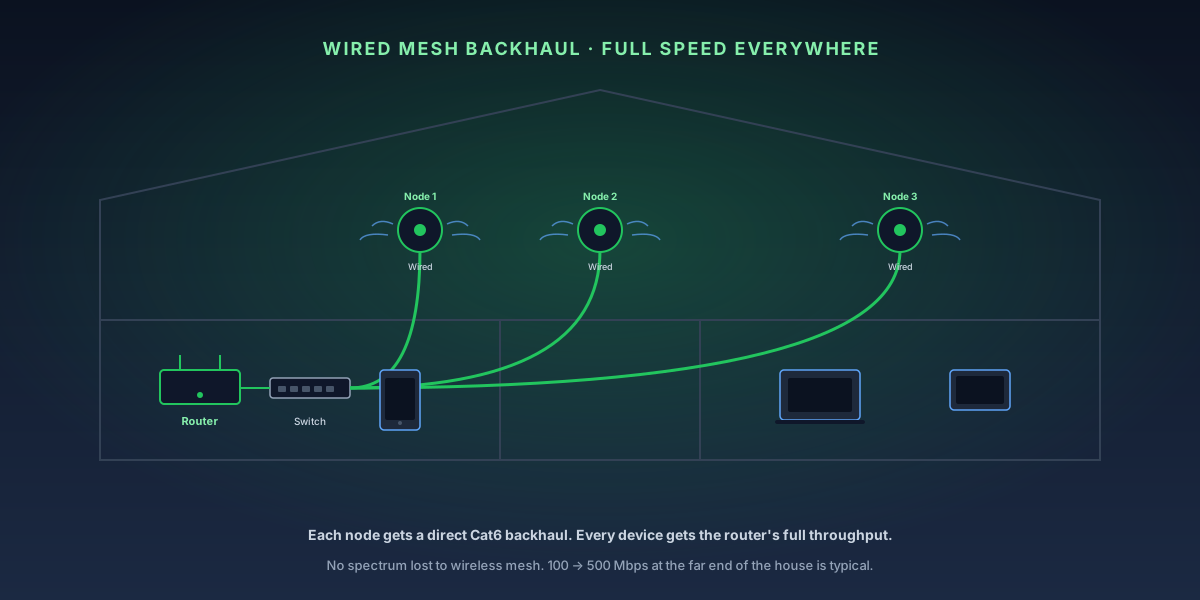
Mesh Wi-Fi with wireless backhaul is convenient — just plug in nodes and place them around the house. But wireless backhaul has a fundamental limitation: the backhaul radio that communicates between nodes competes for the same spectrum used to serve your devices. Speed degrades with distance. Wired backhaul eliminates this: each node gets a direct Ethernet connection to your router, and every device on every node gets the router's full throughput. The difference is dramatic in homes with 20+ devices.
8-Step Overview
- 1
Confirm your mesh system supports wired backhaul
Not all mesh systems support wired backhaul equally well. Amazon eero Pro 6 and 6E, TP-Link Deco XE75/X90, Netgear Orbi RBK863S, and ASUS ZenWiFi Pro ET12 all support wired Ethernet backhaul. Check your system's app or documentation for a 'wired backhaul' or 'wired connection detected' indicator — without confirmation from the app, you may be using wireless backhaul even with Ethernet cables connected.
Search on Amazon →Recommended Product
Amazon eero Pro 6E Mesh Wi-Fi System (3-Pack)
eero Pro 6E automatically detects and uses wired backhaul when you plug in Ethernet — no configuration required. The app confirms 'Wired Backhaul' status for each node.
- 2
Plan your Ethernet cable runs
Sketch a floor plan and mark where each mesh node will go. Identify the shortest path from your router (or a network switch connected to the router) to each node location. Common cable paths: along baseboards, through interior wall cavities, over drop ceilings, or through conduit in finished spaces. For most homes, 2–3 nodes placed in hallways or central rooms provide full coverage. Budget 10–15% extra cable length for routing around corners and obstacles.
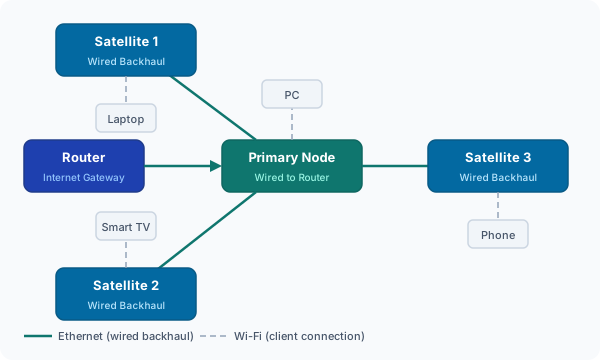
Wired backhaul topology: every node gets a direct Ethernet connection for full-speed throughput at every location. - 3
Install a network switch at your router if needed
Most routers have only 4 LAN ports. If you need to run Ethernet to 2+ mesh nodes plus other wired devices, add an unmanaged switch at the router's location. Connect the switch to one of your router's LAN ports using a short patch cable. Now run Cat6 from the switch to each node location. An 8-port unmanaged switch costs $20–30 and is sufficient for a whole-home wired backhaul setup.
- 4
Run Cat6 cable to each node location
Use Cat6 cable for all runs — it supports gigabit speeds (1000 Mbps) up to 328 feet and is future-proof for multi-gig. Feed cable through walls using a fish tape or drill a path through floor plates in the wall cavity. Fishing wire between floors typically requires drilling through a top plate in the wall. For a simpler approach, run cable along baseboards or through cable raceways — less clean but much faster to install.
Check Price on Amazon →Recommended Product
TP-Link Deco XE75 Wi-Fi 6E Mesh System (2-Pack)
The Deco XE75 supports wired backhaul on any Ethernet port and uses the 6 GHz band for client connections when on wired backhaul — giving full-speed Wi-Fi 6E to every device in the house.
- 5
Terminate and test your cable runs
Crimp RJ45 connectors on both ends of each cable run (or use keystone jacks and patch panels for a cleaner install). Use a cable tester to verify continuity before connecting devices. A cheap RJ45 cable tester costs $10 and saves hours of troubleshooting. Confirm all 8 pins show continuity — a single miswired pair prevents gigabit operation.
- 6
Connect each mesh node via Ethernet
Plug the Ethernet cable from your switch into any LAN port on the satellite mesh node (some nodes have dedicated WAN ports — check your manual; eero and Deco use any port). Power on the node. It should automatically detect the wired connection and switch from wireless to wired backhaul. The node's LED or the mesh app will confirm this — look for a wired connection indicator.
- 7
Verify wired backhaul in the app
Open your mesh system's app and check each node's connection type. In the eero app: tap a node → you should see 'Connected via Ethernet.' In the TP-Link Deco app: tap the node → Connection Details should show 'Wired.' In Netgear Orbi: the web interface shows backhaul type per satellite. If the app still shows 'wireless backhaul' after connecting Ethernet, power cycle the node. On some systems, backhaul mode switching requires a full reboot.
- 8
Run speed tests to confirm the improvement
Run Speedtest.net at each node location and compare to your pre-wired speeds. On wired backhaul, speeds at satellite nodes should be close to what you get at the primary node — typically within 10–20% of your ISP's plan speed. If you were getting 100–150 Mbps wirelessly and now get 400–500 Mbps, that's the backhaul improvement. Test at peak usage hours (evenings) to see how the system performs under real load.