What Is DNS and Should You Change Your DNS Server?
Published 2026-10-05 · By NetAudioHub Editorial
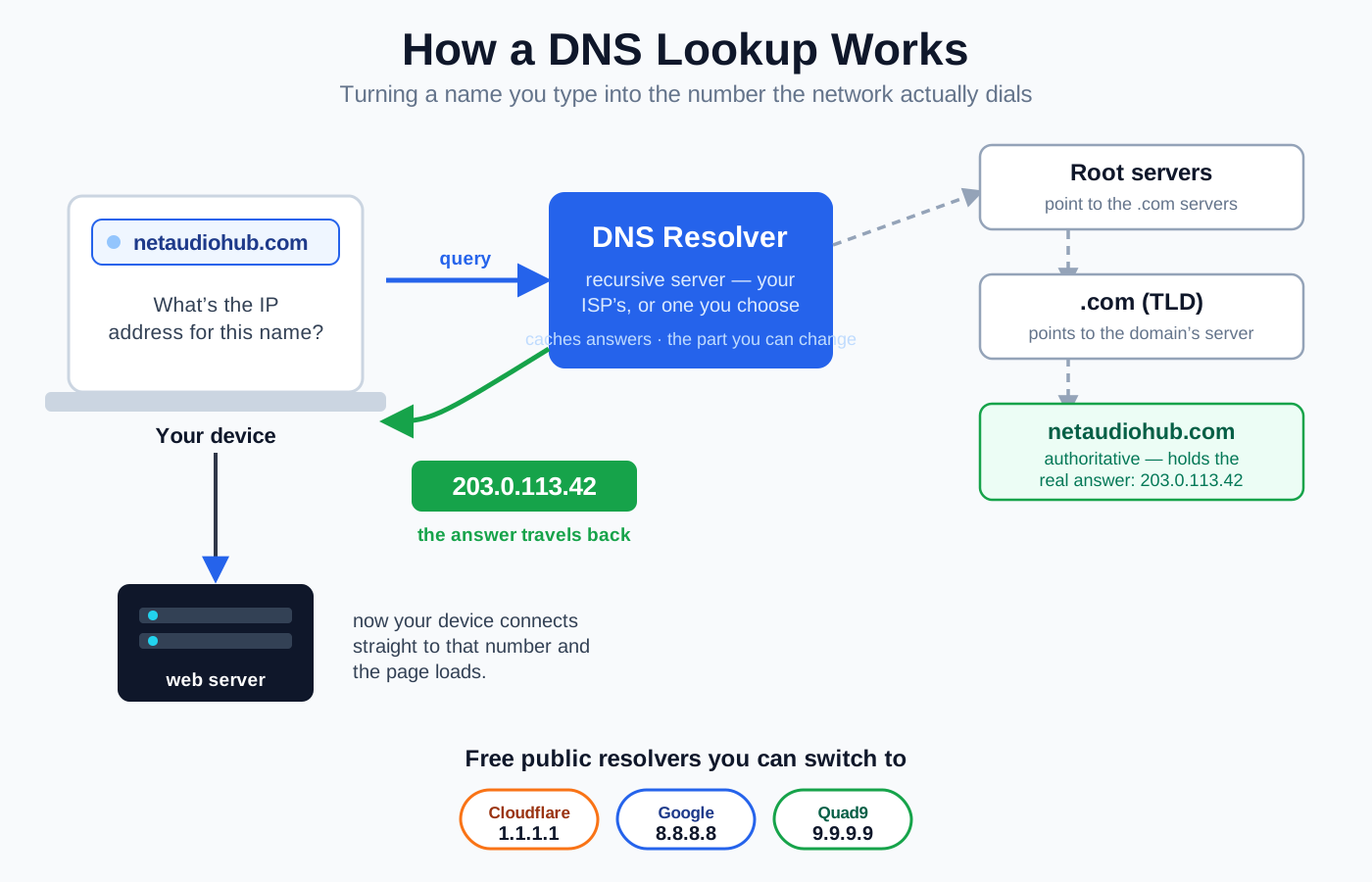
Every time you open a website, your device runs a hidden lookup first: it takes the human name you typed and asks a DNS server for the numeric address the network actually needs. By default that lookup runs through whatever server your internet provider assigned, and most people never touch it. But you can swap it for a free public resolver like Cloudflare's 1.1.1.1, Google's 8.8.8.8, or Quad9's 9.9.9.9 — and doing so can nudge responsiveness, harden your privacy, and block malicious sites. It also can't do a lot of things people hope it will, like make your connection faster. This guide explains what DNS actually is, how a lookup travels, the real reasons to change it, the ones that are myths, and exactly where to flip the setting.
The short version: DNS (the Domain Name System) is the internet's address book. Computers route traffic using numeric IP addresses, but humans use names — so before your device can load netaudiohub.com, it quietly asks a DNS server to translate that name into a number like 203.0.113.42. By default your internet provider picks that server for you. You can replace it with a free public one — Cloudflare's 1.1.1.1, Google's 8.8.8.8, or Quad9's 9.9.9.9 are the big three — and that can make lookups a touch snappier, keep your browsing history away from your ISP, and automatically block known malicious sites. What it will not do is increase your bandwidth, fix weak Wi-Fi, or cure lag — DNS only affects the split-second name-to-number step, not the pipe your data travels through. For most people it's a five-minute change with a modest, real upside. Here's how it works and how to do it.
What DNS Actually Does
The internet doesn't run on names. Every server has a numeric IP address — something like 203.0.113.42 for IPv4, or a longer string for IPv6 — and that number is what your traffic is actually routed to. Names like netaudiohub.com exist purely for humans, because nobody wants to memorize numbers.
DNS — the Domain Name System — is the translation layer between the two. It's a giant, distributed directory that maps every domain name to the IP address (or addresses) behind it. When you type a web address, tap a link, or open an app, the very first thing your device does is a DNS lookup: it asks, "what's the number for this name?" and waits for an answer before it can connect to anything.
It happens hundreds of times a day and you never see it — until it's slow or broken, at which point websites simply refuse to load even though your connection is fine. That "the internet's down" feeling is often just DNS having a bad moment.
How a DNS Lookup Travels
When your device needs an address it doesn't already know, the question passes through a short chain. Understanding the chain is what makes the rest of this guide make sense.
| Step | Who answers | What happens |
|---|---|---|
| 1. Your device | Local cache | It checks its own memory first — recently visited sites are remembered for minutes or hours, so no lookup is needed. |
| 2. The resolver | Recursive DNS server | If it's not cached, your device asks a resolver — the DNS server you (or your ISP) configured. This is the part you can change. |
| 3. Root + TLD | Root and top-level-domain servers | If the resolver doesn't know the answer, it walks the hierarchy: a root server points it to the .com servers, which point it to... |
| 4. Authoritative | The domain's own name server | ...the authoritative server for netaudiohub.com, which holds the real answer and returns the IP. |
| 5. Back to you | Resolver → device | The resolver caches the answer and hands the IP back. Your device finally connects to the server and the page loads. |
The whole round trip usually takes tens of milliseconds. Because resolvers cache answers, most of your lookups get answered instantly at step 2 without ever touching the root servers. The resolver you use — its speed, its location, and how well it caches — is the lever you're pulling when you "change your DNS."
One thing worth knowing: your router usually runs its own tiny DNS relay and hands DNS settings to every device on your network automatically (part of the same DHCP handout that gives each device its local IP address). If you're fuzzy on which box does what, our modem vs. router vs. gateway explainer sorts out the roles.
Where Your DNS Comes From by Default
Out of the box, your resolver is whatever your internet provider assigned. When your router connects to your ISP, it's handed a pair of DNS server addresses, and it passes them to every device in your home. You never chose them; they came with the service.
ISP resolvers are usually fine. But they're a mixed bag:
- Some are slow, poorly maintained, or far away, adding a few milliseconds to every lookup.
- Some log your queries — a full record of every domain you visit — and a handful have been caught monetizing that data or injecting ads into error pages.
- Some enforce DNS-level blocks, redirecting or refusing certain domains because of a court order or provider policy.
None of that is catastrophic, but all of it is avoidable, which is why switching resolvers is one of the most popular five-minute network tweaks.
The Real Reasons to Change Your DNS
There are four honest reasons, and it's worth being clear-eyed about how big each one actually is.
| Reason | How much it helps | Notes |
|---|---|---|
| Reliability | Real | Big public resolvers have near-perfect uptime and global server networks, so lookups rarely stall. A flaky ISP resolver is the most common reason to switch. |
| Privacy | Real | A public resolver with a strong privacy policy (or an encrypted connection — see below) keeps your ISP from logging every site you visit. |
| Security / filtering | Real | Some resolvers automatically block domains known to host malware or phishing, and some offer family-friendly versions that filter adult content network-wide. |
| Speed | Usually small | A closer, faster resolver can shave a few milliseconds off each lookup. It's a nudge to responsiveness, not a bandwidth increase — see the myths section below. |
If your browsing ever feels like it "hangs before loading," an unreliable ISP resolver is a prime suspect, and swapping it is the fix. The privacy and security angles are the ones most people ultimately stick around for.
The Popular Public Resolvers
These are all free, well-run, and take under five minutes to set up. Enter the addresses as your primary and secondary DNS.
| Resolver | Primary / Secondary IPs | Best known for |
|---|---|---|
| Cloudflare | 1.1.1.1 / 1.0.0.1 | Speed and a strong privacy stance (it pledges not to log your IP and to purge query logs quickly). |
| Google Public DNS | 8.8.8.8 / 8.8.4.4 | Rock-solid reliability and a huge global network. The default "just works" pick. |
| Quad9 | 9.9.9.9 / 149.112.112.112 | Built-in security — it automatically blocks domains known to serve malware and phishing. |
| OpenDNS | 208.67.222.222 / 208.67.220.220 | Cisco-run, with optional content-filtering tiers (including a family-safe version that blocks adult sites). |
Cloudflare also runs 1.1.1.1 for Families variants that add malware blocking (1.1.1.2) or malware-plus-adult-content blocking (1.1.1.3) if you want filtering without leaving Cloudflare. Any of these four is a safe, mainstream choice — pick based on whether you're optimizing for privacy, reliability, or built-in filtering.
What Changing Your DNS Won't Do
This is where a lot of hope gets misplaced. DNS controls the name-to-number lookup, and nothing else about how your data moves. So switching resolvers cannot:
- Increase your bandwidth. If your plan is 200 Mbps, it's still 200 Mbps. DNS doesn't touch the size of your pipe — it only helps you find the address before the download begins. If your speeds feel short, the fix is your plan or your Wi-Fi, not your resolver; see how much internet speed you actually need.
- Fix weak Wi-Fi. Dead zones, drops, and low signal are radio problems. No resolver reaches through walls — that's a placement and coverage issue covered in router placement for the best signal.
- Cure lag or ping spikes under load. When your connection stutters during a big upload or a full house of streams, that's usually bufferbloat, not DNS. The real fix is queue management on your router, which we walk through in how to fix lag and ping spikes.
The one genuine speed effect is subtle: a faster resolver returns addresses a few milliseconds sooner, so pages start loading a hair quicker — noticeable mainly on sites you haven't visited recently. It's a real but small win. Anyone promising that a DNS change will "double your internet speed" is selling a myth.
Encrypted DNS: DoH and DoT
There's a catch to plain DNS: by default, those lookup questions travel unencrypted. Anyone between you and the resolver — most obviously your ISP — can see every domain you ask for, even if the sites themselves use HTTPS. Changing to a privacy-friendly resolver helps, but the queries are still readable in transit unless you encrypt them.
Two standards fix that, and both are supported by the major public resolvers:
- DoH (DNS over HTTPS) wraps your lookups inside ordinary web (HTTPS) traffic on port 443, so they're both encrypted and hard to distinguish from normal browsing. Every major browser can enable it directly in its settings.
- DoT (DNS over TLS) encrypts DNS on its own dedicated port (853). It's common on phones and routers, where it protects every app on the device, not just the browser.
If privacy is your reason for switching, turning on encrypted DNS is the part that actually closes the loop — otherwise your ISP still sees the list of names you look up, just not the answers. Modern phones and browsers make this a one-toggle affair.
How to Actually Change It
You have two levels to work at, and the right one depends on how much you want to cover.
Per device (fastest to try). On a laptop, phone, or tablet, open the network settings, find the DNS field for your active connection, switch it from "automatic" to "manual," and enter your chosen primary and secondary addresses. This affects only that one device — perfect for testing a resolver before you commit, and the only option on networks you don't control (a dorm, an office).
At the router (covers everything). Log into your router's admin page, find the DNS settings (often under the internet/WAN or DHCP section), and enter the resolver addresses there. Now every device on your network — phones, TVs, game consoles, smart-home gadgets that have no DNS setting of their own — uses the new resolver automatically. This is the set-it-once approach, and any current Wi-Fi 6 or Wi-Fi 7 router makes the change easy, often with encrypted DNS built in.
A couple of practical notes:
- Change one thing at a time. Set the primary and secondary to your new resolver (using two different providers as primary/secondary can cause inconsistent results). If a site stops resolving, flip back to automatic to confirm DNS is the cause.
- Some ISP features rely on their DNS. Provider-level parental controls or "security suites" sometimes work by intercepting DNS. If you switch resolvers, those specific features may stop — replace them with your resolver's own filtering (Quad9, OpenDNS, or Cloudflare for Families) instead.
So — Should You Change It?
For most people, yes, and it's low-risk. If your ISP's resolver is slow or flaky, a public one is a clear upgrade in reliability. If you care that your provider logs every site you visit, a privacy-respecting resolver plus encrypted DNS shuts that down. If you want a free, invisible layer of malware and phishing protection for the whole household, Quad9 or Cloudflare for Families delivers it with a single setting.
Just keep your expectations calibrated: you're improving reliability, privacy, and safety, and shaving a few milliseconds off lookups — not buying more speed. Change it at the router to cover every device at once, turn on encrypted DNS if privacy is the goal, and you're done in five minutes.
The Bottom Line
DNS is the quiet translator that turns the names you type into the numbers the network dials, and by default your ISP runs it for you. Swapping in a free public resolver — Cloudflare's 1.1.1.1, Google's 8.8.8.8, Quad9's 9.9.9.9, or OpenDNS — is one of the easiest network upgrades there is: it can make lookups more reliable, keep your browsing history out of your provider's logs, and block malicious sites automatically, especially once you enable encrypted DNS to hide the queries in transit. What it can't do is add bandwidth, mend weak Wi-Fi, or fix lag, so don't switch expecting a speed miracle. Set it at the router, pick the resolver whose strength matches what you care about, and enjoy a slightly faster, more private, and safer address book for the whole house.
Affiliate disclosure: NetAudioHub links to retailers including Amazon. We earn a small commission on qualifying purchases at no extra cost to you.