Modem vs Router vs Gateway: What You Actually Need in 2026
Published 2026-07-15 · By NetAudioHub Editorial
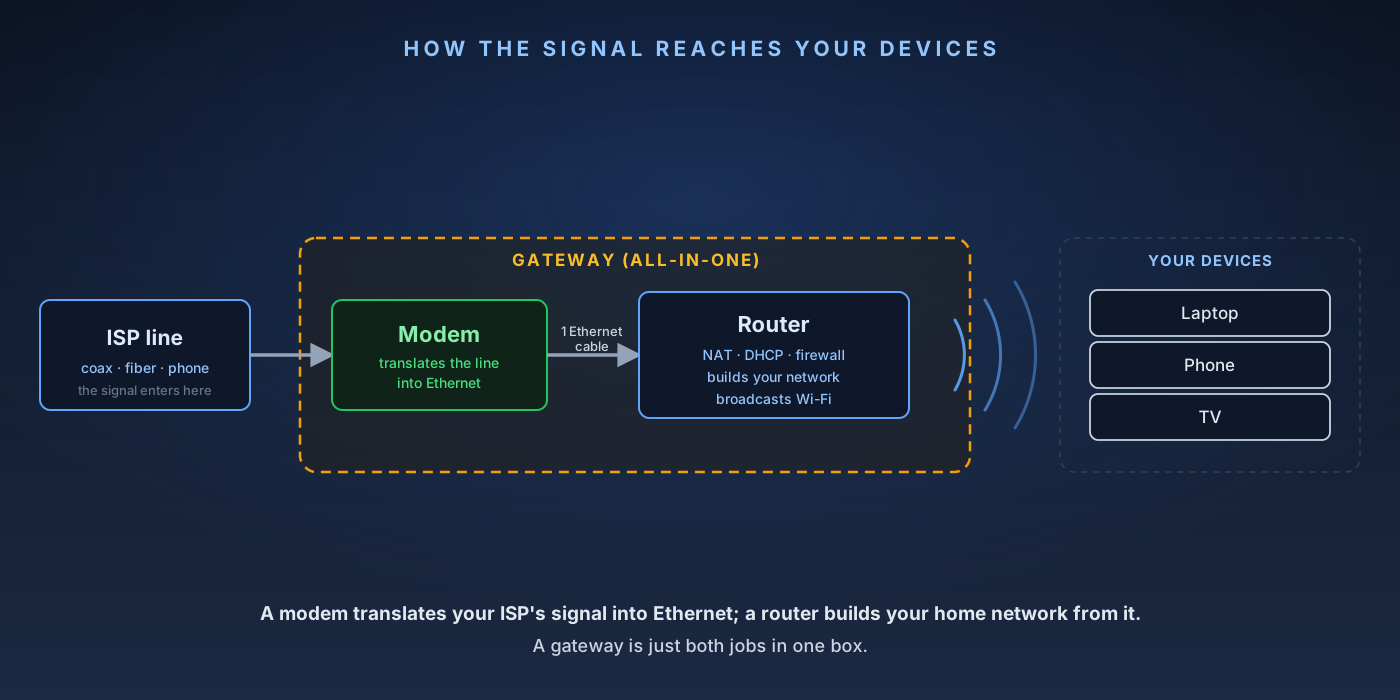
A modem translates your ISP's signal into Ethernet; a router turns that one connection into your home network; a gateway is just both in one rented box. Here's exactly what each device does, which ones your provider actually owns, and the buy-vs-rent math for 2026.
The verdict up front: a modem translates your ISP's signal (coax, fiber, or phone line) into ordinary Ethernet. A router takes that one connection and turns it into your home network — it hands out addresses, runs the firewall, and (if it's a wireless router) broadcasts Wi-Fi. A gateway is a single box that does both jobs at once, which is what almost every ISP hands you and charges $10–$15 a month to rent. You need the modem function no matter what, because it's the only thing that speaks your ISP's physical language. Whether you also need a separate router comes down to one question: do you want to rent forever, or own your network? For most cable-internet homes, buying your own modem and your own router pays for itself inside a year or two and gives you far better Wi-Fi. For fiber, you usually keep the ISP's box for the modem/ONT part and add your own router behind it. Below: exactly what each device does, which ones your provider actually owns, and the buy-vs-rent math for 2026.
The Three Devices, Defined
Almost every confusing article on this topic blurs these together because the box in your closet often is all three at once. So start with what each function actually does, as if they were still three separate pieces of hardware — because understanding them separately is the only way the buying decision makes sense.
A modem is a translator. Your internet service provider sends data over a physical medium that computers can't read directly: a coaxial cable (cable internet), a fiber-optic strand (fiber), or a copper phone line (DSL). The modem demodulates that incoming signal into standard Ethernet and modulates your outgoing Ethernet back into whatever the ISP's line uses — that's literally where the name comes from (modulator-demodulator). A modem has, at minimum, one connection to the ISP (a coax jack, a fiber port, or a phone jack) and one Ethernet port out. It does not create a network, it does not do Wi-Fi, and it does not share the connection among multiple devices. Plug a single computer straight into a modem and that one computer gets online — nothing else.
A router is the traffic cop for your home. It takes the single internet connection coming out of the modem and shares it among every device you own — phones, laptops, TVs, game consoles, smart plugs. It does this with a handful of jobs running quietly in the background: NAT (network address translation) lets dozens of devices share one public IP address; DHCP hands each device a private local address automatically; and a firewall blocks unrequested traffic from the outside. A wireless router adds Wi-Fi radios so devices can connect without a cable, plus usually four or so Ethernet ports for wired gear. The router is where your network's speed, range, security settings, and features (guest networks, parental controls, VPN) actually live.
A gateway — sometimes called a modem-router combo — is a single physical box with both the modem and the router built in. When your ISP installs "the internet box," it's almost always a gateway: one device that translates the line and runs your Wi-Fi network. Retailers also sell combo units for people who want one-box simplicity. Nothing about a gateway is magic; it's just the two functions above sharing a power cord and a plastic shell.
Here's the one-line test: the modem is the only part that has to match your ISP's technology. Everything else — the routing, the Wi-Fi, the ports — is yours to choose. That single fact is what makes the buying decision straightforward once you know your connection type.
What Your ISP Actually Owns (and Why It Matters)
This is the part that trips people up, because "can I buy my own?" has a different answer depending on how the internet reaches your house.
Cable internet (coax): You can almost always buy your own modem. Cable modems follow an open, published standard called DOCSIS, and providers like Xfinity, Cox, and Spectrum maintain lists of approved retail modems you're free to bring. Buy a DOCSIS 3.1 modem, register its ID with your ISP over the phone or app, and you drop the rental fee entirely. This is the single most common money-saving move in home networking.
Fiber (fiber-to-the-home): Here the "modem" is an ONT (optical network terminal), and it's almost always owned and controlled by the ISP — often mounted to the wall or installed by a technician, sometimes even outside the house. You typically cannot replace it with a retail unit. What you can do is put your own router behind it: run an Ethernet cable from the ONT to a router you bought, and ignore (or disable the Wi-Fi on) the ISP's gateway. So on fiber, you don't save the "modem" rental, but you still get to own your network.
DSL (phone line): Retail DSL modems exist but compatibility is fussy and varies by provider and line type. On DSL it's often simplest to keep the ISP's gateway for the modem function and, again, add your own router behind it if you want better Wi-Fi.
The pattern across all three: the modem/ONT part may be locked to your ISP, but the router part is always yours to upgrade. If your Wi-Fi is bad, that's the router's job — and the router is the part you can almost always replace.
Heads-up on "no equipment fee" plans. A growing number of ISPs (including some newer Xfinity price-lock plans) now include the gateway at no extra charge. If your plan genuinely bundles the equipment for free, the rent-vs-buy math changes — buying your own modem saves you nothing on the bill, though a separate router can still give you dramatically better Wi-Fi. Always check what line item, if any, the equipment shows up as before you buy.
The Buy-vs-Rent Math
Renting feels painless because it's a small line item — until you add it up. In 2026, cable ISPs typically charge $10–$15 a month for gateway equipment. Xfinity, for example, charges $15/month for its xFi Gateway on most plans — that's $180 a year, every year, forever, for hardware that never becomes yours. (Its xFi Complete tier runs $25/month.)
Now compare that to owning. A well-regarded standalone multi-gig cable modem like the ARRIS SURFboard S33 runs about $200 and is DOCSIS 3.1 with a 2.5 GbE port — enough headroom for a 2 Gbps plan. (You can spend far less if your plan tops out around a gigabit; a basic DOCSIS 3.1 modem is well under $100.) Even at the high end:
- Modem alone: $200 to buy vs. ~$180/year to rent → you break even in a little over a year, then save $180 every year after.
- Cheaper modem: an $80 DOCSIS 3.1 unit on a gigabit plan pays for itself in about five to six months.
- The router is a separate, optional purchase — but a good one is what actually fixes bad Wi-Fi, and it's yours across ISP changes and moves.
The catch worth naming: when you own the hardware, you are tech support for it. A rented gateway gets swapped for free if it dies; your own modem you replace yourself (though a decent one carries a 2-year warranty and typically lasts far longer than that). For most people who keep their internet service more than a year — which is most people — buying wins on cost and wins bigger on Wi-Fi quality.
So What Do You Need? A Decision Guide
Match yourself to a row:
You have cable internet and want to stop paying rent. Buy a DOCSIS 3.1 modem approved by your ISP, plus a separate router (or mesh system). Register the modem's ID with your provider, return the rented gateway to avoid the fee, and you're done. This is the highest-value setup for most homes. See our full ARRIS SURFboard S33 review for the multi-gig pick, and our best mesh Wi-Fi under $200 guide for the router half.
You have fiber. Keep the ISP's ONT/gateway — you generally can't replace it — but put the ISP box in "bridge" or "pass-through" mode (or just disable its Wi-Fi) and connect your own router behind it. You won't drop an equipment fee, but you'll get much better Wi-Fi and full control of your network.
Your internet works fine but your Wi-Fi is weak in parts of the house. You don't need a new modem at all. The Wi-Fi is the router's job. Add your own router or a mesh system behind whatever the ISP gave you (bridge the gateway if it has a modem built in). This is the most common mistake — people replace the whole gateway when the fix is just a better router.
You rent, move often, or want zero maintenance. Keeping the ISP gateway is a legitimate choice. You pay for it, but it's one box, one number to call when something breaks, and nothing to sell or move. If simplicity is worth $10–$15/month to you, that's a fair trade — just make the choice knowingly.
You want the fastest possible multi-gig plan (2 Gbps and up). Buy a modem that explicitly supports your plan's tier — DOCSIS 3.1 with a 2.5 GbE port (or link aggregation) for cable — and pair it with a router whose WAN port and internal switching can actually carry those speeds. A gigabit-era gateway will bottleneck a 2 Gbps plan. Our 2.5 GbE vs 10 GbE home network breakdown covers where the real bottlenecks are.
A Few Things That Trip People Up
"Modem-router combo" and "gateway" are the same thing. Different words, same device: one box doing both jobs. Retailers say "combo," ISPs say "gateway."
Bridge mode turns a gateway back into a plain modem. If you already have an ISP gateway and want to use your own router, you usually don't have to return the gateway — you enable bridge mode in its settings, which switches off its routing and Wi-Fi and lets it act as a simple modem feeding your router. (On a rented gateway you're still paying the fee, though, so returning it and buying your own modem is the way to actually save money on cable.)
Two routers by accident = double NAT. If you plug your own router into an ISP gateway that's still routing (not bridged), you end up with two routers running NAT in series. It usually still works, but it can break some games, VPNs, and port forwarding. The fix is to bridge the upstream gateway so only one device is doing the routing.
DOCSIS 4.0 is coming, but 3.1 is the right buy today. Some providers are rolling out DOCSIS 4.0 for symmetrical multi-gig speeds, but 4.0 retail modems are scarce and expensive in 2026, and DOCSIS 3.1 already handles the multi-gig plans most people can actually buy. Don't overpay for 4.0 unless your ISP specifically requires it for a plan you're on.
Wi-Fi 7 lives in the router, not the modem. Upgrading to the latest Wi-Fi standard means a new router (or mesh), not a new modem. The modem doesn't care what Wi-Fi your devices use — it just delivers the internet to the router that does.
The Bottom Line
Three devices, one clear split: the modem (or ONT) is the part matched to your ISP's line and is sometimes theirs to control; the router builds and secures your home network and is almost always yours to choose; a gateway is just both in one rented box. For cable homes, buying your own DOCSIS 3.1 modem plus a good router or mesh stops the monthly rental and fixes weak Wi-Fi at the same time — it pays for itself fast. For fiber, keep the ONT and add your own router behind it. And if your internet is fine but your Wi-Fi isn't, don't touch the modem at all — the answer is a better router.
Affiliate disclosure: NetAudioHub links to retailers including Amazon. We earn a small commission on qualifying purchases at no extra cost to you.