How to Set Up Wi-Fi 7 at Home: 6 GHz, MLO, and 320 MHz Channels
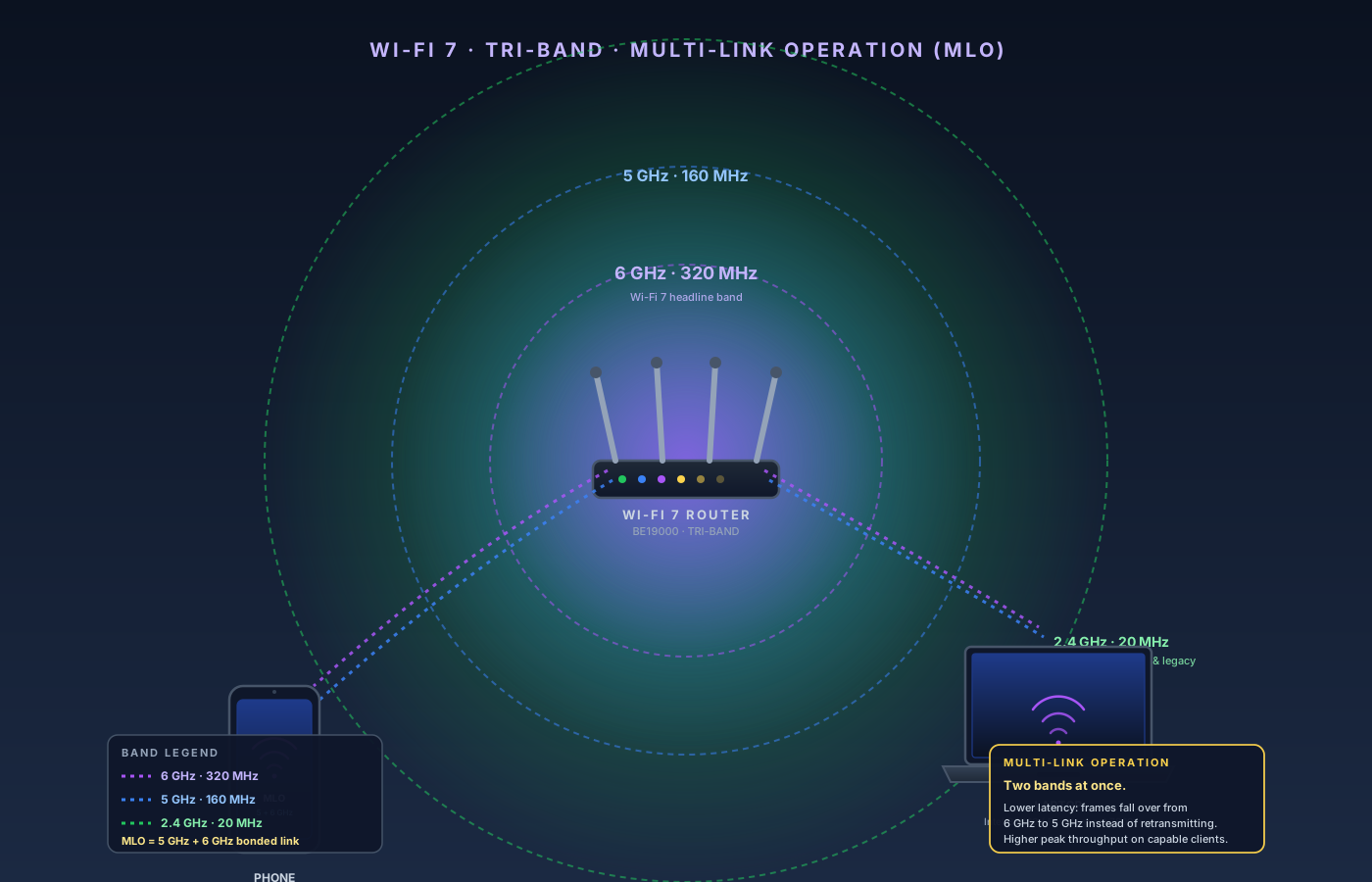
Wi-Fi 7 (802.11be) doesn't deliver its advertised speeds out of the box. Plug in a $600 tri-band router, accept the defaults, and you'll mostly see Wi-Fi 6 performance with a new sticker on the box — the 6 GHz band sits idle, channel width defaults to 160 MHz instead of 320 MHz, and Multi-Link Operation (MLO) ships disabled on a majority of consumer routers. Five settings change that, and once they're right, a modern phone or laptop close to the router will hit 2–3 Gbps over the air on a 2 Gbps fiber connection — territory that was wired-only a generation ago. This guide assumes you've already bought (or are about to buy) a Wi-Fi 7 router or mesh and want to deploy it without leaving performance on the table.
What you’ll need
- Wi-Fi 7 (802.11be) tri-band router or mesh system
- Modem with at least a 2.5 GbE WAN port (for plans over 1 Gbps)
- Cat6 or Cat6a Ethernet cable for the modem-to-router link
- A Wi-Fi 7 client device (phone, laptop, or USB adapter) for testing
10-Step Overview
- 1
Confirm your ISP plan and modem can feed a Wi-Fi 7 router
Wi-Fi 7's headline numbers — 5.8 Gbps on a single 6 GHz stream, 46 Gbps theoretical aggregate — assume an internet feed that can match them, and most home plans cannot. Audit three things on the WAN side before buying. First, ISP plan speed: anything under 1 Gbps is already saturated by Wi-Fi 6, so the upgrade buys you almost nothing unless you have significant internal LAN traffic (NAS, local streaming, large multi-device families). Second, modem WAN port speed: cable, fiber, and DSL modems frequently top out at 1 GbE Ethernet, which caps everything downstream at roughly 940 Mbps regardless of your Wi-Fi 7 router. For plans over 1 Gbps you need a modem with a 2.5 GbE or 10 GbE WAN port — call your ISP for a replacement if they supplied a 1 GbE-only unit on a 2 Gbps plan; they exist for every major US ISP. Third, the cable between modem and router: use Cat6 or Cat6a for any run carrying 2.5 GbE or faster. Old Cat5e will sometimes negotiate at 2.5 GbE on short runs and silently drop packets at distance. If any of these three are weaker than your router's WAN port, you've created a bottleneck that no Wi-Fi setting fixes — the 6 GHz band may still help LAN-to-LAN transfers between two Wi-Fi 7 devices in the same room, but the internet speed your clients measure will track the slowest WAN element.
- 2
Pick a tri-band Wi-Fi 7 router or mesh
Wi-Fi 7 ships in two flavors that differ enormously in real performance. Dual-band Wi-Fi 7 (2.4 GHz + 5 GHz only), often labeled "BE5000" or "BE9300," skips the 6 GHz band entirely — which is where the bulk of the Wi-Fi 7 performance gains live. A dual-band BE router is mostly a Wi-Fi 6 router with newer marketing, and is the wrong pick for a flagship deployment. Tri-band Wi-Fi 7 (2.4 + 5 + 6 GHz), labeled "BE10000" through "BE22000" and beyond, has the 6 GHz radio that supports 320 MHz channels and 4K-QAM modulation — i.e. the headline numbers. For a single-router deployment in a typical apartment or single-story house, the TP-Link Archer BE800 is the current sweet spot — BE19000 tri-band, 320 MHz on 6 GHz, dual 10 GbE ports for WAN + LAN, fiber plans up to 5 Gbps, and a few dozen clients without complaint. For a multi-floor or larger home, mesh wins on coverage but you need a system with wired backhaul support and 6 GHz on every node, or the backhaul becomes the bottleneck. The TP-Link Deco BE85 tri-band mesh is the current default; the Deco BE63 is the budget step down. The Eero Max 7 is the easiest-to-configure premium option if you don't want to manage advanced settings, and the Netgear Orbi 970 sits at the top of the consumer mesh tier.
Search on Amazon →Recommended Product
TP-Link Archer BE800 Tri-Band Wi-Fi 7 Router (BE19000, dual 10 GbE)
Best single-router Wi-Fi 7 buy for most homes. Full 320 MHz on 6 GHz, MLO support out of the box, two 10 GbE ports, and a mature web admin that exposes the advanced settings this guide depends on.
- 3
Place the router for line-of-sight to your primary rooms
The 6 GHz band that gives Wi-Fi 7 its real advantage has worse wall penetration than 5 GHz, and dramatically worse than 2.4 GHz. Two interior walls between the router and the client are enough to push a 6 GHz link back down to 5 GHz speeds. This makes placement more important on Wi-Fi 7 than on any prior generation. Practical rules: one floor up if possible — wave propagation works downward better than horizontally through walls, so a router on the second floor reaches more of a two-story house than a router in the basement. Centered, not in a corner — coverage radiates omnidirectionally, and a router pushed against an exterior wall throws half its signal at the neighbors. Out in the open, not in a closet — every additional drywall layer between the antennas and the room cuts 6 GHz throughput. Off the floor, at least 3–4 feet up — antennas designed for omnidirectional radiation underperform when mounted at floor level because half the radiation pattern is absorbed by the floor and slab. For homes where a single router can't reach every room on 6 GHz, a mesh with wired Ethernet backhaul between nodes is the right answer — see our how-to on extending Wi-Fi with a wired backhaul for the cabling specifics. Wireless backhaul on a Wi-Fi 7 mesh works, but it steals a band from client traffic and roughly halves the throughput your devices see.
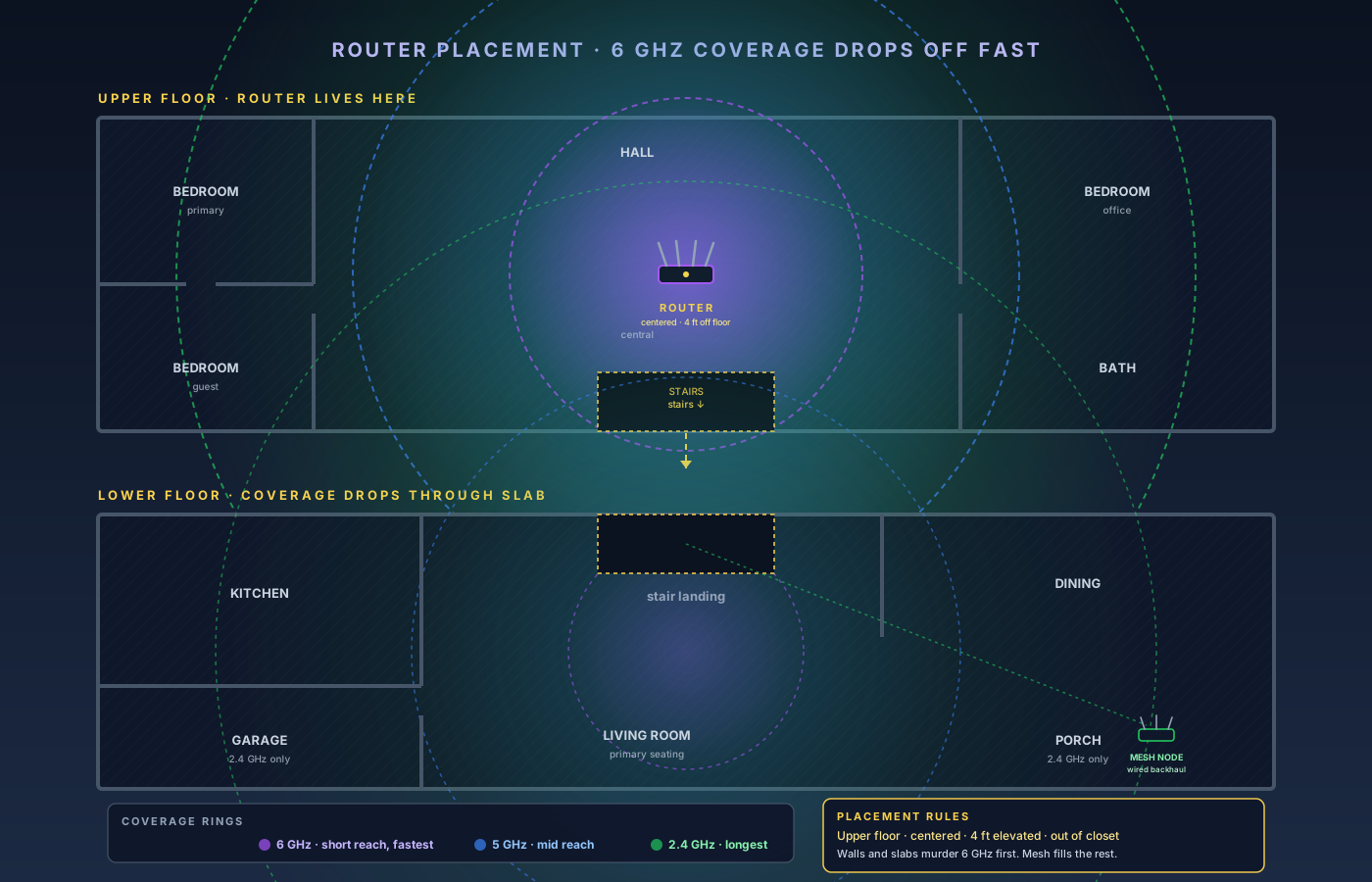
6 GHz reach drops off fast through walls. Center placement, slightly elevated, gets the most rooms onto the fast band. Search on Amazon →Recommended Product
TP-Link Deco BE85 Tri-Band Wi-Fi 7 Mesh System
Tri-band mesh with 6 GHz on every node and 10 GbE wired-backhaul ports — the right pick for multi-floor coverage where a single router won't reach.
- 4
Connect the modem and complete initial setup
Order of operations matters when changing routers because the modem caches the MAC address of whatever was previously connected. First, power down the modem by unplugging it for at least 30 seconds — this clears its DHCP lease and ARP cache so it negotiates fresh with the new router. Connect the modem's LAN port to the router's WAN port with the Cat6/6a cable from Step 1; use the router's fastest WAN port, usually labeled 2.5G WAN or 10G WAN. Don't plug into a regular LAN port — many Wi-Fi 7 routers have a configurable port that can be either WAN or LAN and defaults to LAN. Power the modem first, wait for its status LEDs to settle (typically 60–90 seconds), and confirm internet sync. Then power the router and wait another 60–90 seconds for it to boot and establish a WAN link. Run first-time setup; most consumer Wi-Fi 7 routers push you to a mobile app (TP-Link Tether, Eero, Deco, Orbi), and web admin is also available at the router's default IP — usually 192.168.0.1 or 192.168.1.1 — for users who prefer the desktop interface. Set the admin password to something strong and unique — do not use the default admin password. Wi-Fi 7 routers are aggressively scanned by botnets the moment they appear on a residential IP, and the default credentials are public knowledge. Use a password manager and a random 20+ character password.
- 5
Enable the 6 GHz band and set channel width to 320 MHz
Open the router's web admin (192.168.0.1 or whatever the wizard told you) and find Wireless or Wi-Fi Settings. You should see three bands. 2.4 GHz should be enabled at 20 MHz channel width — wider channels here cause interference with neighbors and degrade your own performance. 5 GHz should be enabled at 80 or 160 MHz; 160 MHz is correct in most US homes, switch to 80 MHz only if you live in a dense apartment building where neighboring 5 GHz networks overwhelm DFS channels. 6 GHz should be enabled at 320 MHz channel width — this is the headline setting. A 320 MHz channel doubles the per-stream throughput vs. 160 MHz, and 6 GHz has enough spectrum that you don't pay a cost for using the full width. If you don't see a 6 GHz band option, your router is dual-band and isn't a real Wi-Fi 7 deployment. If you see 6 GHz but the channel width tops out at 160 MHz, check the firmware version — many launch firmwares disabled 320 MHz pending FCC certification and unlocked it later. A few 6 GHz settings worth a glance: operating mode "Low Power Indoor" (LPI) is the safer default for typical home use, while "Standard Power" allows higher transmit power outdoors under FCC AFC rules; don't switch to "Very Low Power" (VLP), which cuts coverage substantially. Leave channel selection on Auto — the 6 GHz band has so many non-overlapping channels (59 at 20 MHz, 14 at 80 MHz, 3 at 320 MHz) that automatic selection works reliably here.
- 6
Enable Multi-Link Operation (MLO)
MLO is the single biggest Wi-Fi 7 feature and the one most likely to be disabled by default. A compatible client maintains simultaneous links to the router on two bands at once — typically 5 GHz and 6 GHz — and the router and client decide in real time which band to send each frame on. This delivers two practical wins: lower latency, because if 6 GHz hits temporary congestion or interference the frame falls over to 5 GHz instead of retransmitting; and higher peak throughput, because the two bands' aggregate capacity is available to a single client when it needs it. Finding the toggle varies by manufacturer. On TP-Link (BE800, Deco BE85, Deco BE63), look under Wireless → Wi-Fi 7 Settings → Multi-Link Operation. On Eero Max 7, MLO is enabled automatically on the default network; there's no toggle, but the eero app surfaces an MLO indicator on compatible client devices. On Netgear Orbi 970, look under Wireless → Advanced → MLO. On UniFi (U7 Pro Max, E7), it's Wi-Fi → SSID → Advanced → MLO Mode. On routers that expose it, MLO usually creates a dedicated MLO SSID separate from your standard SSIDs; clients that support MLO will see and join that SSID, and clients that don't won't. This avoids the legacy-client confusion that band steering caused on Wi-Fi 6. Name the MLO SSID distinctly — something like "MyHomeNet-Fast" — and use it on your Wi-Fi 7 phones, laptops, and tablets. Older devices stay on the regular SSID; both share the same DHCP pool and subnet, so from a user's perspective they're the same network, just with different radios.
- 7
Set WPA3 security on the 6 GHz and MLO SSIDs
WPA3 is mandatory on the 6 GHz band and on any MLO SSID — the Wi-Fi Alliance built this into the spec, and you cannot run open or WPA2-only Wi-Fi on 6 GHz. Your router will already default to WPA3 on those SSIDs, but verify in the security settings. WPA3-Personal (SAE) is the right setting for 6 GHz and MLO SSIDs; it uses a much stronger key-derivation algorithm than WPA2 and is resistant to offline dictionary attacks. WPA2/WPA3 Mixed Mode accepts both WPA2 and WPA3 clients on the same SSID and is the right setting for your 2.4 GHz and regular 5 GHz SSIDs, where older devices live. WPA2-Personal only is legacy — don't use this except on a separate IoT SSID where a specific device truly refuses WPA3. While you're in security settings, enable Protected Management Frames (PMF / 802.11w) — set to Required on 6 GHz and MLO SSIDs (automatic with WPA3-Personal), Capable on mixed-mode SSIDs. PMF prevents deauthentication attacks that knock clients off the network. Enable Easy Connect / DPP if your router offers it; that's the QR-code-based onboarding for headless IoT devices and is a more secure alternative to WPS. And disable WPS entirely — it's the legacy 8-digit-PIN setup mode that has been cryptographically broken for over a decade. Onboard new devices manually with the SSID and passphrase, or with Easy Connect QR codes.
- 8
Keep a legacy SSID for older clients
This is where most new Wi-Fi 7 owners get stuck. A WPA3-only or 6 GHz-only SSID will not accept most smart bulbs, smart plugs, and budget IoT devices (TP-Link Kasa, Wyze, older Ring and Nest, most Tuya-based gear — the vast majority are 2.4 GHz WPA2-only). It also won't accept many older laptops and tablets — anything Wi-Fi 5 or earlier, including Intel AC8265, Broadcom BCM43xx, and the Wi-Fi chip in pre-2020 iPads. Some smart-home hubs (Lutron Caséta Smart Bridge Pro, older Philips Hue bridges) are wired-only or 2.4 GHz-only, and game consoles older than the current generation plus most older streaming sticks fall in the same bucket. For these, keep your 2.4 GHz (or 2.4 + 5 GHz combined) SSID in WPA2/WPA3 mixed mode. The cleanest pattern is: "MyHomeNet" — 2.4 GHz + 5 GHz, WPA2/WPA3 mixed, as the default SSID for everything; "MyHomeNet-Fast" — MLO SSID (5 GHz + 6 GHz), WPA3-only, for modern phones, laptops, and tablets; and optionally "MyHomeNet-IoT" — a separate 2.4 GHz-only SSID with client isolation enabled for smart-home gear, ideally segregated to its own VLAN (our IoT VLAN how-to has the full segmentation pattern). When onboarding a new IoT device, temporarily disable the 5 GHz band on the legacy SSID for the duration of setup. Many 2.4 GHz-only devices refuse to pair against a smart-connect combined-band SSID because their initial scan picks up the 5 GHz beacon and can't make sense of it. Re-enable 5 GHz after the device is on the network.
- 9
Update the firmware and your clients' Wi-Fi drivers
Wi-Fi 7 launched with rough early firmware on essentially every consumer platform. Launch-firmware bugs included: 320 MHz not exposed in the UI even on tri-band hardware that supported it, MLO links dropping every few minutes under load, 6 GHz channels limited to a small subset of the FCC-allowed set, and WPA3 PMK caching failures that caused clients to fully reauthenticate on every roam. Most of these are fixed in firmware from late 2024 onward, so update before testing. Router firmware lives under Settings → System → Firmware Update on most consumer routers; enable automatic firmware updates if your router offers that option, because security patches arrive frequently. For client Wi-Fi drivers on Windows laptops with Intel BE200 or Killer BE1750 chips, install the latest driver from Intel's site directly, not the OEM driver — the OEM build is often months behind. Qualcomm FastConnect 7800 devices update through Windows Update or the OEM's update tool. On phones and tablets, iOS 17.4+ and Android 14+ have the production-quality Wi-Fi 7 stack; earlier versions had MLO disabled even on hardware that supported it. After firmware updates, factory-reset is rarely necessary, but it can be a useful clean slate if you upgraded from a beta firmware with partial features enabled. Re-run the wizard, re-apply the settings from Steps 5–8, and you have a clean baseline.
- 10
Verify with a real Wi-Fi 7 client
Settings are not performance. The only way to know your Wi-Fi 7 deployment is delivering is to measure with a real client device. Use a Wi-Fi 7-capable client: a phone running iOS 17.4+ on iPhone 15 Pro / 16-series, a Samsung Galaxy S24/S25, or a Windows 11 laptop with an Intel BE200 or Qualcomm FastConnect 7800 chip. Position the client within 10 feet of the router, line-of-sight; this is the best-case test, real-room performance will be lower, and the goal here is to confirm that 6 GHz, 320 MHz, and MLO are all engaged. Confirm the band — on Windows, Settings → Network & Internet → Wi-Fi shows the band and link speed; on macOS, hold Option and click the Wi-Fi icon to see PHY mode (look for 802.11be), channel, and channel width. Confirm the link rate: a close-range Wi-Fi 7 client on 6 GHz at 320 MHz should show above 2.4 Gbps on a 2×2 client like a phone, or above 4.8 Gbps on a 4×4 client. If you see 1.2 Gbps or less, either you're on 5 GHz, channel width is at 160 MHz instead of 320, or the client is using a single spatial stream. Run a speed test — wired baseline first by plugging your test laptop directly into the router with Cat6, then disconnect and switch to Wi-Fi 7 over 6 GHz from the same physical spot. Wireless should be within 80–90% of wired at close range; anything below 60% suggests a configuration problem upstream. For an over-the-air LAN test independent of your ISP, run iperf3 between two Wi-Fi 7 devices on the same network, or between a Wi-Fi 7 client and a NAS plugged into the router's 2.5 GbE or 10 GbE LAN port. Done right, Wi-Fi 7 turns home wireless from "good enough for streaming" into "fast enough that you don't need to wire a 2 Gbps client anymore."
The setup order that actually delivers
- Verify the WAN side first — ISP plan, modem WAN port, and Cat6/6a cable must all keep up with the router, or you've created a bottleneck no Wi-Fi setting fixes.
- Buy tri-band, not dual-band. The 6 GHz radio is the whole point.
- Place the router centrally and elevated. 6 GHz doesn't tolerate walls; placement matters more than ever.
- Power-cycle the modem first when introducing the new router, then plug into the 2.5/10 GbE WAN port.
- Set 320 MHz channel width on 6 GHz, 160 MHz on 5 GHz, 20 MHz on 2.4 GHz.
- Enable MLO and use the dedicated MLO SSID on your Wi-Fi 7 phones, laptops, and tablets.
- WPA3-Personal on 6 GHz and MLO SSIDs. PMF Required, WPS disabled.
- Keep a WPA2/WPA3 mixed-mode SSID on 2.4 + 5 GHz for IoT and legacy devices.
- Update firmware and client Wi-Fi drivers before benchmarking — launch firmware was rough.
- Verify with a real Wi-Fi 7 client at close range; expect a 2.4 Gbps+ link rate and 80–90% of your wired speed test.
Done wrong — defaults accepted, 6 GHz idle, MLO off — you spent flagship money on a Wi-Fi 6 experience. The settings above are the difference between those two outcomes.
What to do next
The next thing worth your time is segmenting the busy IoT side of the network so it doesn't share airtime with the fast clients:
- How to set up IoT VLANs — keep smart-home gear off the fast SSID and off your trusted subnet.
- How to extend Wi-Fi with a wired backhaul — for multi-floor coverage, so the mesh link isn't stealing a band from clients.
- How to find the best Wi-Fi channel — if 2.4 and 5 GHz are still congested for the legacy SSID.
With a clean Wi-Fi 7 baseline in place, all three land cleanly on top.