How to Set Up Parental Controls on a Home Router
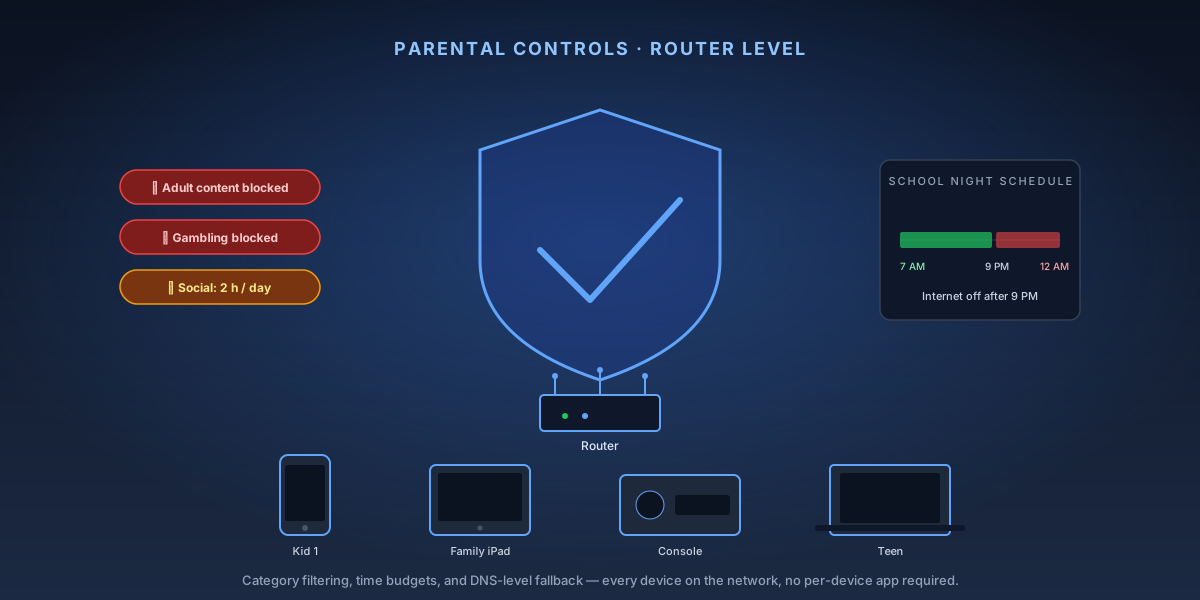
Most modern routers include built-in parental controls — content filtering, device scheduling, and website blocking — without requiring a separate device or subscription. Router-level controls work for every device on your network, including smart TVs and game consoles that don't support app-based filtering. This guide walks through setup on the most common router platforms.
8-Step Overview
- 1
Log into your router's admin panel
Open a browser and go to your router's admin IP — usually 192.168.1.1 or 192.168.0.1. If neither works, check the label on the back of your router for the default gateway IP. Log in with your admin credentials (not your Wi-Fi password). If you've never changed the admin password, it's likely printed on the router label or set to something like 'admin / admin' — change it if so.
- 2
Locate the parental controls section
Parental controls are labeled differently depending on the brand: TP-Link calls it 'Parental Controls' under Advanced; Asus has an 'AiProtection' section with 'Parental Controls' inside it; Netgear uses 'Parental Controls' under Basic or Smart Parental Controls as a separate app. On older or budget routers, look under 'Access Control' or 'URL Filtering' — they do the same job with a simpler interface.
Search on Amazon →Recommended Product
TP-Link Archer AX55 Wi-Fi 6 Router
The Archer AX55 includes HomeCare parental controls with category-based filtering, time limits, and bedtime schedules — no subscription required. One of the most complete built-in parental control suites on a mid-range router.
- 3
Create a profile for each child
Most modern routers let you create named profiles (e.g., 'Kid 1,' 'Teen') and assign devices to each profile. Add every device your child uses: their phone, tablet, gaming console, and laptop. This is how the router knows which rules apply to which device. A single profile lets you manage a child's entire digital footprint from one place instead of applying rules device by device.
- 4
Enable content category filtering
Turn on category-based filtering and select the categories to block: Adult Content, Violence, Gambling, and Social Media are the most common choices for younger children. Routers with HomeCare or AiProtection pull from a cloud database to classify sites — coverage is broad but not perfect. For teenagers, you might only block Adult Content and leave social media accessible with time limits instead.
Search on Amazon →Recommended Product
Asus RT-AX88U Wi-Fi 6 Router
The RT-AX88U's AiProtection Pro (powered by Trend Micro) includes granular category filtering across 34+ content categories with no ongoing subscription fee.
- 5
Set a daily time budget or schedule
Use the time scheduling feature to define when devices can access the internet. Common setups: block internet access on school nights after 9 PM, or set a 2-hour daily budget for weekdays that resets at midnight. TP-Link HomeCare and Asus AiProtection both support both schedule-based and budget-based limits. Set the schedule to match homework and bedtime — not just the most restrictive option, or children will find workarounds.
- 6
Manually block specific websites
For sites that slip through category filtering, add them to a manual blocklist. In the router's parental controls or URL filter section, enter the domain (e.g., roblox.com, tiktok.com) and apply it to the child's profile or to all devices. Most routers support wildcard blocking — blocking tiktok.com also blocks all subdomains. For gaming consoles that use IP addresses instead of domains, category filtering handles those better than manual URL blocks.
- 7
Add DNS-level filtering as a backup (optional)
Router-level controls can be bypassed if a child uses a VPN or changes the DNS server on their device. For stronger filtering, configure your router's DNS to use Cloudflare for Families (1.1.1.3 / 1.0.0.3) or OpenDNS FamilyShield (208.67.222.123 / 208.67.220.123) as the upstream DNS. These services block malicious and adult content at the DNS level for every device on your network, adding a second layer of protection behind your router's own controls.

DNS-level filtering blocks content before it reaches the device — a secondary protection layer behind the router's built-in controls. - 8
Test the restrictions
On a device assigned to a child's profile, try accessing a blocked category site (e.g., a gambling site) and confirm it's blocked. Then verify that an allowed site loads normally. If you set a time schedule, temporarily advance your router's clock (if it supports this) or wait until the off-hours window to confirm devices lose internet access. Test from a browser and from within an app — some apps bypass browser-level restrictions.
Making it harder to bypass
Router-level controls are per-device, and a determined teenager will eventually try changing DNS or installing a VPN. Two things close most of that gap:
- How to set static IPs and DHCP reservations — pin each child's device to a fixed address so the profile can't be dodged by a new DHCP lease.
- How to set up Pi-hole or AdGuard Home — network-wide DNS filtering with per-client rules, and a query log that shows you what's actually being requested.
Related
- How to set up a guest Wi-Fi network — a separate SSID for visitors, so their devices never land in a child's profile.
- How to set up IoT VLANs — if you want segmentation rather than per-device rules.
- How to prioritize gaming traffic with QoS — the other half of managing a busy household network.