How to Set Up Pi-hole on a Raspberry Pi for Network-Wide Ad Blocking
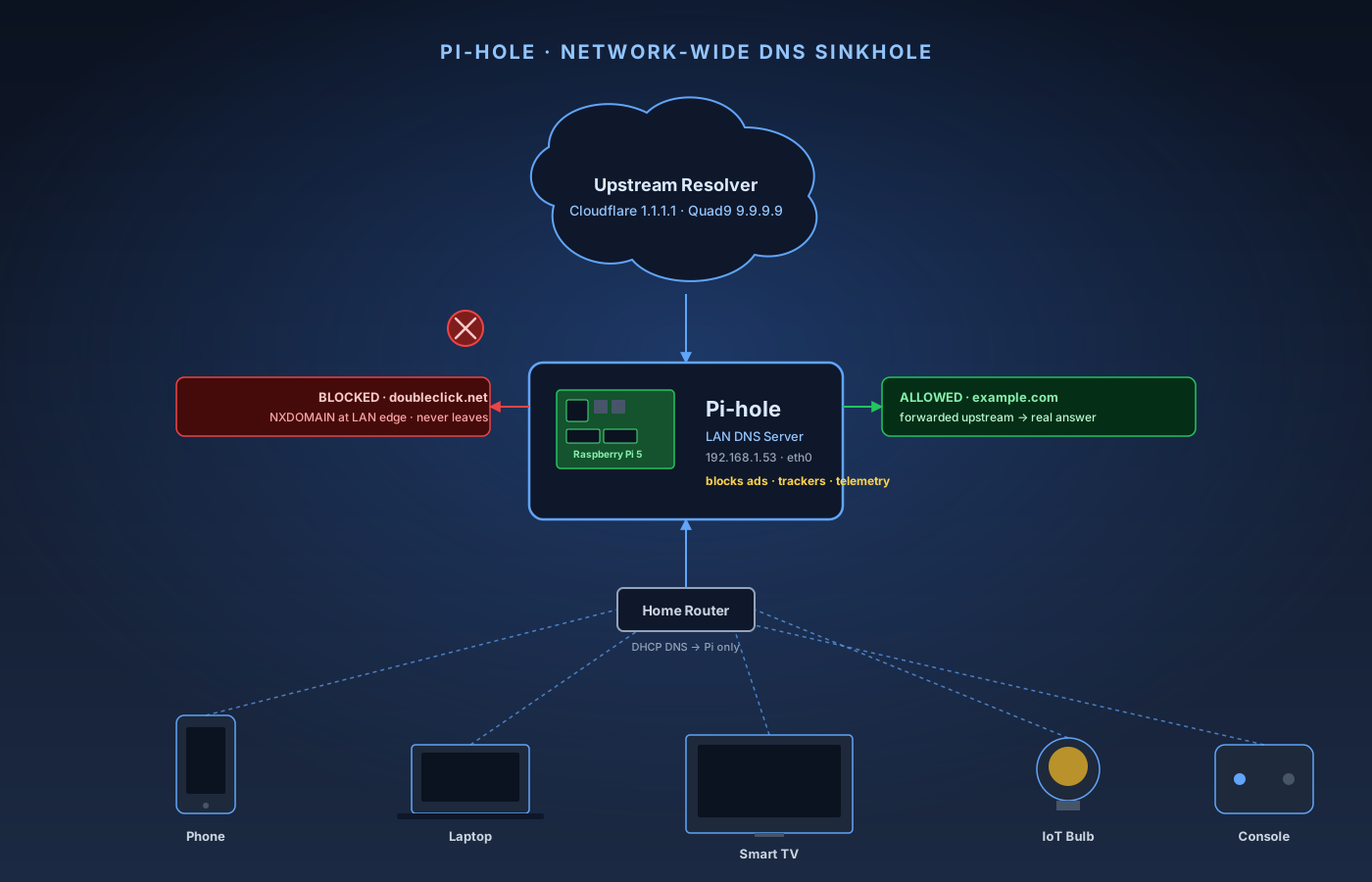
Pi-hole is a free, open-source DNS sinkhole. You point your home network's DNS at a small box on your LAN — typically a Raspberry Pi — and that box answers every DNS lookup before it leaves the network. Lookups for known ad servers, trackers, and telemetry domains return NXDOMAIN (or 0.0.0.0); everything else gets forwarded upstream to a real public resolver like Cloudflare or Quad9. The end result is network-wide ad and tracker blocking, including on devices that cannot run a browser extension: smart TVs, game consoles, IoT lightbulbs, your toddler's tablet.
What you’ll need
- Raspberry Pi 5 (4 GB or 8 GB)
- Official Raspberry Pi 5 power supply (27W USB-C PD)
- microSD card, 32 GB or larger, A2 rated
- Cat6 Ethernet cable
- Computer with a microSD reader to image the card
11-Step Overview
- 1
Pick the right Pi and storage
A Raspberry Pi 5 with 4 GB RAM is the right baseline. Pi-hole barely touches 200 MB at idle on a home network, but the extra RAM is cheap insurance for running Unbound, Tailscale, or other small services alongside Pi-hole on the same Pi later. The Pi 4 still works fine but is noticeably slower to boot; the Pi Zero 2 W is undersized and Wi-Fi-only. Pair the Pi 5 with the official 27W USB-C PD power supply — Pi 5 boards are picky about under-powered chargers and will throttle or refuse to boot under a generic phone brick. A 32 GB A2-class microSD card is the sweet spot for cost vs. write endurance. And a Cat6 patch cable: Pi-hole must be wired, not Wi-Fi, because every device on the LAN will depend on its DNS service.
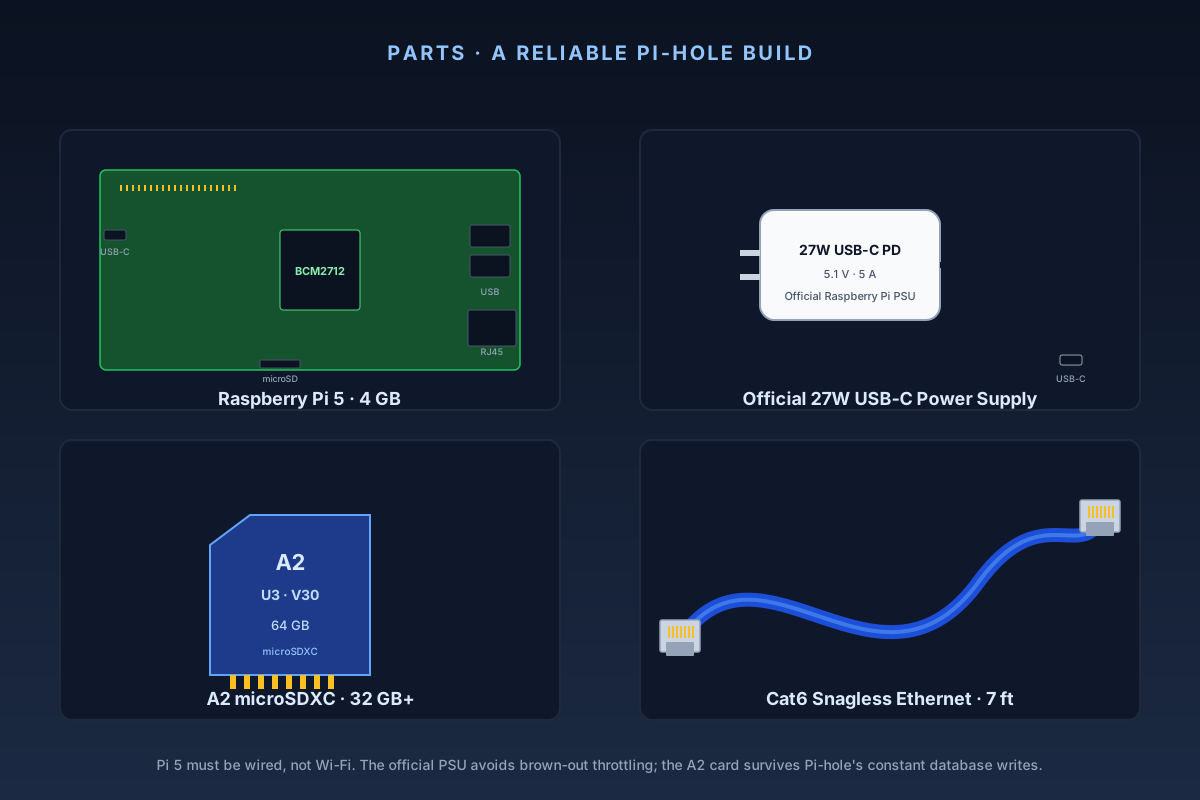
The four parts that make a reliable Pi-hole: Pi 5 (4 GB), the official 27W PSU, an A2-class microSD card, and a wired Ethernet patch cable. Check Price on Amazon →Recommended Product
CanaKit Raspberry Pi 5 Starter Kit (4 GB)
Official-PSU bundle with active cooling and a case. Active cooling matters on Pi 5 under sustained DNS load; the stock fanless setup will hit thermal throttle on warm days.
- 2
Flash Raspberry Pi OS Lite with the official Imager
Download Raspberry Pi Imager from raspberrypi.com/software on your main computer. Insert the microSD card via a card reader. In the Imager, pick Raspberry Pi 5 as the device, choose Raspberry Pi OS (other) → Raspberry Pi OS Lite (64-bit), and select your microSD card as storage. Click Next, then Edit Settings to apply OS customisation: hostname pihole, a personal username (avoid the deprecated pi default) with a strong password, leave wireless LAN disabled, set your timezone and keyboard layout, and under Services enable SSH with password authentication. Apply the settings and let Imager write and verify the card — the verify pass matters, corrupted cards are responsible for at least 20% of "my Pi-hole randomly stopped working" threads on forums.
Check Price on Amazon →Recommended Product
SanDisk Extreme 64GB microSDXC (A2, U3)
A2-class random IOPS that keep Pi-hole's FTL database (pihole-FTL.db) responsive; 64 GB gives multi-year query-log headroom.
- 3
Boot the Pi headless and SSH in
Insert the card into the Pi, plug the Cat6 into your router or a switch on the same LAN, then plug in the USB-C PSU. The Pi boots in 20–40 seconds. Find the Pi's IP address two ways: look for hostname pihole in your router's DHCP client list (TP-Link: Network Map → Clients; UniFi: Client Devices; Asus: Network Map → Client List), or from your main computer run `ping pihole.local`. SSH in with `ssh youruser@192.168.1.53` (substitute your Pi's IP). If SSH refuses to connect, the most common cause is that you forgot to enable SSH in Imager — pull the card, re-flash with SSH enabled, and try again.
Check Price on Amazon →Recommended Product
Cable Matters Snagless Cat6 Ethernet Cable, 7 ft
Snagless boots and reliable terminations. Cat6 is overkill for Pi-hole DNS but matches the rest of the home-lab gear and survives years of being yanked behind furniture.
- 4
Update the OS before installing Pi-hole
A fresh image is rarely fully patched. Pi-hole installs a specific version of dnsmasq (renamed pihole-FTL) and depends on system packages being current. Patch everything first: run `sudo apt update`, then `sudo apt full-upgrade -y`, then `sudo reboot`. The reboot drops your SSH session — that's expected. Wait 30 seconds and reconnect. While you're here, install your usual dotfiles. This Pi will live in a closet for years; future-you will thank you for htop, tmux, and a working timezone.
- 5
Run the Pi-hole installer
From your SSH session on the Pi, run `curl -sSL https://install.pi-hole.net | bash`. The installer is a guided ncurses wizard. Walk through each screen: pick eth0 as the interface; choose Cloudflare (1.1.1.1) or Quad9 (9.9.9.9) as upstream DNS (Cloudflare is faster on average; Quad9 has a slightly more aggressive built-in malware blocklist — either beats your ISP's resolver); accept the default StevenBlack blocklist (we'll tune lists later); enable IPv6 if your ISP supports it; accept the installer's offer to use the Pi's current IP as static (we'll convert to a DHCP reservation in the next step); install the web admin interface and lighttpd; enable query logging; pick "Show everything" for privacy mode. At the end the installer prints a one-line admin web password — copy it into a password manager immediately. Verify with `pihole status` — you should see DNS service is running and Pi-hole blocking is enabled.
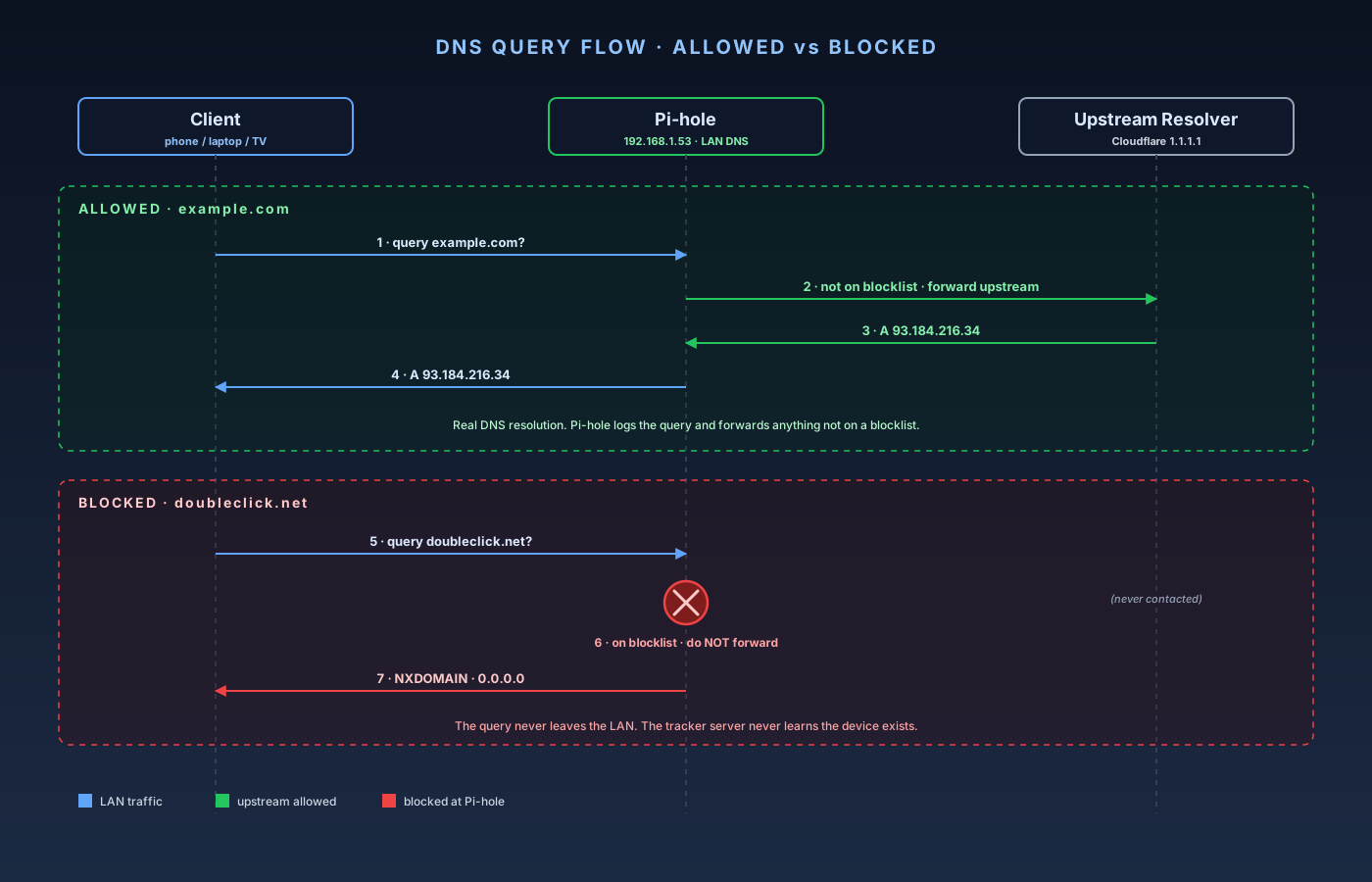
Every client DNS query lands at Pi-hole first. Allowed domains forward upstream; blocked domains return NXDOMAIN at the LAN edge and never reach the public internet. - 6
Give the Pi a static LAN IP via DHCP reservation
Pi-hole only works if its IP never changes. The wrong way is to configure a static IP inside the Pi's /etc/dhcpcd.conf — the Pi then has no idea what the rest of the LAN looks like, and if you ever change your router or LAN subnet, the Pi goes deaf and your whole network loses DNS until you SSH in and edit configs. The right way is a DHCP reservation in your router: find the DHCP client list, locate the Pi (by hostname pihole or by MAC), and pin its current IP. Most consumer routers call this "DHCP Reservation," "Address Reservation," or "Manual Assignment." Reboot the Pi (`sudo reboot`), wait a minute, and SSH back in to confirm it came back on the same IP. Now your network's DNS server has a fixed address that survives router replacement, subnet renumbering, and Pi reinstalls.
- 7
Point your router's DHCP at the Pi as the only DNS server
This is the step that makes Pi-hole actually work, and it is the step most "I installed Pi-hole and nothing's blocking" threads come down to. In your router admin, open the LAN / DHCP settings (not the WAN settings) and find the fields labeled DNS Server 1, DNS Server 2, or DNS Servers handed to clients. Set DNS Server 1 to the Pi's reserved IP (e.g. 192.168.1.53). Leave DNS Server 2 blank, or set it to the Pi's IP as well. Do not set a secondary like 8.8.8.8 or 1.1.1.1 — client devices treat the DNS list as failover, and the moment the Pi reboots, restarts gravity, or stalls for half a second, every device on your LAN silently falls back to 8.8.8.8 and resolves ad domains directly. You get a Pi-hole that blocks 0–10% of queries and a confusing dashboard. The fix is to have exactly one DNS server on the LAN: the Pi. Renew DHCP on a test device and verify with `nslookup doubleclick.net` — a correctly forwarded query returns 0.0.0.0 or NXDOMAIN. If your ISP combo router locks down DHCP DNS (some AT&T and Spectrum units do), bridge it behind your own router — the option we recommend in the wired access point and IoT VLAN guides — or enable Pi-hole's built-in DHCP server under Settings → DHCP.
- 8
Add a curated blocklist set without going overboard
Open http://<pi-ip>/admin in a browser (or use the hostname: http://pihole/admin) and sign in. Under Group Management → Adlists, add a small, well-maintained set: StevenBlack hosts (the default, leave on); OISD basic (https://big.oisd.nl/) for broader ad and tracker coverage with low false positives; and 1Hosts Lite (https://raw.githubusercontent.com/badmojr/1Hosts/main/Lite/domains.txt) for mobile ad and tracker focus. Then go to Tools → Update Gravity and click Update — gravity is Pi-hole's term for compiling the blocklists into the live SQLite database; it takes 30–90 seconds. Resist the urge to stack more lists: each extra list adds memory pressure, slows gravity updates, raises the chance of false positives, and gives you almost no incremental blocking. A focused three-list setup blocks 70–90% of ad and tracker domains in the standard d3ward test. Avoid "ultimate" mega-lists with hundreds of thousands of domains, lists whose maintainers haven't pushed in a year, and any list that promises to "block all tracking" — that's where most household-breaking false positives come from.
- 9
Allowlist the domains that real apps need
Pi-hole will, on the day you install it, break one or two apps you use. Common culprits: push notification delivery for some apps (Pushover, OneSignal, some Smart TV remotes); Apple's gsp10-ssl.ls.apple.com-style captive-portal probes if you've added an aggressive list; Google Assistant or Alexa "did the network just come back" probes; Smart TV content APIs for the platform's ad-supported channels (LG Channels, Samsung TV Plus); and work SSO / MDM domains if a work device is on the network. Workflow: when something breaks, note the time, open Query Log in the admin UI, filter by that client's IP near the time of the failure, find the red blocked rows, and click Allow on the legitimate-looking ones. If a root domain is breaking multiple things, use Domains → Allow regex to allow a pattern like (\.|^)pushover\.net$ rather than maintaining a long list of exact subdomains. Export your allowlist monthly with `pihole -w -l > ~/pihole-allowlist.txt` — if the SD card ever dies, a documented allowlist saves you a week of "why is the doorbell broken again?" debugging. After two weeks of normal use, you should have an allowlist of 5–20 entries.
- 10
Create a per-device opt-out group for the one device that needs ads
There will be exactly one device on your LAN where Pi-hole's default blocking is wrong — a smart TV whose home screen literally requires its ad domains, a work laptop you don't want filtering enterprise telemetry, or a streaming stick whose free tier needs ads to play. The right answer is not "disable Pi-hole" — it's a per-device opt-out group. In the admin UI: Group Management → Groups, add a group called no-block, leave it enabled. Open the no-block group and uncheck every adlist and every block-mode setting so the group's effective blocking is zero. Under Group Management → Clients, add the device by IP address (best for a fixed-IP DHCP-reserved client) or by MAC — hostname matching is fragile across DHCP renewals. Assign that client to the no-block group only (remove it from the default group). Save and click Update Gravity. The device now resolves DNS through Pi-hole but bypasses every blocklist; every other client on the LAN keeps full blocking. This is also a clean place to put a guest VLAN's client subnet if you want guest traffic to pass unblocked while keeping your main LAN filtered — use Pi-hole's CIDR client matching to add the subnet.
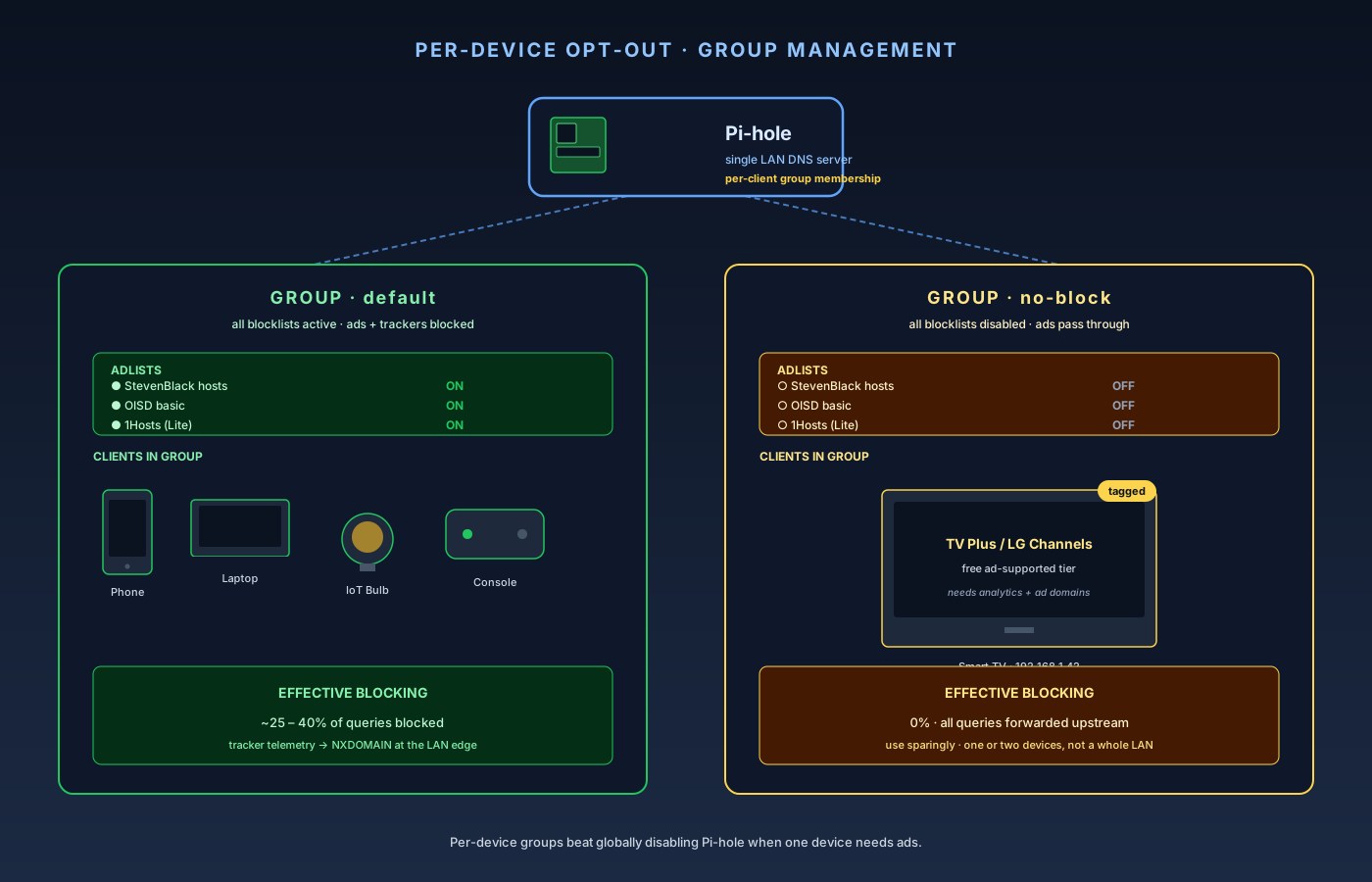
Per-device opt-out: one tagged client lives in a no-block group while the rest of the LAN stays in the default fully-blocked group. The whole household never has to choose between Pi-hole on or off. - 11
Verify, monitor, and plan for failure modes
Two checks confirm Pi-hole is doing its job. First, from any LAN client visit https://d3ward.github.io/toolz/adblock.html — the page runs ~80 real ad/tracker/telemetry requests and reports how many were blocked. A correctly configured Pi-hole on Cloudflare or Quad9 upstream with the three recommended lists scores 70–90%. Below 60% usually means DNS is leaking around Pi-hole somewhere; above 95% usually means you've added a list that's about to break legitimate services. Second, the Pi-hole dashboard at http://<pi-ip>/admin shows Queries Today, Queries Blocked, and Percent Blocked. A healthy household lands around 20–35% blocked for typical browsing, 40%+ if you have many IoT devices, or 0–5% if DNS is bypassing Pi-hole entirely (go back and confirm the router is handing out only Pi-hole as DNS). Pi-hole is close to set-and-forget, but a few things will eventually go wrong: SD card wear (an A2 card lasts 3–5 years under Pi-hole's constant database writes; move the install to a USB SSD with usbboot for longer); upstream DNS outages (configure two upstreams in Settings → DNS, e.g. Cloudflare + Quad9, so Pi-hole itself fails over — this is different from setting two DNS servers at the router, where you want only Pi-hole); gravity update failures if a blocklist URL changes; and major Pi-hole version bumps occasionally migrating the web stack — read the release notes before running `pihole -up` on a major version. A monthly five-minute check — open the dashboard, run the test page, glance at the query log — keeps Pi-hole working for years.
The setup order that gets it right
- Buy a Pi 5 (4 GB), official 27W PSU, A2 microSD, Cat6 cable.
- Flash Raspberry Pi OS Lite (64-bit) with Imager — hostname `pihole`, SSH enabled.
- Boot wired, SSH in, `apt full-upgrade`, reboot.
- Run the Pi-hole installer — pick Cloudflare or Quad9 as the upstream.
- DHCP-reserve the Pi's IP at your router.
- Hand out only the Pi's IP as DNS in your router's DHCP — no secondary.
- Add three blocklists (StevenBlack, OISD basic, 1Hosts Lite). Resist adding more.
- Allowlist 5–20 domains that real apps need, and document the list.
- Create a `no-block` group for the one device that needs ads.
- Verify with the d3ward adblock test — aim for 70%+ blocked.
Where this fits
Pi-hole pairs cleanly with the IoT VLAN setup. If you've already segmented IoT devices onto their own VLAN, point that VLAN's DHCP at the same Pi-hole, and the devices that phone home most aggressively — smart TVs, doorbells, lightbulbs — get their telemetry blocked at the LAN edge with no per-device config. Pi-hole closes the loop on that traffic the same way segmentation closes the loop on lateral movement.
Two more things the same Pi can do:
- Run a WireGuard VPN — so your phone resolves through Pi-hole on cellular too.
- Run a Tailscale subnet router — the no-port-forwarding version of the same idea, and the one that works behind CGNAT.
And if the Pi is currently on Wi-Fi, get it wired: MoCA 2.5 over existing coax will do it without pulling cable. DNS service should never sit on Wi-Fi.