How to Set Up VLANs for IoT Devices
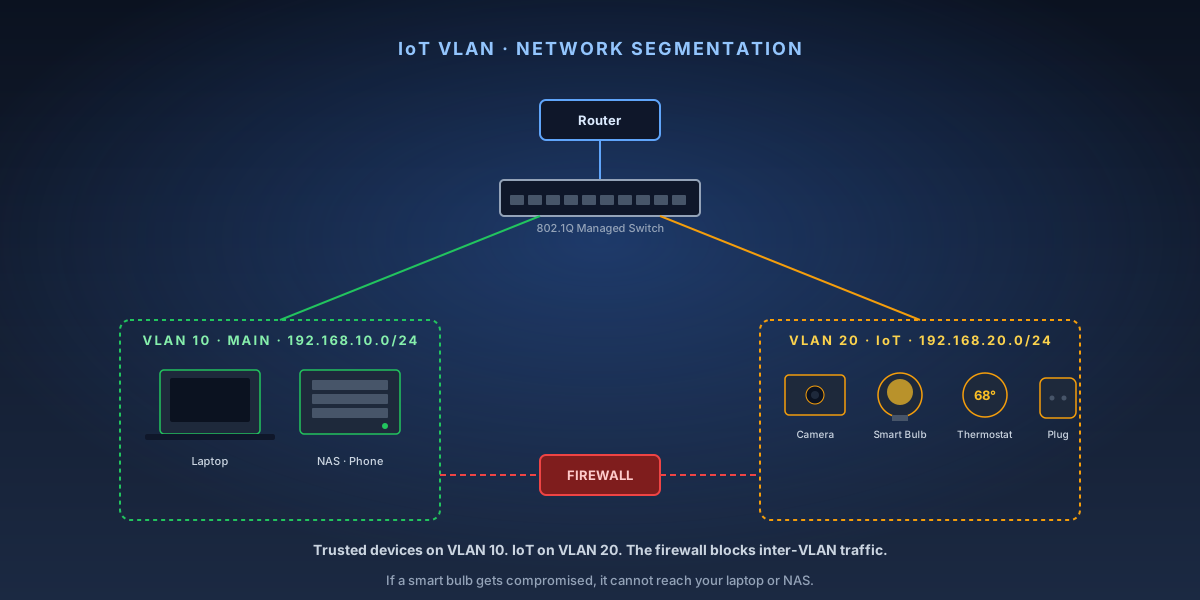
IoT devices — smart bulbs, thermostats, cameras, plugs — are convenient but notoriously insecure. Many ship with weak default credentials, rarely receive firmware updates, and have been used in botnet attacks. Putting them on a separate VLAN isolates them from your computers, NAS, and phones. If a smart bulb gets compromised, it can't reach anything else on your network. This guide assumes you have a VLAN-capable router and a managed switch.
9-Step Overview
- 1
Verify your hardware supports VLANs
You need two things: a router that supports VLAN tagging (Asus routers with Merlin firmware, pfSense, OPNsense, or Ubiquiti all work; most ISP-provided routers do not), and a managed switch with 802.1Q VLAN support if you're segmenting wired devices. Consumer unmanaged switches cannot pass VLAN tags. If your current hardware doesn't qualify, you'll need to upgrade before proceeding.
Check Price on Amazon →Recommended Product
TP-Link TL-SG108E 8-Port Managed Switch
The TL-SG108E is the best-value entry point for home VLAN setups — supports 802.1Q VLANs, easy web UI, and costs under $30. Handles most home network segmentation needs.
- 2
Plan your VLAN IDs and subnets
Assign a VLAN ID and subnet to your IoT segment. Common conventions: VLAN 10 = main network (192.168.10.0/24), VLAN 20 = IoT (192.168.20.0/24), VLAN 30 = guest (192.168.30.0/24). Write this down before touching any configuration. Consistent numbering prevents confusion when you're deep in switch config screens. The router will act as the 'router-on-a-stick,' handling inter-VLAN routing and firewall rules.
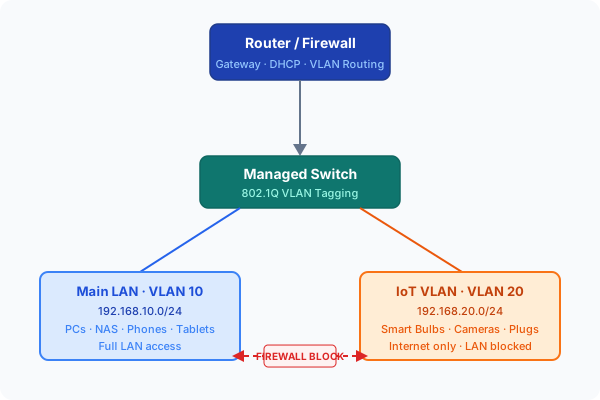
VLAN topology: trusted LAN and IoT devices on separate subnets, firewall blocks inter-VLAN traffic. - 3
Create the IoT VLAN on your router
Log into your router's admin interface. On Asus routers with stock or Merlin firmware, go to LAN → VLAN and create a new VLAN with your chosen ID (e.g., VLAN 20). On pfSense/OPNsense, go to Interfaces → VLANs and add a VLAN tag on your LAN interface. Assign the VLAN an interface, configure it with a static IP for the router (e.g., 192.168.20.1), and enable the DHCP server for that subnet to hand out addresses in the 192.168.20.x range.
Search on Amazon →Recommended Product
Asus RT-AX88U Wi-Fi 6 Router
The RT-AX88U supports full VLAN configuration on both wired and wireless interfaces with stock firmware — no third-party firmware required for basic IoT segmentation.
- 4
Configure the managed switch for VLAN tagging
Log into your switch's web UI (TP-Link EasySmart switches are at 192.168.0.1 by default). Under 802.1Q VLAN settings: set the uplink port (connected to your router) as a tagged member of both VLAN 10 and VLAN 20. Set ports connecting to IoT devices as untagged members of VLAN 20 only. Untagged = the device doesn't need to know about VLANs; tagged = the port passes tagged frames (used for uplinks and trunk ports).
- 5
Create a dedicated IoT Wi-Fi SSID
In your router's wireless settings, create a new SSID (e.g., 'HomeNet-IoT') and assign it to VLAN 20. This is how wireless IoT devices get segmented — they connect to this SSID and land on the IoT subnet automatically. Asus, Unifi, and most prosumer routers support per-SSID VLAN assignment. Make the IoT SSID 2.4 GHz only — most IoT devices don't support 5 GHz, and it simplifies troubleshooting.
- 6
Set up firewall rules to block IoT-to-main traffic
Create a firewall rule on your router that blocks traffic from the IoT VLAN (192.168.20.0/24) to the main VLAN (192.168.10.0/24). Allow IoT devices to reach the internet (WAN). This is the actual isolation step — without this rule, VLANs just segment broadcast domains but don't prevent cross-network communication. In pfSense/OPNsense, add a LAN rule: action = block, source = IoT net, destination = LAN net.
- 7
Allow mDNS/Bonjour for cross-VLAN device discovery (optional)
If you want to use IoT devices (Chromecast, AirPlay speakers) from your main network while they're on the IoT VLAN, you need an mDNS repeater (also called an Avahi daemon on pfSense). This allows service discovery across VLANs without opening general inter-VLAN traffic. Without it, you can't 'cast' to devices on the IoT VLAN from your phone on the main VLAN. This step is optional if you don't need cross-VLAN casting.
- 8
Move IoT devices to the new SSID
Reconnect each IoT device to the new IoT SSID. For most smart home devices, open the device's app, go to Wi-Fi settings, and reconnect to 'HomeNet-IoT.' Devices with physical setup modes (smart plugs, cameras) may need to be factory reset to change their network. Take this opportunity to inventory every IoT device — document what it is, its IP address, and when it was last updated.
- 9
Test inter-VLAN isolation
From a device on your main network (192.168.10.x), try to ping an IoT device (192.168.20.x). The ping should fail (timeout) if your firewall rules are correct. From an IoT device, try to ping your router's main IP — that should also fail. Then verify the IoT device can reach the internet (ping 8.8.8.8 from the IoT device should succeed). This three-part test confirms your segmentation is working correctly.
Where this fits
A VLAN is the strongest form of home segmentation, and it's also the one that needs the most hardware. If your router or switch can't do 802.1Q, a guest network with client isolation gets you most of the practical benefit in ten minutes.
Background worth reading alongside:
- VLANs explained for a home network — the concepts behind the configuration above.
- Managed vs. unmanaged switches — why an unmanaged switch can't pass tags, and what to buy instead.
What pairs with an IoT VLAN
- How to set up Pi-hole or AdGuard Home — point the IoT VLAN's DHCP at the same resolver and the chattiest devices on your network get their telemetry blocked at the LAN edge.
- How to set static IPs and DHCP reservations — each VLAN gets its own subnet and pool, so plan addresses per-VLAN.
- How to set up Wi-Fi 7 — keeping legacy 2.4 GHz IoT gear on its own SSID is the other half of this pattern.
- How to set up a WireGuard VPN — manage isolated devices from away without ever exposing them.