How to Set Up Dolby Atmos at Home: Soundbars, AVRs, and Speaker Placement
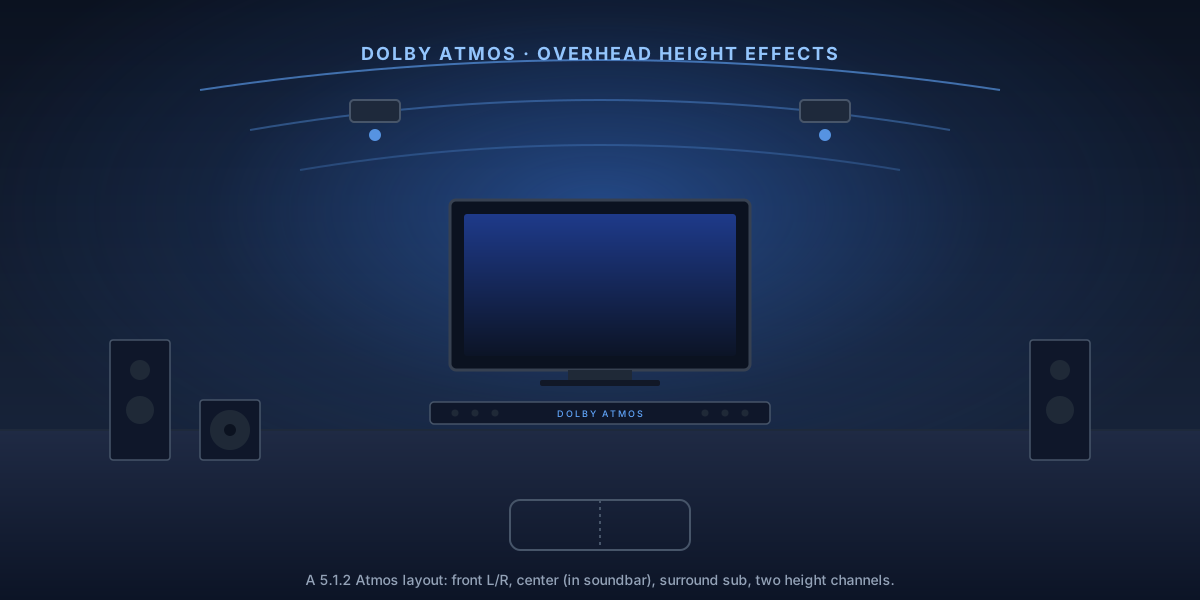
A Dolby Atmos soundbar with HDMI eARC and Atmos-encoded streaming is the cheapest path to real height effects. A discrete AVR with discrete speakers sounds better but only if you can place height speakers correctly. The most common reason "Atmos" sounds like ordinary surround is a misconfigured source — not the hardware. This guide walks you through hardware choice, the eARC handshake, speaker placement for 5.1.2 and 5.1.4, calibration, and the verification step most setup guides skip.
8-Step Overview
- 1
Confirm your TV supports HDMI eARC or ARC
Flip the TV around and find the HDMI port labels. eARC carries lossless Dolby TrueHD Atmos and is the right target on any TV made after 2019. ARC works but compresses Atmos to lossy Dolby Digital Plus. If neither is present, plan to connect your Atmos source (Apple TV, Xbox, Blu-ray) directly to the soundbar or AVR and pass video through to the TV.
Feature ARC eARC Atmos format supported Lossy (Dolby Digital Plus) Lossless (Dolby TrueHD) Bandwidth 1 Mbps 37 Mbps TV requirement HDMI 1.4+ HDMI 2.1 Sound quality Good Best Our how-to on setting up HDMI ARC / eARC covers the handshake end to end, including the \"no sound over ARC\" fix.
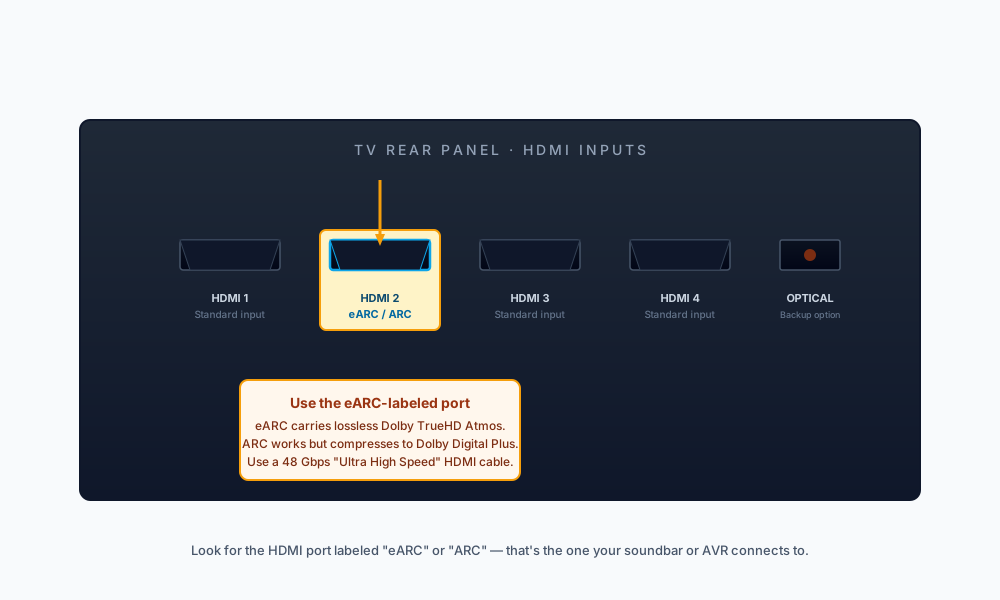
Look for the HDMI port labeled 'eARC' or 'ARC'. eARC delivers lossless Atmos; ARC works but compresses to Dolby Digital Plus. - 2
Decide between a soundbar and a discrete AVR system
Pick a soundbar for budgets under $1,500, single-room living-room setups, or rentals where you cannot run wires. Pick an AVR with discrete speakers for dedicated rooms, 7.1.4 layouts, or budgets above $3,000 where you want room-shaking impact and clean dialog. The Sonos Arc Ultra is the right soundbar pick for most viewers; the Denon AVR-X3800H is the right AVR pick for an entry-grade discrete system.
Factor Soundbar AVR + speakers Total cost $400–$1,500 $1,500–$3,500+ Setup time 30 minutes 4–8 hours Room flexibility Works in any room Needs space and wire runs Renter-friendly Yes No (in-wall/in-ceiling runs) Sound quality ceiling Good Excellent Bass impact Limited even with a sub Substantial with a proper sub Atmos accuracy Decent (depends on the ceiling) Best with in-ceiling speakers If you've already wired the room and just need a bar, see our Sonos Arc Ultra review or our how to connect a soundbar to a TV guide.
Check Price on Amazon →Recommended Product
Sonos Arc Ultra Dolby Atmos Soundbar
The Arc Ultra decodes Dolby Atmos over eARC, has nine drivers including dedicated upfiring height channels, and integrates with Sonos surrounds and a Sonos Sub for an effortless 5.1.2 setup without an AVR.
- 3
Connect with an Ultra High Speed HDMI cable
Use a certified Ultra High Speed HDMI cable (48 Gbps, HDMI 2.1) between the TV's eARC port and the HDMI eARC input on the soundbar or AVR. Older High Speed HDMI cables work for ARC but are unreliable for eARC, especially over runs longer than 10 feet. In your TV's audio settings, enable eARC (it may live under HDMI-CEC or 'Audio Output') and set the audio format to 'Bitstream' or 'Pass-through' — never PCM, which downmixes surround to stereo.
- 4
Place height speakers for accurate object positioning (5.1.2)
For 5.1.2, add two overhead heights above the front mains. In-ceiling speakers at roughly 110–120° from the listening position are ideal. If installation is not possible, upward-firing modules placed on top of the front L/R bounce sound off the ceiling — they need a flat 8–10 ft ceiling to image reliably.
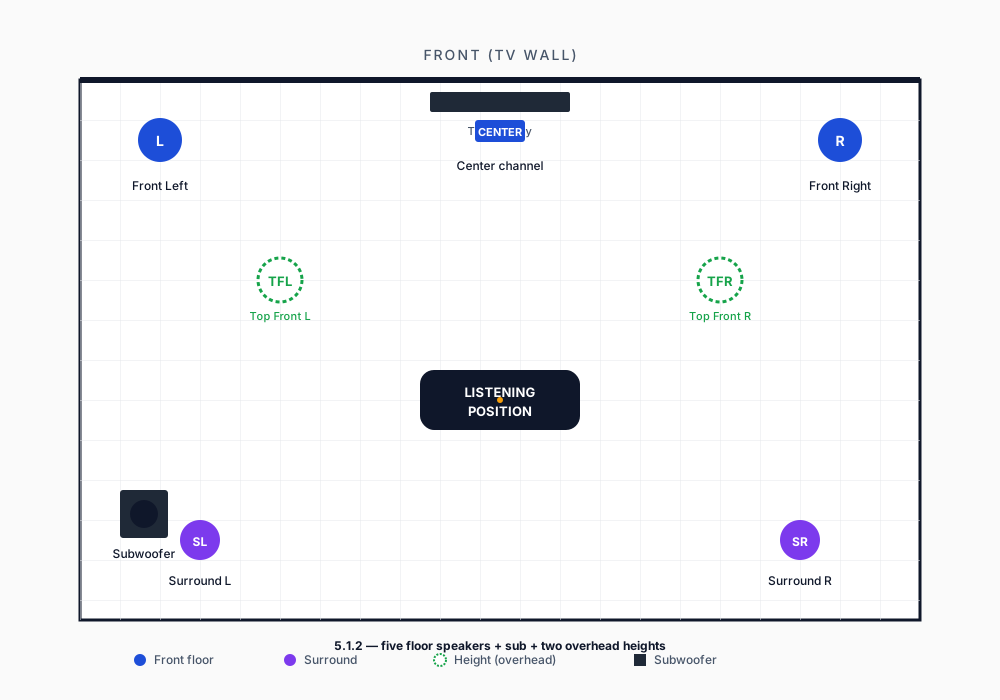
5.1.2 — five floor speakers + sub + two overhead heights above the front mains. - 5
Step up to 5.1.4 if your room has a center listening seat
5.1.4 adds a second pair of overhead heights above the listening position, giving you full hemispherical height coverage. The rear pair makes overhead pans (rain, helicopters, debris) feel continuous rather than locked to the front of the room. Stick to 5.1.2 if your seating is against a back wall — the rear heights need at least four feet of clearance behind the seat to image correctly.
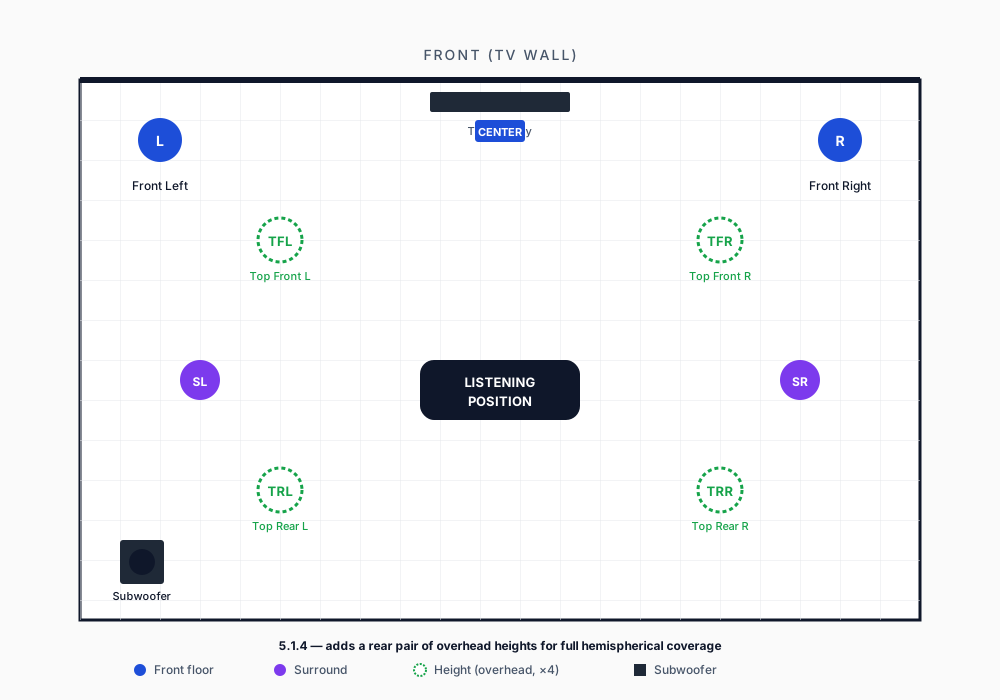
5.1.4 — adds a rear overhead pair for full hemispherical height coverage. - 6
Run room calibration
Run the calibration routine in your AVR (Audyssey on Denon/Marantz, Dirac Live on NAD/Onkyo, YPAO on Yamaha) or soundbar (Sonos Trueplay, Samsung SpaceFit, LG TruSpace). Place the included microphone at ear height in the primary listening seat and follow the prompts. Calibration sets per-channel distance, level, and EQ — without it, even a perfect speaker layout sounds smeared.
- 7
Configure your source device for Dolby Atmos passthrough
On Apple TV 4K: Settings → Video and Audio → Audio Format → Dolby Atmos. On Xbox Series X: install the Dolby Access app and select 'Dolby Atmos for Home Theater'. On a 4K Blu-ray player: set HDMI Audio Out to Bitstream. On Roku Ultra and Fire TV: set Audio to Auto. Then, in the streaming app itself, look for an 'Audio' option on the title's playback screen and pick the Dolby Atmos track explicitly — many apps default to a non-Atmos stream.
- 8
Verify you are actually getting an Atmos signal
Play known-Atmos content (Top Gun: Maverick on Apple TV+, Stranger Things on Netflix, Dune on Max) and check the soundbar or AVR's front display. It should read 'Dolby Atmos', 'Atmos / TrueHD', or 'Atmos / DD+'. If it shows '5.1', 'Dolby Digital', or 'PCM', the source is downmixing — recheck the source device's audio format and your TV's eARC/Bitstream setting. This is the step most setup guides skip and the single biggest reason 'Atmos' sounds wrong.
For more on connecting a soundbar specifically, see our how to connect a soundbar to a TV guide.
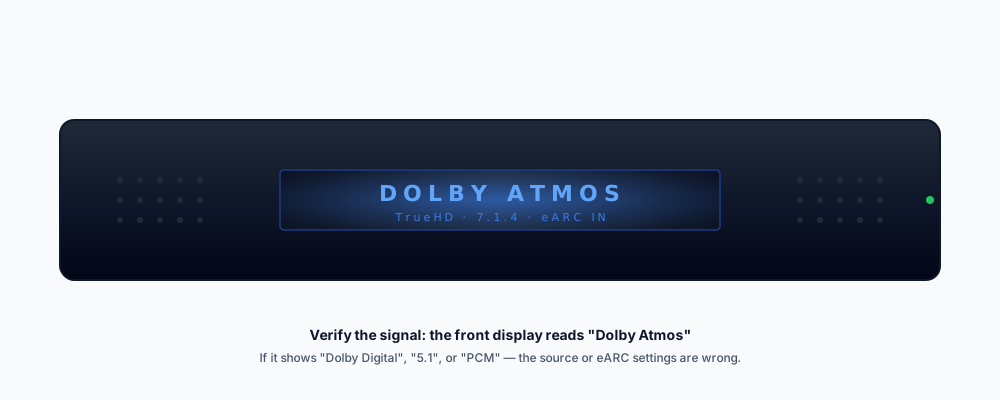
True Atmos shows on the front display. '5.1' or 'Dolby Digital' means the source or eARC settings are wrong.
Bottom line
Dolby Atmos at home is no longer expensive or difficult. A single soundbar with eARC and a properly configured streaming source delivers a real Atmos experience in any room. The hard part is verifying the signal — most \"Atmos isn't working\" problems are misconfigured sources, not hardware failures. Set the source format explicitly, use a certified Ultra High Speed HDMI cable, and check the bar or AVR display every time you start new content. Once it reads Dolby Atmos, you're done.
What to do next
- How to set up a 5.1 surround sound system — the bed layer Atmos height channels sit on top of.
- How to set up HDMI ARC / eARC — if the handshake is where you're stuck.
- How to run Audyssey room calibration — getting the height channels measured properly on a Denon or Marantz AVR.
- Sonos Arc Ultra review — the full breakdown on the soundbar pick.