How to Prioritize Gaming Traffic with QoS
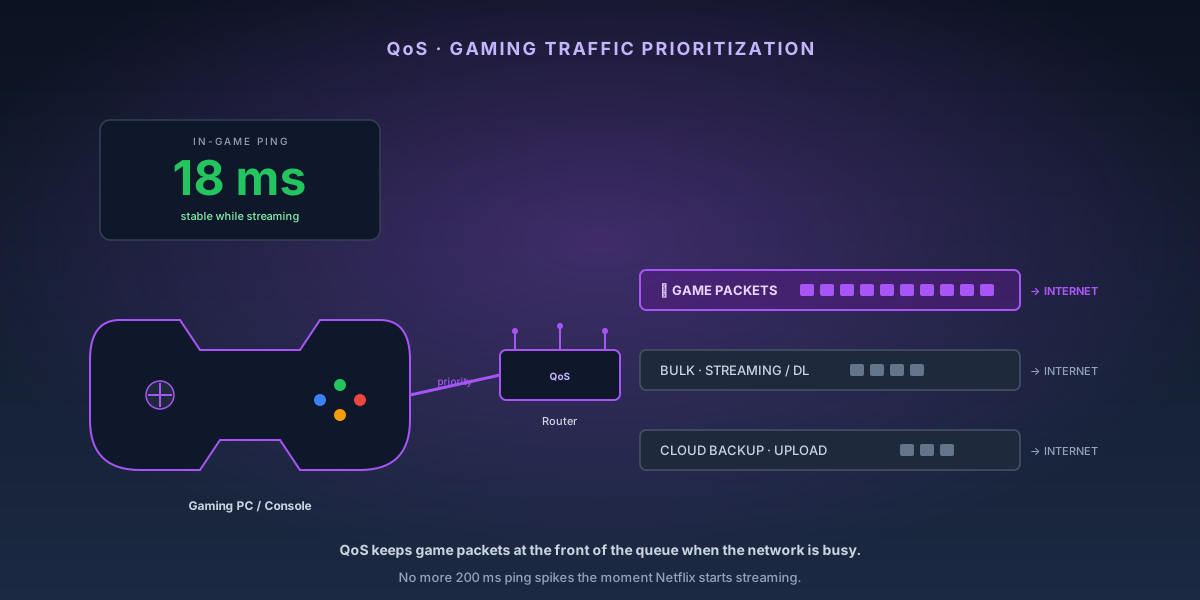
Lag in online games is almost never caused by your ping to the game server being too high — it's caused by other devices on your network flooding your upload or download pipe at the wrong moment. A 4K Netflix stream uploading telemetry data at the same time you fire a critical shot adds 50–200 ms of jitter that loses the game. QoS (Quality of Service) instructs the router to deliver your gaming packets first, regardless of what else is happening on the network.
8-Step Overview
- 1
Understand what QoS actually fixes
QoS reduces latency spikes caused by bandwidth contention — it does not lower your base ping to game servers, which is determined by your ISP and physical distance. If your ping is 80 ms while gaming alone with nothing else on the network, QoS won't change that. What it will fix: the ping jumping to 200+ ms when someone else starts streaming, or packet loss during large file uploads. Knowing this helps you verify it's working correctly.
- 2
Log into your router's admin panel
Open a browser and navigate to your router's admin IP — typically 192.168.1.1 or 192.168.0.1. Log in with your admin credentials. If you're not sure of the admin IP, run 'ipconfig' (Windows) or 'netstat -nr' (Mac/Linux) and look for the 'Default Gateway' entry — that's your router's address.
- 3
Find the QoS settings
QoS location varies by router: TP-Link puts it under Advanced → QoS; Asus uses Adaptive QoS under the sidebar; Netgear Nighthawk routers have a dedicated 'QoS' section under Advanced Setup. Some routers call it 'Traffic Management,' 'Bandwidth Control,' or 'Smart Connect.' Gaming-focused routers like the Netgear XR1000 and Asus RT-AX86U have dedicated 'Gaming QoS' or 'WTFast' integration.
Search on Amazon →Recommended Product
Netgear Nighthawk Pro Gaming XR1000 Wi-Fi 6 Router
The XR1000 includes DumaOS 3.0 with a visual network map, per-device QoS bandwidth allocation, and a Geo-Filter to connect to the nearest game servers — the most capable gaming QoS implementation in a consumer router.
- 4
Measure and enter your actual internet speeds
For QoS to work, the router needs to know your real bandwidth ceiling. Run a speed test at speedtest.net while nothing else is using the network. Note your download and upload speeds. In the router's QoS settings, enter these numbers — subtract 10–15% from the measured speeds (e.g., if you get 480 Mbps down, enter 420). This headroom is critical: QoS can only prioritize traffic if the router is managing a queue, and it can only do that if you cap the total throughput below the ISP's maximum.

QoS creates a priority lane for gaming traffic — but only works when the router is actively managing a queue below your ISP's bandwidth ceiling. - 5
Enable device-based priority for your gaming machine
In device-based QoS mode, find your gaming PC, console, or phone in the device list and set it to highest priority. The router identifies devices by MAC address, so this setting persists even if the device gets a new IP via DHCP. On Asus routers, this is in Adaptive QoS → Device Priority. On TP-Link, it's QoS → Priority Devices. Most routers let you rank up to 3–5 devices in a priority queue.
Search on Amazon →Recommended Product
Asus RT-AX86U Pro Wi-Fi 6 Router
The RT-AX86U Pro's Adaptive QoS automatically identifies gaming traffic by application type and boosts its priority over streaming and downloads — no manual port configuration required.
- 6
Alternatively, use application-based QoS to prioritize gaming ports
Application-based QoS identifies gaming traffic by port ranges and protocol. Common gaming ports: UDP 3074 (PlayStation Network), UDP 3075/3076 (Xbox Live), UDP 27000–27050 (Steam). Add these port ranges to a 'Gaming' traffic rule and set it to highest priority. This approach works across all devices on the network, not just a specific MAC address — better for households where multiple people game on different devices.
- 7
Enable upload optimization
Upload saturation causes more lag than download saturation in most games. Online games send position updates, player inputs, and event data upstream — if your upload pipe is full, those packets queue up. Enable 'Upload QoS' or 'Upload Optimization' if your router offers it separately. On Asus, this is the 'Bandwidth Limiter' applied to non-priority devices' upload traffic. On Netgear DumaOS, set a 70% upload cap on non-gaming devices.
- 8
Test with an in-game ping monitor
Enable your game's network stats overlay — most games have one (Fortnite: press Escape → Settings → Network Debug Stats; Call of Duty: Settings → Account → Ping-Based Matchmaking overlay). With QoS enabled, start a video stream on another device and watch your in-game ping. Without QoS, ping typically spikes 50–200 ms when streaming starts. With QoS correctly configured, it should stay within 5–10 ms of your baseline. If the spike persists, double-check that your QoS bandwidth ceiling is set correctly.
When QoS isn't the answer
QoS fixes contention. It does nothing for the other two things people call \"lag\":
- Buffer bloat — if your ping climbs under load even with QoS on, you want an SQM/smart-queue algorithm (fq_codel, CAKE), not a priority rule. Bufferbloat explained covers the fix.
- Strict NAT — party chat failing and matchmaking taking forever is a NAT-type problem, not a bandwidth one. See NAT types explained, and how to set up port forwarding safely if you do need an inbound rule.
- Wi-Fi itself — a console on congested 2.4 GHz will jitter no matter what the router prioritizes. Wire it, or read how to find the best Wi-Fi channel.
Related
- How to run Ethernet through walls — a wired console beats every QoS setting in this guide.
- How to set static IPs and DHCP reservations — so a device-based priority rule keeps pointing at the right machine.
- How to set up router parental controls — scheduling, for when the contention is a person rather than a stream.