How to Optimize Your AV Receiver for Dolby Atmos
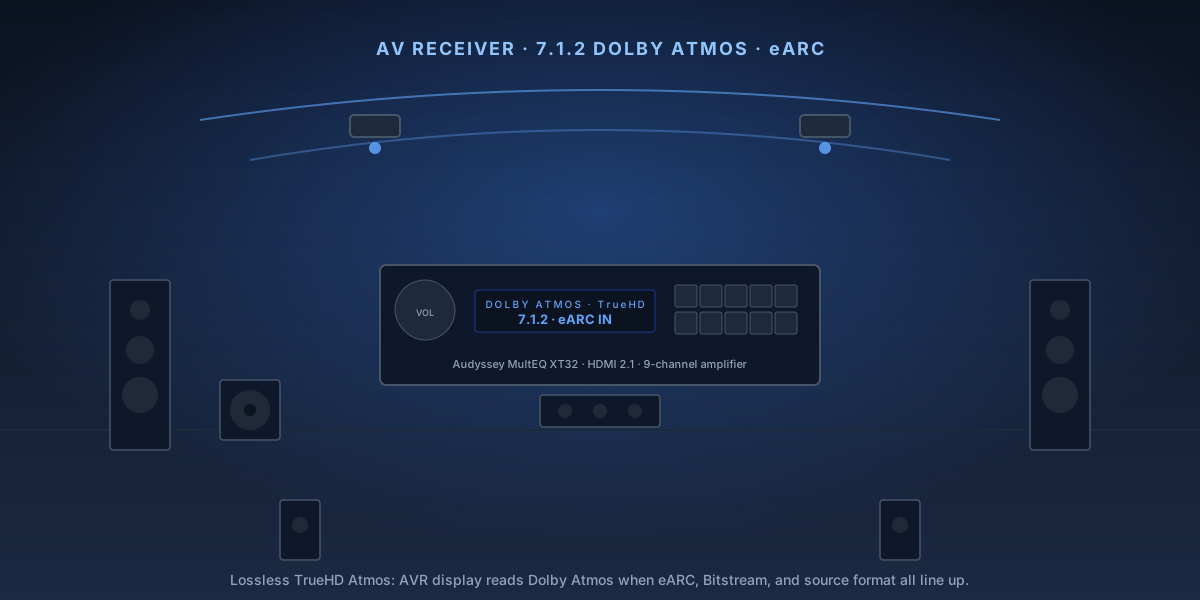
Dolby Atmos adds a height dimension to surround sound — overhead effects like rain, aircraft, and echoing spaces are rendered in three-dimensional space rather than just left-right-front-back. Getting it right requires more than just buying an Atmos receiver. Speaker placement, HDMI configuration, and room calibration all determine whether you hear genuine object-based audio or just a gimmick. This guide covers each step.
9-Step Overview
- 1
Verify your signal chain supports Atmos
True Dolby Atmos requires: a source with Atmos content (Netflix, Disney+, Apple TV+, Atmos Blu-ray), an HDMI connection that supports eARC or ARC (HDMI 2.0 minimum), and an AV receiver with Dolby Atmos decoding. Check your TV's HDMI ARC/eARC port — it's usually labeled on the back. If your TV only supports ARC (not eARC), Atmos will be delivered as Dolby Digital Plus Atmos, which is a compressed version. Full lossless TrueHD Atmos requires eARC or a direct HDMI connection from a Blu-ray player to the receiver.
Search on Amazon →Recommended Product
Denon AVR-X3800H 9.4-Channel AV Receiver
The AVR-X3800H decodes Dolby Atmos, DTS:X, and IMAX Enhanced, with 9 amplified channels (enough for 7.1.2 Atmos), HDMI 2.1 ports for 8K/4K 120Hz passthrough, and Audyssey MultEQ XT32 room correction.
- 2
Position your height speakers
For a 5.1.2 Atmos layout, add two height channels. You have two options: (1) in-ceiling speakers at roughly 110–120° from your listening position (measured front to back) — the ideal but requires installation, or (2) upward-firing Atmos-enabled speakers placed on top of your front left and right speakers. Upward-firing modules work by bouncing sound off the ceiling — they require a flat, low ceiling (under 9 feet) for best results. In-ceiling speakers always sound better if installation is possible.
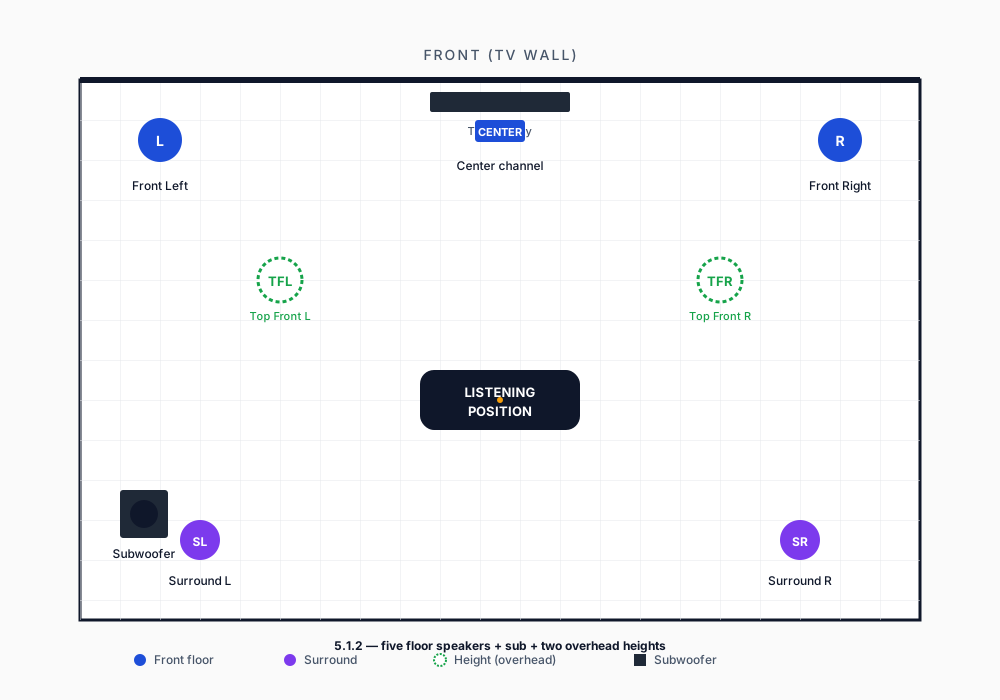
5.1.2 layout: the two height channels go above the listening seat, slightly forward — about 110–120° measured from the front wall. - 3
Connect via eARC for lossless Atmos
Use an 'Ultra High Speed HDMI' cable (48 Gbps rated) between your TV's eARC port and the receiver's HDMI ARC/eARC input. In your TV's audio settings, enable eARC (some TVs call it 'HDMI-CEC eARC' or have it under 'Audio Output'). Set the TV to output Bitstream or Pass-through, not PCM — PCM will downmix surround audio to stereo. For Blu-ray players, connect directly to an HDMI input on the receiver (not through the TV) for lossless TrueHD Atmos.
- 4
Configure speaker layout in the receiver
Navigate to the receiver's Speaker Configuration menu (on Denon: Setup → Speakers → Manual Setup → Speaker Config). Select your configuration: 5.1.2, 7.1.2, or whatever matches your physical layout. Assign your height speakers to the correct channels (Front Height or Top Front). This tells the receiver's Atmos renderer exactly where your speakers are in three-dimensional space so it can accurately pan overhead audio objects.
- 5
Measure speaker distances
Use a tape measure to get the distance from your primary listening position to each speaker — including the height speakers. Enter these distances in the receiver's Speaker Setup menu. Distance settings are how the receiver time-aligns all speakers so audio from each driver reaches your ears simultaneously. Incorrect distances smear imaging and undermine Atmos overhead effects. Measure to the nearest 6 inches; the receiver handles the rest.
- 6
Run Audyssey MultEQ or MCACC room calibration
Place the calibration microphone at ear level at your primary listening seat and run the receiver's auto-calibration routine (Audyssey on Denon/Marantz, MCACC on Pioneer, YPAO on Yamaha). The system will test-tone every speaker and measure your room's acoustic response. This step sets crossover frequencies, speaker distances, and per-channel EQ automatically. It takes about 8–12 minutes. Do it in a quiet room — AC noise and HVAC interference will corrupt the measurements.
- 7
Review and adjust crossover frequencies
After calibration, check the crossover settings (Audyssey calls this the 'Speaker Size' setting). Speakers set to 'Small' are crossed over to the subwoofer below the crossover frequency; 'Large' means full range. Unless you have large floor-standing speakers rated below 40 Hz, set all speakers to Small with an 80 Hz crossover — this is the THX and Dolby recommendation. Height speakers are almost always Small/80 Hz; they're not designed for bass.
- 8
Enable Dolby Atmos object rendering
In your receiver's audio settings, confirm that Dolby Surround or Dolby Atmos is set as the listening mode for movie content (not DTS Neural:X or Dolby Pro Logic IIz, which are upmixers, not decoders). When playing actual Atmos content, the receiver's display should show 'Dolby Atmos' — if it shows 'Dolby Digital' or 'PCM,' recheck your eARC/bitstream settings and source configuration.
- 9
Test with an Atmos reference track
Play an Atmos demo track or a scene you know well from an Atmos Blu-ray or streaming title. Close your eyes and listen for height cues: rain falling, a helicopter overhead, debris scattering. These effects should feel genuinely above you, not just louder or brighter. If height effects feel vague or flat, verify your height speaker distances and check that the receiver is decoding Atmos (not upmixing non-Atmos content). A reference Atmos scene with correct setup is unmistakable.