How to Calibrate a Subwoofer with miniDSP DDRC-24
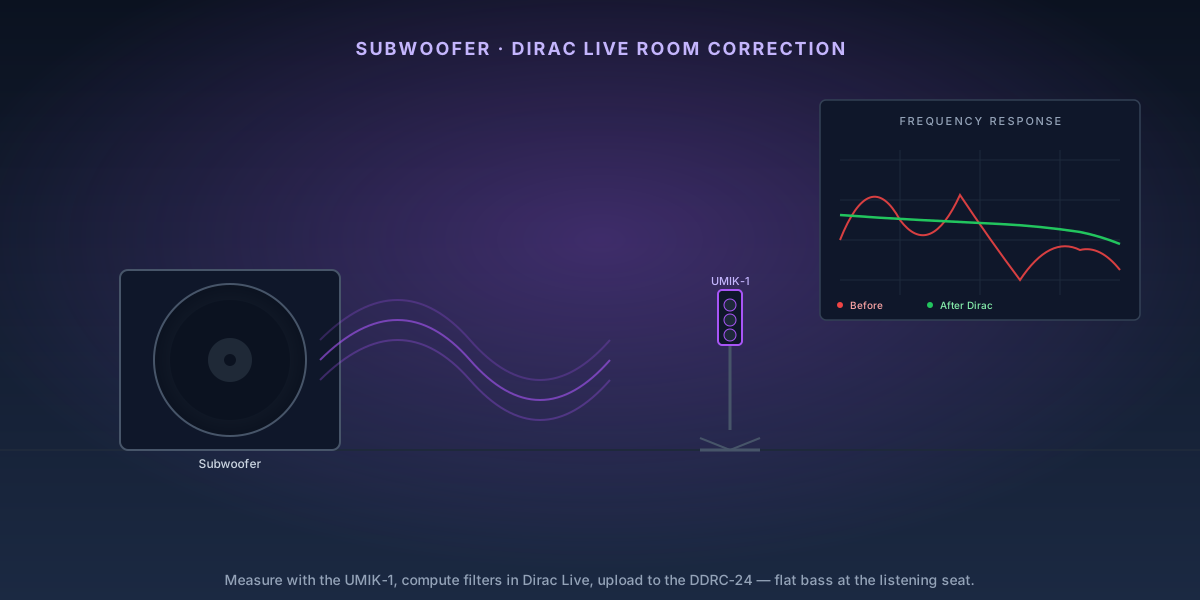
Room acoustics ruin subwoofer performance more than any other factor. Bass wavelengths are long — they bounce off walls, pile up in corners, and cancel out in others spots, creating peaks and nulls that no amount of placement adjustment fully solves. The miniDSP DDRC-24 with Dirac Live applies digital correction filters that physically compensate for your room's acoustic signature, making a $500 subwoofer sound like a $1,500 one in the process.
9-Step Overview
- 1
Gather your equipment
You need: the miniDSP DDRC-24 unit, a MiniDSP UMIK-1 measurement microphone (or UMIK-2 for XLR), a Windows or Mac computer with the Dirac Live software installed, and a measurement microphone stand. Download the DDRC-24 plugin software and Dirac Live from miniDSP's website before starting. The Dirac Live license is included with the DDRC-24 for stereo correction — the 2.1 and multichannel upgrades cost extra.
Search on Amazon →Recommended Product
miniDSP DDRC-24 Digital Room Correction Processor
The DDRC-24 is the most cost-effective way to apply Dirac Live correction to a 2.1 or stereo system. It supports analog and digital I/O and sits inline between your preamplifier and subwoofer amplifier.
- 2
Install the DDRC-24 in your signal chain
The DDRC-24 sits between your preamplifier (or AV receiver's preamp outputs) and your subwoofer amp. Connect: preamp outputs → DDRC-24 analog inputs → DDRC-24 outputs → subwoofer amplifier input. For a 2.1 system, use the stereo analog outputs for your main amp and the subwoofer output for the sub. Connect the DDRC-24 to your computer via USB for configuration and to load filters.
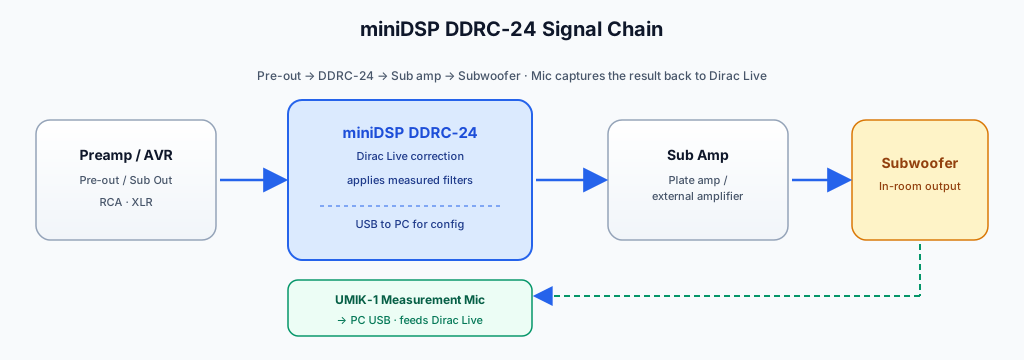
DDRC-24 sits inline between the preamp and the sub amp. The UMIK-1 + Dirac Live closes the loop by measuring the in-room result. - 3
Position your measurement microphone
Attach the UMIK-1 to a microphone stand and place it at ear level at your primary listening position — exactly where your head would be when seated. This first measurement position is the most important: Dirac Live optimizes primarily for your main seat. Keep it away from walls by at least 18 inches for the first measurement. The microphone should be vertical, not angled.
Check Price on Amazon →Recommended Product
miniDSP UMIK-1 USB Measurement Microphone
The UMIK-1 is calibrated individually from the factory and integrates directly with Dirac Live and REW — no additional hardware or preamp required, just plug in via USB.
- 4
Open Dirac Live and configure your system
Launch Dirac Live, select your DDRC-24 as the audio device, and confirm your input/output channel mapping. Set your crossover frequency in the DDRC-24 plugin (typically 80 Hz for most subwoofer setups, or match what your AV receiver uses). Run a quick test tone through the system to confirm signal flow before taking measurements.
- 5
Take measurements at multiple positions
Dirac Live measures at 9 or more positions to build a spatial average of your room's response. Start at the primary listening seat, then move 6–8 inches in different directions (left, right, forward, back) for subsequent measurements. For a couch with multiple seats, take 2–3 measurements per seating area. More measurements = better spatial averaging = wider sweet spot after correction.
- 6
Review the raw measurements
After measuring, Dirac Live displays your room's raw frequency response. Look for the subwoofer's contribution: you'll see peaks and dips below 100 Hz that represent room modes (standing waves). Peaks above +10 dB and dips below −15 dB are common and expected — this is exactly what Dirac Live is fixing. The 'before' curve is usually alarming; that's normal.
- 7
Set the Dirac Live target curve
Dirac Live lets you customize the correction target curve. The default 'Dirac Live' target is a good starting point: flat to around 100 Hz, then gently sloped downward. For subwoofers, many listeners prefer a slight bass shelf (+3 to +5 dB below 60 Hz) — drag the target curve nodes in the Dirac interface to add a gentle rise. This compensates for bass rolloff in listening rooms and adds visceral impact without muddiness.
- 8
Compute and upload the filter to the DDRC-24
Click 'Compute' in Dirac Live and wait — this typically takes 1–3 minutes. Review the predicted 'after' frequency response. If it looks smooth and close to your target, click 'Upload to Device' to write the filter to a slot on the DDRC-24. The DDRC-24 has multiple slots — label this one 'Dirac Main.' The filter applies in real time from this point forward.
- 9
Verify calibration with reference tracks
Play a bass-heavy reference track (Hans Zimmer, Star Wars, or a dedicated bass test track) and walk around the room while listening. The bass should now be relatively consistent regardless of position — the extreme peaks you heard in corners before correction should be reduced significantly. If the sub still sounds boomy in one spot, return to Dirac Live and lower the target curve slightly below 60 Hz.
Do the free things first
DSP correction is the last step, not the first. Dirac Live is very good at taming peaks and poor at filling nulls, so a placement-induced null stays a null no matter how much EQ you throw at it. Before you buy a DDRC-24:
- How to position a subwoofer for the best bass response — the subwoofer crawl costs nothing and does more than any filter.
- How to set speaker crossover frequency — get the handoff right before correcting it.
- When a second subwoofer is worth it — two modest subs smooth seat-to-seat response in a way one corrected sub can't.
Related
- Audyssey vs. Dirac vs. YPAO — how Dirac compares to the correction already built into your receiver.
- How to run Audyssey room calibration — if your Denon or Marantz already has XT32, start there before adding hardware.
- Sealed vs. ported subwoofers — what you're correcting, and why sealed subs take EQ more gracefully.