How to Connect a Soundbar to Your TV: HDMI ARC, Optical, and Bluetooth Explained
Published 2026-04-28 · By NetAudioHub Editorial
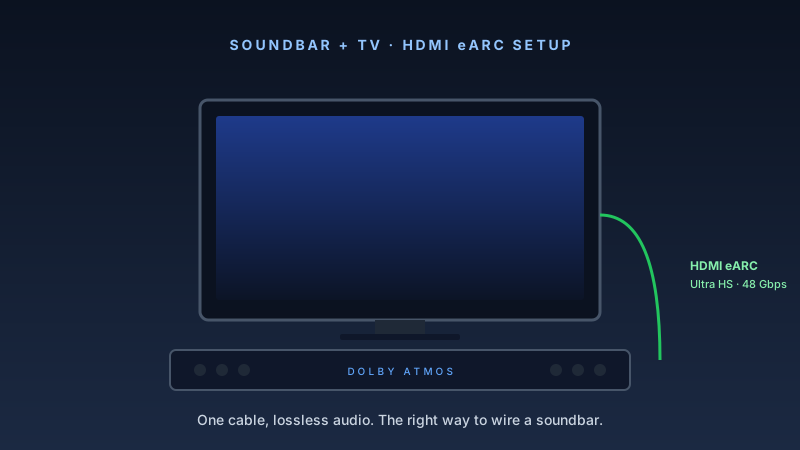
HDMI ARC is the right connection for most setups — one cable, one remote. If your devices support eARC, you get lossless Dolby Atmos. Here's the full guide for every TV and soundbar scenario.
The short answer: use HDMI ARC if both devices have it — it handles audio and volume control over one cable. If your TV only has optical out, use that. Bluetooth works but adds latency and limits audio quality. Here's the full guide for every scenario.
Before You Start: Know Your Ports
Flip to the back of your TV and soundbar. You need to match what's available on both ends.
TV ports to look for:
- HDMI ARC — usually labeled "ARC" next to one HDMI input. Modern TVs have it on HDMI 1 or HDMI 2.
- HDMI eARC — a newer, faster version of ARC. Found on TVs made after 2019. Labeled "eARC" on the port.
- Optical (TOSLINK) — a small square port with a plastic cover. Nearly every TV has one.
- Bluetooth — check your TV's settings menu, not the back panel.
Soundbar ports to look for:
- HDMI IN (ARC) — the most common. Some soundbars have multiple HDMI inputs for devices like gaming consoles, plus a dedicated ARC output to the TV.
- HDMI OUT (ARC/eARC) — on soundbars with HDMI inputs, this port goes to the TV.
- Optical IN — the fallback for older TVs.
- 3.5mm AUX — analog, last resort.
Once you know which ports you share, pick the method from the list below. HDMI ARC/eARC > Optical > Bluetooth > AUX.
Method 1: HDMI ARC (Recommended)
HDMI ARC sends audio from your TV to the soundbar over a standard HDMI cable. It also carries CEC signals, which let your TV remote control soundbar volume automatically. You only need one cable for the whole setup.
What you need
- An HDMI cable (any standard HDMI 2.0 cable works for ARC; see below for eARC)
- A TV with an HDMI ARC port
- A soundbar with an HDMI ARC port
Step-by-step
- Connect the cable. Plug one end of the HDMI cable into the port labeled "ARC" on your TV. Plug the other end into the "HDMI OUT (ARC)" port on your soundbar. Do not use a random HDMI input on the soundbar — it must be the ARC-designated port.
2. Enable HDMI-CEC on your TV. This setting has different names depending on brand: - Samsung: Anynet+ (Settings → General → External Device Manager → Anynet+) - LG: Simplink (Settings → General → HDMI Settings → Simplink) - Sony: Bravia Sync (Settings → Watching TV → External Inputs → Bravia Sync) - TCL/Hisense: HDMI CEC (Settings → System → HDMI CEC Control)
Turn this ON. Without it, ARC may not work, and your TV remote won't control soundbar volume.
3. Set TV audio output to ARC/External Speaker. Go to your TV's sound settings. Look for "Audio Output" or "Sound Output." Select "ARC," "External Speaker," or "Receiver" — the exact label varies. Turn off TV built-in speakers if there's a separate toggle.
4. Select the right input on the soundbar. Most soundbars auto-detect ARC within a few seconds. If not, press the input/source button on the soundbar remote until "HDMI ARC" or "TV" appears on the display.
5. Test it. Play something on your TV. Audio should come from the soundbar. Pressing the TV remote's volume up/down should adjust soundbar volume directly.
Troubleshooting ARC:
- No sound: confirm CEC is enabled and you used the ARC-labeled ports on both devices.
- Sound cuts out: try a different HDMI cable. ARC is finicky with cheap cables.
- TV remote doesn't control volume: CEC is likely disabled on either the TV or the soundbar (some soundbars have their own CEC setting).
Method 2: HDMI eARC (For Dolby Atmos and DTS:X)
eARC is a direct upgrade to ARC. It supports higher-bandwidth audio formats, including lossless Dolby TrueHD (used by Atmos) and DTS-HD Master Audio. If your soundbar supports Atmos and your TV has eARC, this is the connection you want.
What's different from ARC
Regular ARC is limited to lossy audio: Dolby Digital (5.1), DTS (5.1), and stereo PCM. It cannot pass Dolby TrueHD or DTS-HD — so if your streaming app sends an Atmos track, ARC downgrades it to standard Dolby Digital before it reaches the soundbar.
eARC removes that limitation. It passes full lossless audio formats, so a Dolby Atmos track stays lossless end to end.
Setup
eARC setup is nearly identical to ARC, with one important difference: you need a Premium Certified HDMI 2.1 cable. Standard HDMI 2.0 cables often don't support eARC reliably. Buy a cable specifically labeled HDMI 2.1 or "eARC compatible."
Connect the eARC-labeled port on your TV to the HDMI OUT (eARC) port on the soundbar. Enable CEC on the TV. Set audio output to eARC. The rest is the same as ARC.
Recommended soundbar with eARC support:
The Sonos Beam (Gen 2) supports eARC and Dolby Atmos. It is compact enough to fit under most TVs, and the Sonos app makes setup straightforward.
Pros:
- Dolby Atmos support via eARC
- Excellent Sonos app with EQ controls
- Compact form factor
- Multi-room audio integration
Cons:
- No DTS passthrough
- Requires Sonos app for full setup
- $449 is premium for a 3.0 soundbar
Method 3: Optical (TOSLINK)
Optical audio is the universal fallback. Every TV made in the last 15 years has an optical output. It is slower and more limited than ARC, but it is reliable.
Limitations of optical
Optical supports Dolby Digital 5.1 and DTS 5.1 — the same lossy formats as ARC. It does not support lossless audio or Dolby Atmos. It also does not carry CEC, so your TV remote cannot control soundbar volume over optical. You need to use the soundbar remote or a universal remote.
That said, for TV audio and stereo music, optical sounds perfectly fine. The difference between lossy Dolby Digital and lossless TrueHD is hard to hear on most soundbars anyway.
Step-by-step
- Remove the protective caps from both ends of the optical cable before connecting. The red LED inside the port should glow when connected correctly.
2. Connect the optical cable from the TV's "Digital Audio Out (Optical)" port to the soundbar's "Optical In" port. These ports are directional — push firmly until they click.
3. Set TV audio output to optical. In TV sound settings, select "Optical" or "Digital Audio Out." Set the format to "Dolby Digital" for surround sound or "PCM" for stereo.
4. Select optical input on the soundbar. Press the input button on the soundbar until it shows "OPT" or "Optical."
5. Set TV volume behavior. Since optical doesn't carry CEC, decide whether to fix the TV volume at 100% and use only the soundbar remote, or accept that you will use two remotes. Many people find a universal remote (or a smart home integration) helpful here.
Budget pick with optical support:
The Samsung HW-Q600C is a 3.1.2 soundbar with Dolby Atmos and DTS:X that includes both optical and HDMI ARC inputs. It is a reasonable choice if your TV lacks eARC but you want the hardware to be ready for a future TV upgrade.
Pros:
- Both optical and HDMI ARC inputs
- 3.1.2 channel layout (two upfiring drivers)
- Dolby Atmos and DTS:X decoding
- Reasonable street price
Cons:
- Atmos is object-based but relies on two upfiring drivers, not true overhead speakers
- App is basic compared to Sonos or Yamaha
- No Dolby Atmos via optical (requires ARC or HDMI source)
Method 4: Bluetooth
Bluetooth works when there is no cable option — or when you want to move the soundbar between rooms. Most smart TVs from 2018 onward have Bluetooth audio output.
How to pair
- Put the soundbar in Bluetooth pairing mode. Usually press and hold the Bluetooth button on the soundbar or its remote until an indicator flashes.
2. Open Bluetooth settings on your TV. On most TVs: Settings → Sound → Sound Output → Bluetooth Speaker List. Select your soundbar when it appears.
3. Confirm the pairing. Some soundbars require pressing a button to confirm.
Bluetooth limitations
Latency is the main issue. Bluetooth audio typically lags 100–300ms behind video, which makes dialog look out of sync. Some TVs have a lip-sync adjustment setting (Settings → Sound → Expert Settings → Audio Delay) that can compensate, but it requires manual calibration.
Audio quality is limited to SBC or AAC codec support on most TVs — not lossless. You won't get Dolby Digital 5.1 over Bluetooth. It is stereo only.
Use Bluetooth only when a physical connection is not possible.
Which Method Should You Use?
| Connection | Max Audio Quality | Volume Control via TV Remote | Cable Required |
|---|---|---|---|
| HDMI eARC | Dolby TrueHD, Atmos lossless | Yes (CEC) | HDMI 2.1 |
| HDMI ARC | Dolby Digital 5.1 (lossy) | Yes (CEC) | HDMI 2.0 |
| Optical | Dolby Digital 5.1 (lossy) | No | Optical cable |
| Bluetooth | Stereo (SBC/AAC) | Sometimes | None |
Decision tree:
- Both TV and soundbar have eARC → use eARC with an HDMI 2.1 cable
- Both have ARC (but not eARC) → use HDMI ARC
- TV only has optical → use optical, upgrade to eARC with next TV
- No cable connections available → Bluetooth, set lip-sync compensation
Soundbar Picks for Each Setup
Best for eARC + Dolby Atmos
Sonos Beam (Gen 2) — $449 Compact, Atmos-capable, excellent app. The go-to mid-range pick for anyone with a modern TV.
Best budget soundbar for ARC
LG SP7Y — $179 5.1 channel, HDMI ARC, Dolby Atmos, DTS:X. Wireless subwoofer included. Exceptional value at this price.
Pros:
- Wireless subwoofer included
- Dolby Atmos and DTS:X decoding
- HDMI ARC and optical inputs
- Strong bass for the price
Cons:
- No eARC (limits to lossy Atmos)
- App experience is minimal
- Rear channel width is modest without additional surrounds
Best soundbar with all connection types
Samsung HW-Q600C — $248 ARC, optical, and Bluetooth. Good future-proofing if you plan to upgrade your TV.
Troubleshooting Common Problems
No sound after connecting HDMI ARC:
- Confirm you used the ARC-labeled port on the TV — not any random HDMI input.
- Enable HDMI-CEC on the TV (Anynet+, Simplink, Bravia Sync, etc.).
- Try unplugging both devices, reconnecting the cable, and powering on the soundbar before the TV.
- Swap the HDMI cable — ARC is cable-sensitive.
Volume not controlled by TV remote:
- HDMI-CEC must be enabled on both the TV and the soundbar. Check the soundbar's settings menu for a CEC or "HDMI Control" toggle.
Lip-sync delay (audio behind video):
- For optical: go to TV Settings → Sound → Audio Delay and increase the delay until dialog matches.
- For Bluetooth: same path. Start at 100ms and adjust up.
- For ARC: lip-sync delay is rare but possible. Some TVs have an ARC-specific audio delay setting.
Audio cutting out or dropping:
- Most common cause: a poor quality or damaged HDMI cable. Replace it with a certified HDMI 2.0 cable.
- Second cause: ARC is being disrupted by another device on the TV's HDMI inputs. Try disconnecting other HDMI devices temporarily.
TV speakers still playing along with soundbar:
- Go to TV sound settings and set audio output to "External Speaker" or "ARC." There should be a separate toggle to disable TV built-in speakers — turn it off.
The Bottom Line
HDMI ARC is the right connection for most people. It takes one cable and gives you one-remote control over soundbar volume. If your TV and soundbar both support eARC, use that — you'll get lossless Dolby Atmos from streaming apps that support it (Netflix, Disney+, Apple TV+). Optical is a perfectly fine fallback for older TVs. Avoid Bluetooth for your main TV setup unless there is no other option.
Affiliate disclosure: Links in this article use the tag `webstore0fd1-20`. NetAudioHub earns a commission on qualifying purchases at no extra cost to you.