Double NAT Explained: What It Is, Why It Breaks Things, and How to Fix It
Published 2026-08-06 · By NetAudioHub Editorial
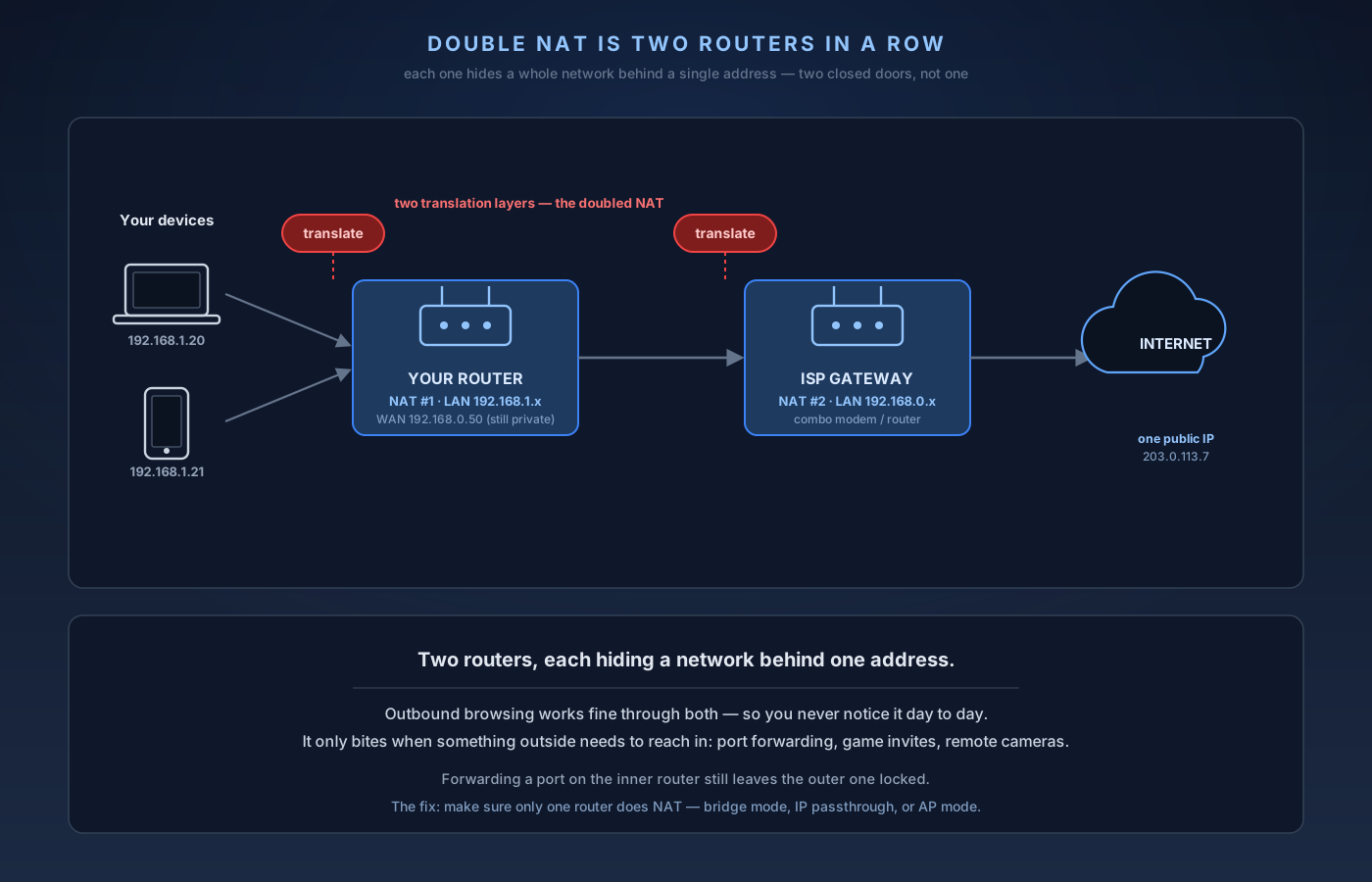
Double NAT means your traffic passes through two routers in a row, each doing its own Network Address Translation — usually because your own router sits behind an ISP gateway that's still in router mode. For everyday browsing it's completely harmless and you'll never notice it. It only bites when something outside your home needs to reach in: port forwarding stops working, game consoles report a "Strict" or "Type 3" NAT, and remote access to cameras or servers fails. The fix is to make sure only one device does NAT — bridge mode or IP passthrough on the ISP gateway, AP mode on your own router, or a DMZ as a quick hack. The one version you often can't fix yourself is CGNAT, where your ISP runs the second NAT. Here's how to tell what you have and exactly what to change.
The verdict up front: Double NAT means your traffic passes through two routers in a row, and each one is doing its own Network Address Translation — hiding a whole private network behind a single address. It usually happens when you put your own router behind an ISP-supplied modem/router gateway that's still in router mode. For everyday browsing, streaming, and most apps, Double NAT is completely harmless and you'll never notice it. It only causes trouble when something outside your home needs to reach in: port forwarding stops working, game consoles report a "Strict" or "Type 3" NAT, and remote access to cameras, servers, or VPNs fails. The fix is to make sure only one device does NAT — either put the ISP gateway in bridge mode or IP passthrough (best), or put your own router in access-point mode, or as a quick hack, forward all traffic to your router with a DMZ entry. The one version you often can't fix yourself is CGNAT, where your ISP is doing the second NAT on their side. Here's how to tell what you have and exactly what to change.
First, a 30-Second Refresher on NAT
Your internet provider gives your home one public IP address. But you have a dozen devices — phones, laptops, TVs, a console, smart plugs. Network Address Translation (NAT) is the trick your router uses to let all of them share that single public address.
Inside your house, every device gets a private address (something like 192.168.1.20). When a device reaches out to the internet, the router swaps that private address for the home's one public address, remembers who asked, and swaps it back when the reply comes in. One public address, many devices, no collisions. That's NAT, and every home router does it.
The key thing to hold onto: NAT is a one-way door. Devices inside can freely start conversations with the outside world, but the outside world can't easily start a conversation with a specific device inside — the router doesn't know which private device the incoming knock is for. That's fine for browsing (you always start the conversation), and it's a big reason home networks are reasonably safe by default. It only becomes a problem when you want something outside to reach in.
So What Is Double NAT?
Double NAT is exactly what it sounds like: that one-way door, twice, back to back.
It happens when you have two routers chained together, each running its own NAT. The classic setup:
- Your ISP hands you a combo modem/router/gateway — one box that's a modem and a router. It does NAT.
- You want better Wi-Fi, a mesh system, or a gaming router, so you plug your own router into the ISP box.
- Now your device sits behind your router's NAT (192.168.1.x), and your router sits behind the ISP gateway's NAT (192.168.0.x), which finally reaches the internet.
Two routers, two translation layers, two closed doors. Your outbound traffic gets through both without issue — that's why browsing feels normal. But anything trying to reach a device inside your home now has to be let through both doors, and by default neither one is open.
Why it happens so often: people rarely set out to build Double NAT. It sneaks in when you add a router for better coverage but leave the ISP box in its default router mode. Mesh systems, travel routers, a second router used as "a switch," and even some Wi-Fi extenders in router mode all create it.
How to Tell If You Have Double NAT
Three quick checks, easiest first:
1. Look for a warning. Many routers detect this and say so outright. Log into your router's admin page and look on the status/dashboard screen for a message like "Double NAT detected" or "You are behind another router." Netgear, ASUS, and TP-Link all flag it.
2. Check your router's WAN (Internet) IP. This is the definitive test. In your router's admin page, find the WAN or Internet IP address — the address your router got from whatever is upstream of it. If it starts with one of these private ranges, something upstream is doing NAT, and you have Double NAT:
- 10. — anything 10.x.x.x
- 172.16. through 172.31.
- 192.168. — anything 192.168.x.x
If your router's WAN IP instead looks like a normal public address (e.g. 203.0.113.7), you're not double-NAT'd — you're connected straight to the internet.
3. Watch for the symptoms. If port forwarding "just won't work," your console shows a strict NAT type, or a security camera / remote-desktop / self-hosted service is unreachable from outside, Double NAT is the usual suspect.
Special case — the private range that isn't yours. If your WAN IP falls in 100.64.x.x through 100.127.x.x, that's CGNAT (carrier-grade NAT) — your ISP is doing the second NAT on their end. That's Double NAT you can't fix from inside your house. More on that at the bottom.
When Double NAT Actually Matters (and When It Doesn't)
Here's the part that saves a lot of needless fiddling: most of the time, Double NAT does no harm at all.
Everything that starts from inside your home works fine through two NATs:
- Web browsing, streaming (Netflix, YouTube, Spotify)
- Video calls, most online games' actual gameplay
- Smart-home devices phoning their cloud
- Apps that use UPnP to punch their own holes automatically
Plenty of homes run Double NAT for years and never notice. So if nothing is broken, you can leave it alone.
Double NAT does bite when something outside needs to reach a specific device inside:
- Port forwarding. You forward a port on your router, but the ISP gateway upstream never got the memo, so the traffic dies at the outer door. This is the number-one Double NAT complaint.
- Console gaming. Xbox and PlayStation report Strict / Type 3 / "Moderate" NAT, which can block party chat, hosting, and some matchmaking.
- Remote access. Security cameras, a home NAS, a self-hosted VPN, or remote desktop that you want to reach from outside the house often fail.
- Some VPN and IPsec setups, and services that don't support UPnP.
If none of those apply to you, stop here — you're fine. If they do, pick a fix below.
How to Fix Double NAT: Four Options
The goal is always the same: make sure only one router does NAT. You either retire the outer router's NAT or the inner router's. Pick based on which box you want to keep in charge.
Option 1 — Put the ISP gateway in Bridge Mode (best fix)
Bridge mode turns the ISP's combo box into a plain modem: it stops routing and hands the public IP straight through to your router. Your router becomes the only NAT device, and everything works normally.
- Best when: you'd rather have your own router run the network (better Wi-Fi, QoS, VPN, parental controls).
- How: look for "Bridge Mode," "Modem Mode," or "RG/Ethernet mode" in the ISP gateway's settings; some ISPs require you to call and have them enable it.
- Trade-off: you usually lose the gateway's own Wi-Fi and sometimes its phone (VoIP) service, because it's no longer routing. Make sure your router is ready to take over first.
That last line is the one people skip. Bridging the gateway makes the box behind it the edge of your network, which is a different job from being a second-hop Wi-Fi router. A UniFi Cloud Gateway Ultra is $129 and holds 900–950 Mbps with threat inspection running, but it has no Wi-Fi radio at all — so if bridging the gateway is what takes your Wi-Fi away, an access point has to be in the plan too.
On cable, there is a cleaner version of this move: stop using a combo box entirely. A modem-only unit like the Motorola MB8611 at $159.99 or the ARRIS SURFboard S33 at $199.99 does no routing whatsoever, so there is never a second NAT to argue with — and since both replace a rented gateway, they pay for themselves inside about a year. Both are DOCSIS 3.1 cable-only, so this is not an option on fiber or 5G. Our buy vs. rent your modem breakdown has the payback math.
Option 2 — IP Passthrough / DMZ on the ISP gateway
If your ISP won't allow true bridge mode (common with AT&T fiber and some others), IP passthrough is the next best thing: the gateway keeps running but assigns its public IP to your router's WAN port, so your router effectively becomes the edge device.
- Best when: bridge mode isn't offered but you still want your router in charge.
- How: find "IP Passthrough" (AT&T), "Bridge/Passthrough," or a full DMZ pointed at your router's WAN address in the gateway's settings.
- Trade-off: slightly less clean than true bridge mode, and the exact name varies by ISP.
Option 3 — Put your router in Access Point (AP) mode
If you only added your own router for better Wi-Fi — not for its advanced features — flip the script: put your router into Access Point / Bridge mode so it stops doing NAT and just extends the ISP gateway's single network.
- Best when: the ISP gateway is fine as the main router and you just want more/better Wi-Fi coverage.
- How: most routers and mesh systems have an "AP mode" or "Bridge mode" toggle. Then plug it into the gateway via a LAN port.
- Trade-off: you lose your router's routing-level features (its own QoS, VPN server, custom firewall/DNS), because it's now just a Wi-Fi access point.
Option 4 — DMZ the inner router (quick hack)
If you can't change either box's mode, log into the outer (ISP) router and set its DMZ to point at your inner router's WAN IP. That forwards all unsolicited inbound traffic to your router, letting its port-forwarding rules take over.
- Best when: you need gaming/port-forwarding to work tonight and can't touch bridge settings.
- How: reserve a static WAN IP for the inner router, then enter that IP as the outer router's DMZ host.
- Trade-off: it's the least tidy option and only papers over the second NAT rather than removing it, but it reliably fixes strict-NAT gaming.
The One You Usually Can't Fix: CGNAT
If your router's WAN IP is in the 100.64.x.x–100.127.x.x range, you're behind carrier-grade NAT (CGNAT). To conserve their dwindling supply of public IPv4 addresses, your ISP puts many customers behind one shared public address — so there's a NAT layer on their side that you have no access to. This is increasingly common on newer fiber, 5G home internet, and mobile hotspots.
You can't bridge your way out of CGNAT because the second NAT isn't in your house. Your options:
- Ask the ISP for a public/static IP (often a small monthly add-on, sometimes free on request).
- Use IPv6 if your ISP and devices support it — IPv6 doesn't use NAT, so inbound connections can work even when IPv4 is stuck behind CGNAT.
- Use a relay service — a hosted VPN/reverse-tunnel (e.g. a Tailscale-style overlay or a Cloudflare Tunnel) that reaches your devices without needing an inbound public port at all.
The Cheat Sheet
- Nothing's broken? Leave Double NAT alone. It's harmless for normal use.
- Confirm it: check your router's WAN IP — a 10., 172.16–31., or 192.168. address means Double NAT.
- Want your router in charge: put the ISP gateway in bridge mode (or IP passthrough if bridge isn't offered).
- Only wanted better Wi-Fi: put your router in AP mode and let the gateway route.
- Need it working right now: DMZ the inner router from the outer one.
- WAN IP is 100.64–127.x? That's CGNAT — call your ISP for a public IP, or use IPv6 / a relay tunnel instead.
The Bottom Line
Double NAT is two routers each translating your private network behind a single address — a second one-way door stacked on the first. For everything you start from inside your home, it's invisible. It only matters when something outside needs to reach a device inside, which is why it surfaces as broken port forwarding, strict gaming NAT, and unreachable cameras or servers.
The fix is never complicated once you see it clearly: only one router should do NAT. Bridge the ISP gateway, pass its IP through to your router, or drop your own router into access-point mode — whichever keeps the box you actually want in charge. And if your WAN IP is a 100.64 address, the second NAT is your ISP's, not yours — so reach for a public IP, IPv6, or a relay tunnel instead of chasing a setting that isn't in your house.