Best Home Network Setup for Remote Workers in 2026
Published 2026-04-14 · By NetAudioHub Editorial
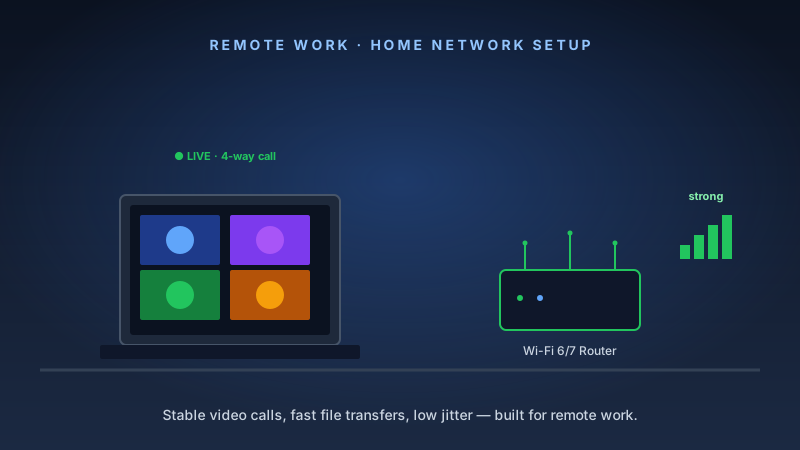
Your ISP's combo box isn't a work-grade network. Here's how to build a home setup that handles video calls, VPNs, and multiple users without dropping packets at 2pm on a Tuesday.
The verdict up front: A dedicated router with QoS, reliable mesh coverage, and a wired connection for your primary work machine will eliminate 90% of WFH network problems. Here's how to build it.
The Problem With the Default Setup
Most remote workers inherit their home network from their ISP. A combo modem/router box from Comcast or Spectrum sits somewhere near the cable entry point — which is rarely near the home office — and everything else connects wirelessly through walls and floors.
This setup works for casual use. It fails under the demands of remote work:
- Video calls need consistent low-latency connections. Bufferbloat — the congestion-induced latency spike that consumer routers handle poorly — is the root cause of most "the call is fine and then suddenly glitchy" complaints.
- VPNs add overhead. A weak signal forces the router to drop to lower modulation rates, increasing the per-packet CPU cost.
- Multiple users compete for airtime. Your video call competes with your partner's streaming and the kids' gaming. Without QoS, traffic is treated equally by default.
- ISP hardware is limited. Combo boxes rarely support proper QoS, advanced channel selection, or guest network isolation. They're designed for reliability at minimal cost, not performance.
The fix is a purpose-built network, and it doesn't have to be expensive.
The Foundation: Separate Your Modem and Router
The first upgrade is separating the modem from the router. Put your ISP combo box in bridge mode — which disables its routing and WiFi functions, turning it into a pure modem — and replace the routing and WiFi with dedicated hardware.
Why this matters:
- You control your router's firmware, update schedule, and security settings
- You get proper QoS, firewall, and VLAN features
- You can upgrade either the modem or router independently
Most ISP boxes support bridge mode. Check your provider's documentation or call their support line. You can also rent or purchase a standalone modem and return the combo box entirely.
Step 1: Get a Proper Router
For a home office, you need a router with:
- SQM/QoS — Smart Queue Management prevents bufferbloat. This is the single most impactful feature for video call quality.
- Gigabit WAN port — obvious, but some cheap routers still ship with 100 Mbps WAN ports.
- Dual or tri-band — separate bands for your work devices vs. household IoT traffic.
- Guest network isolation — keep work VPN traffic separated from smart home devices.
Best single router for remote workers: TP-Link Archer BE550 — $300. WiFi 7, 2.5 GbE WAN, built-in QoS, dual 2.5 GbE LAN ports. If your ISP delivers multi-gig speeds, the BE550 handles them. If you're on standard gigabit, it's still a future-ready buy. The HomeShield Pro subscription adds parental controls and advanced threat protection if you need them, but the base router performs well without it.
Best budget router for remote workers: TP-Link Archer AXE75 — under $200. WiFi 6E tri-band, 2.5 GbE WAN, solid QoS implementation. If you don't need WiFi 7's ceiling, this covers everything a remote worker actually needs.
Step 2: Address Coverage With a Mesh System
If your home office is more than two rooms away from your router, or you have concrete walls, a floor change, or more than 1,500 square feet between you and the access point, mesh networking is worth the investment.
A mesh system places multiple nodes throughout your home. Your devices roam seamlessly between nodes without needing to manually switch networks. The nodes communicate on a dedicated backhaul band — usually a separate 5 GHz or 6 GHz channel — so your client traffic doesn't compete with the mesh's own coordination traffic.
Best mesh system for remote workers:
TP-Link Deco XE75 — $200–$280 for a 2-pack. WiFi 6E tri-band mesh with dedicated 6 GHz backhaul. The setup app is the simplest in the category. Coverage is excellent — a 2-pack handles most 2,000–2,500 sq ft homes. If you have a VPN requirement, Deco supports OpenVPN and WireGuard server mode.
ASUS ZenWiFi Pro ET12 — $400–$450 for a 2-pack. The performance-focused option. Tri-band WiFi 6E with faster processors, more RAM, and ASUS's AiMesh ecosystem. If you have a large home (3,000+ sq ft) or multiple heavy users, the extra investment is justified.
Amazon eero Max 7 — $599 for a single node, $999 for a 2-pack. The premium WiFi 7 mesh option. If you're already in the Amazon/Alexa ecosystem and want the simplest possible management experience alongside maximum performance, this is the buy. Thread border router built in as a bonus for smart home users.
Step 3: Wire Your Primary Work Machine
Ethernet is the most underused productivity tool in remote work.
A wired connection:
- Eliminates wireless interference as a variable
- Provides consistent latency — no more variance from competing WiFi clients
- Removes airtime competition from your most demanding device
- Typically delivers lower packet loss than even excellent WiFi under load
If your desk is near the router, run a cable. Cat 6 is inexpensive and future-proof to 10 Gbps.
If your desk is across the house, consider:
- MoCA adapters — use your existing coaxial cable (the same cable used for TV) to create a wired backbone. A pair of MoCA 2.5 adapters delivers 1–2.5 Gbps across the house over existing coax with minimal installation.
- Powerline adapters — use your electrical wiring. Performance varies significantly by house wiring quality but is an option when coax isn't available.
- Running Ethernet — the permanent fix. Running a single Cat 6 cable is a half-day project in most homes.
Step 4: Prioritize Your Work Traffic
Once your network is established, configure QoS to prioritize your video conferencing and VPN traffic.
Most modern routers let you prioritize by:
- Device — assign your work laptop the highest priority band
- Application — mark Zoom, Teams, or Webex traffic as high priority
- Service type — prioritize DSCP-marked traffic from work applications
TP-Link's HomeCare and ASUS's Adaptive QoS both handle this through the router's app. Enable it, set your work machine to highest priority, and the router handles the rest.
If you're on a plan slower than 100 Mbps symmetric, also enable Cake SQM or FQ-Codel if your router firmware supports it (OpenWrt routers do natively). This eliminates bufferbloat more aggressively than standard QoS.
Step 5: Separate Your Work Network From Your Home Network
Create a dedicated SSID for your work devices. This isn't paranoia — it's practical:
- Work VPN traffic stays logically separate from smart home devices
- You can apply stricter firewall rules to work-adjacent traffic
- If a personal device gets compromised, your work machine is isolated
Most dual-band and tri-band routers support multiple SSIDs. Put your work laptop and work peripherals on one network, everything else on another. The router handles the rest.
Complete Setup Summary
| Component | Budget Pick | Performance Pick |
|---|---|---|
| Router | TP-Link AXE75 ($200) | TP-Link BE550 ($300) |
| Mesh system | TP-Link Deco XE75 2-pack ($250) | ASUS ZenWiFi Pro ET12 2-pack ($430) |
| Connection to desk | Cat 6 Ethernet (if possible) | MoCA 2.5 adapter pair |
| QoS | HomeCare / AiProtect | ASUS Adaptive QoS |
The total cost for a proper remote work network: $250–$500 depending on coverage needs. That's less than two months of a WeWork hot desk, and it works from your home office.
Frequently Asked Questions
Do I need gigabit internet for remote work? No. Video calls consume 5–25 Mbps depending on quality settings. Most remote work tasks are handled comfortably on 100 Mbps plans. Where faster internet helps is if multiple people in the household are doing bandwidth-intensive tasks simultaneously.
Should I use a VPN for remote work? If your employer requires it, yes — configure it on your work machine only, not the router. Router-wide VPNs route all household traffic through the corporate tunnel, which creates unnecessary latency and often violates corporate IT policy.
Will WiFi 7 improve my video calls? Marginally. Video calls are limited by your internet connection speed and the quality of QoS on your router, not the raw throughput of WiFi 7. Where WiFi 7 helps is in dense-device environments where the improved OFDMA and MLO reduce overall network congestion.
Affiliate disclosure: Links in this article use the tag `webstore0fd1-20`. NetAudioHub earns a commission on qualifying purchases at no extra cost to you.